Sep 23, 2026
🎟️ Coupons page — look up any code a shopper won
A new Coupons page lets you look up any code a shopper won and see right away whether it still works. Shopify's own discount search only matches discount names, not the individual codes inside them, so a customer's code can't be found there. Paste it into the search on the Coupons page instead.
Where to find: App → Coupons
What you'll see for each code
The win: the code, prize, campaign, who won it, when it was won, and when it was redeemed.
Discount in Shopify: the live status of the discount that issued the code, including its valid from/until dates, how many times it has been used, and how many codes it contains. An Open in Shopify button takes you straight to it.
Email verification: whether the winner has verified their email, if verification is turned on.
A plain-language verdict
Every code gets a badge (Still valid, Won't work, or Unverified) and a short explanation of why:
Still works, and until when
Already used, and on which date
Expired, with the date it stopped working
Not active yet (scheduled)
The discount was deleted in Shopify
Click Copy this explanation to paste the answer straight into your reply to the customer.
Filters: status (Not used yet / Already used) and campaign.
Why use it
"My code doesn't work" is one of the most common customer messages. You can now answer it in seconds without digging through Shopify discounts. If codes keep expiring too early, the page also shows the campaign's expiry setting, with a shortcut to change it.
Sep 15, 2026
✉️ Email verification for coupons
Stop fake email addresses from claiming discounts. When this is on, the won coupon stays locked and unusable until the shopper clicks a link sent to their inbox.
Where to find: Campaign → Win Screen → Coupon Code → Require email verification
The code isn't just hidden. It doesn't exist in Shopify until the email is verified, so checkout rejects it even if someone gets hold of it.
What you can configure
Message while unverified: shown on the Win Screen in place of the code, e.g. "Check your inbox and click the link to unlock your coupon."
Verification email subject and message: use
{prize}and{shop}to insert the prize name and your store name.Link valid for (hours): how long the verification link works, from 1 hour to 7 days.
Verification email design: brand the email with your logo and styling, and send yourself a test.
Verification pages: design what the shopper sees after clicking the link.
How it differs from "Block disposable emails"
The disposable-email setting only checks the email domain against a list of throwaway providers. A made-up address at gmail.com still passes. Email verification is the only setting that proves the mailbox is real.
⚠️ Verification doesn't apply to prizes that use a fixed (custom) coupon code, because a shared code is always live in Shopify. It is also skipped for phone-only subscribers. Those prizes keep working as before.
Sep 11, 2026
🎁 Free gift: let the customer choose their variant
A free gift no longer has to be locked to one variant. Shoppers can now pick their own size or option when the gift is added to the cart, and whichever variant they choose is added for free.
Where to find: Campaign → Slices → Prize type → Free gift → Gift product
Options
Fixed variant: the gift is always the variant you selected (default, same as before).
Let the customer choose their variant: shoppers pick a size or option on the Win Screen.
Example
You're giving away a free ring. With Fixed variant, everyone gets size 7. With Let the customer choose, each winner picks their own ring size, so there's no mismatch and no support tickets asking for an exchange.
🎯 Per cart item discounts: choose exactly what the discount applies to
When a percentage or fixed discount is set to Per cart item, you can now choose which products it targets. This is separate from the purchase requirement.
Where to find: Campaign → Slices → Manage discount → Discount rules → Apply to
Apply discount to
Whole store (all products)
Specific products
Specific collections
Previously, the products or collections in the Purchase requirement also decided which items got the discount. Now the two are independent. You can require a purchase from one collection and apply the discount to another.
Example
Require a minimum of 2 items from Skincare and apply 20% off to the Accessories collection. That makes a natural cross-sell.
1️⃣ Apply to one unit only
Per cart item discounts now apply to a single unit of the product by default, even if the customer adds more to the cart. A "100% off one product" prize can no longer be multiplied just by raising the quantity.
Where to find: Campaign → Slices → Manage discount → Discount rules → Apply to one unit only
Turn it off if you want the discount to apply to every unit.
🔒 Keep the game visible but locked during cooldown
Returning visitors who have already played no longer have to lose sight of your campaign. While they're still inside their retry cooldown, they can see the teaser and open the game, but it's locked. It can't be played, and a live countdown shows when they can play again.
Where to find: Campaign → Display → Frequency → Keep the game visible but locked during the cooldown
What you can configure
Locked message: shown above the countdown while the game is locked. Leave blank to use the default.
When this is off (the default), the teaser stays hidden until the cooldown ends, same as before.
Winners keep their prize. If someone who already won comes back during the cooldown, their coupon is still there.
Works with Spin Wheel and Scratch Card.
Why use it
A countdown ("Play again in 23:14:05") gives visitors a reason to come back.
📅 Fixed-date coupon expiry
Coupons can now expire on a fixed calendar date, the same date for every winner, no matter when they won.
Where to find: Campaign → General → Coupon settings (campaign default), or Campaign → Slices → Manage discount (per prize)
Options
Relative (presets): expires a set time after winning (e.g. 24 hours). This is the default, same as before.
Fixed date: expires at the end of the date you pick.
Never: the coupon never expires.
The Shopify discount code, its expiry, and the countdown shown to shoppers all use the same date.
Example
Running a Black Friday wheel? Set a fixed expiry of Dec 1. Someone who wins on Nov 20 and someone who wins on Nov 30 both have until the end of the sale.
⏳ "Delay win screen" now works on all game types
The optional pause before the Win Screen opens used to work only on the Spin Wheel. It now works on every game type, so players can see the result before the Win Screen appears:
Scratch Card: the scratched card
Slot Machine: the stopped reels
Dice Roll: the landed die
Mystery Box: the opened box
Where to find: Campaign → Win Screen → Celebration → Delay win screen
Off by default. Existing campaigns behave exactly as before.
⚡ Won discount codes auto-apply to the cart
Percentage, fixed amount, and free shipping codes are now added to the cart automatically as soon as the shopper wins, just like free gift prizes already were. Shoppers no longer have to copy the code and enter it at checkout.
Where to find: Campaign setting Auto-apply discount at checkout (on by default)
Turn it off if you'd rather shoppers enter the code themselves.
Auto-apply only adds the code to the cart. It never skips a prize's purchase requirement: if a prize needs a minimum spend, the discount still only activates once the requirement is met.
Sep 8, 2026
🌐 Traffic attribution synced to Klaviyo (UTM + referrer)
Klaviyo profiles synced from the Spin Wheel now carry the visitor's traffic attribution, so you can see where a subscriber came from and build segments and flows on it.
What gets sent
utm_source, utm_medium, utm_campaign — the UTM parameters captured when the visitor signed up
referrer — the landing referrer captured at sign-up
These are sent as profile properties on the Klaviyo profile, so they're available for segmentation and flow triggers. We only send values that actually exist, so a visitor who arrives with no UTM tags won't get blank utm_* fields on their profile.
One important note about referrer
Referrer is the browser's document.referrer, which is the last page the visitor was on before they subscribed. That's often an internal page of your own store, for example when someone browses a product page and then subscribes. A true external source only shows up when the visitor lands directly from an external site or arrives through a UTM-tagged link. So for reliable campaign attribution, tag your ad and email links with UTMs and rely on the utm_* parameters rather than referrer alone.
Aug 30, 2026
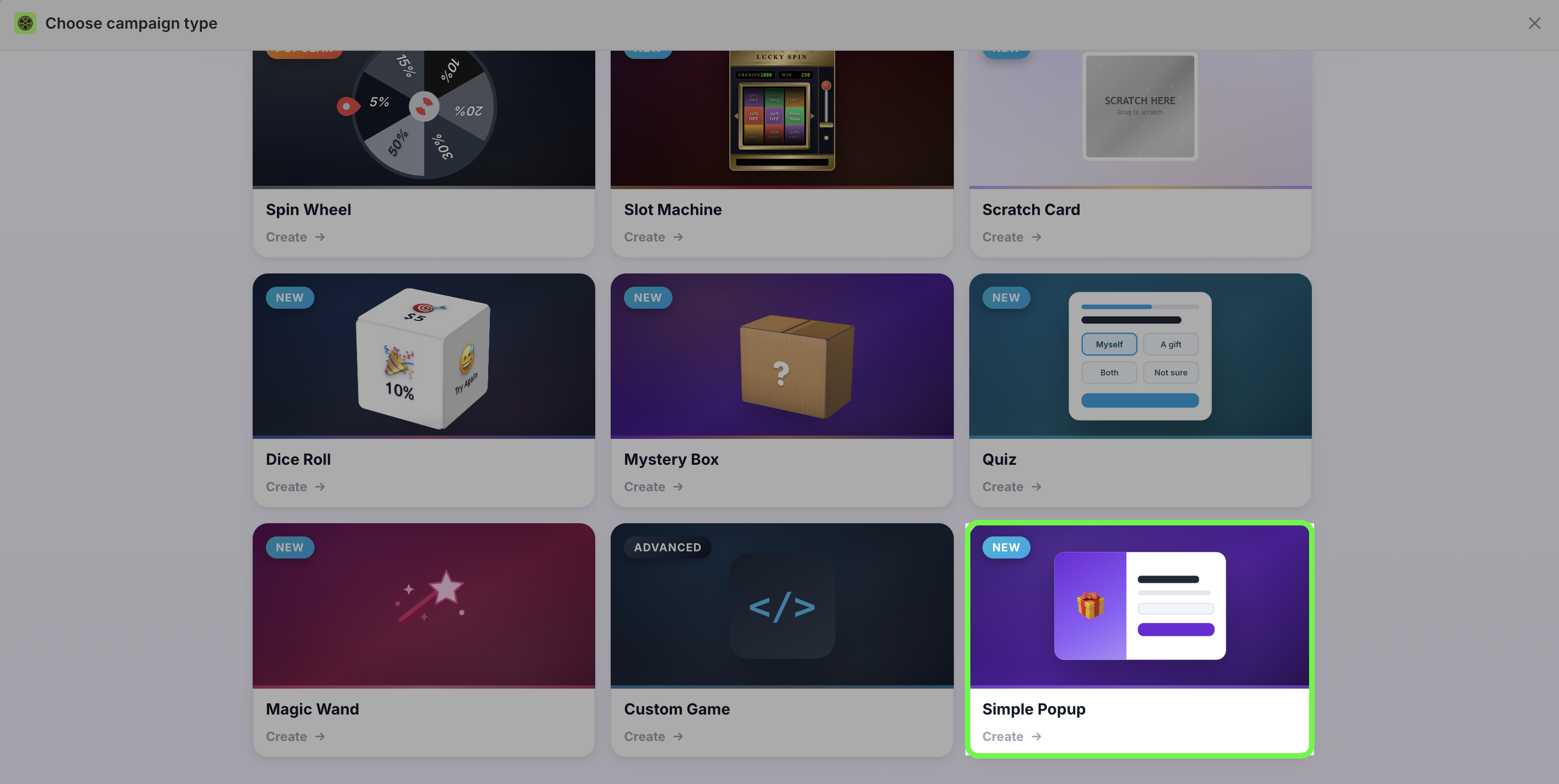
🖼️ Simple popup — no game, just image and form
A new campaign type with no game at all. It's a plain popup: your image and an email/form capture, nothing to spin or scratch. Use it when you want a clean email signup, an announcement, or a straight offer without a game mechanic.
Where to find: Create campaign → Simple popup
It shares the same setup, targeting, triggers, and display rules as every other campaign type — frequency, device, audience, cart value targeting, and the rest all work the same way.
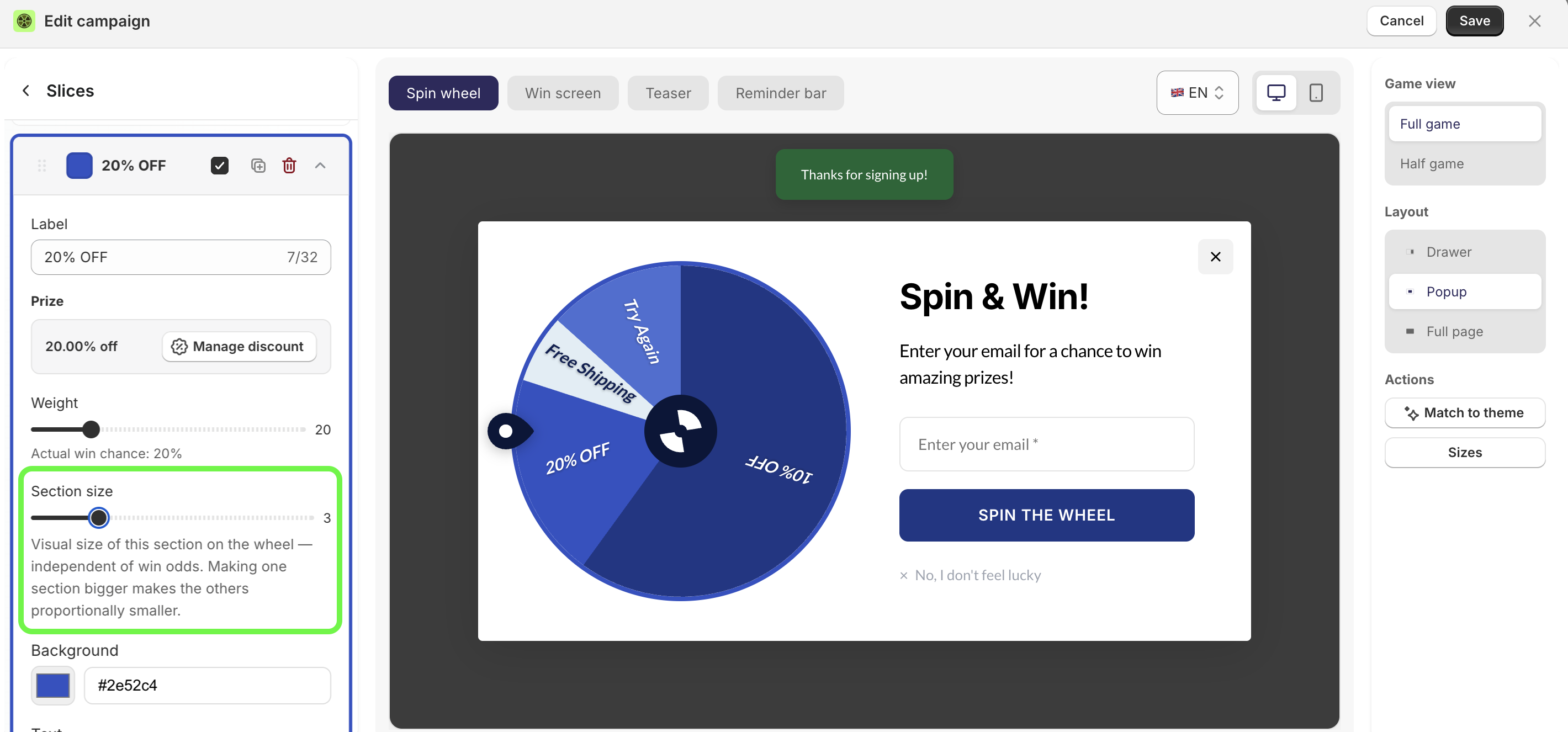
🎨 Uneven slice sizes
Slices no longer have to be equal. You can now make some slices wider and others narrower, so the wheel looks the way you want it to.
Widening a slice is purely visual — it does not change win odds. Odds are still controlled by each slice's probability. Use bigger slices to draw the eye to your headline prize and smaller ones for rare, high-value wins.
✨ Custom win prize type
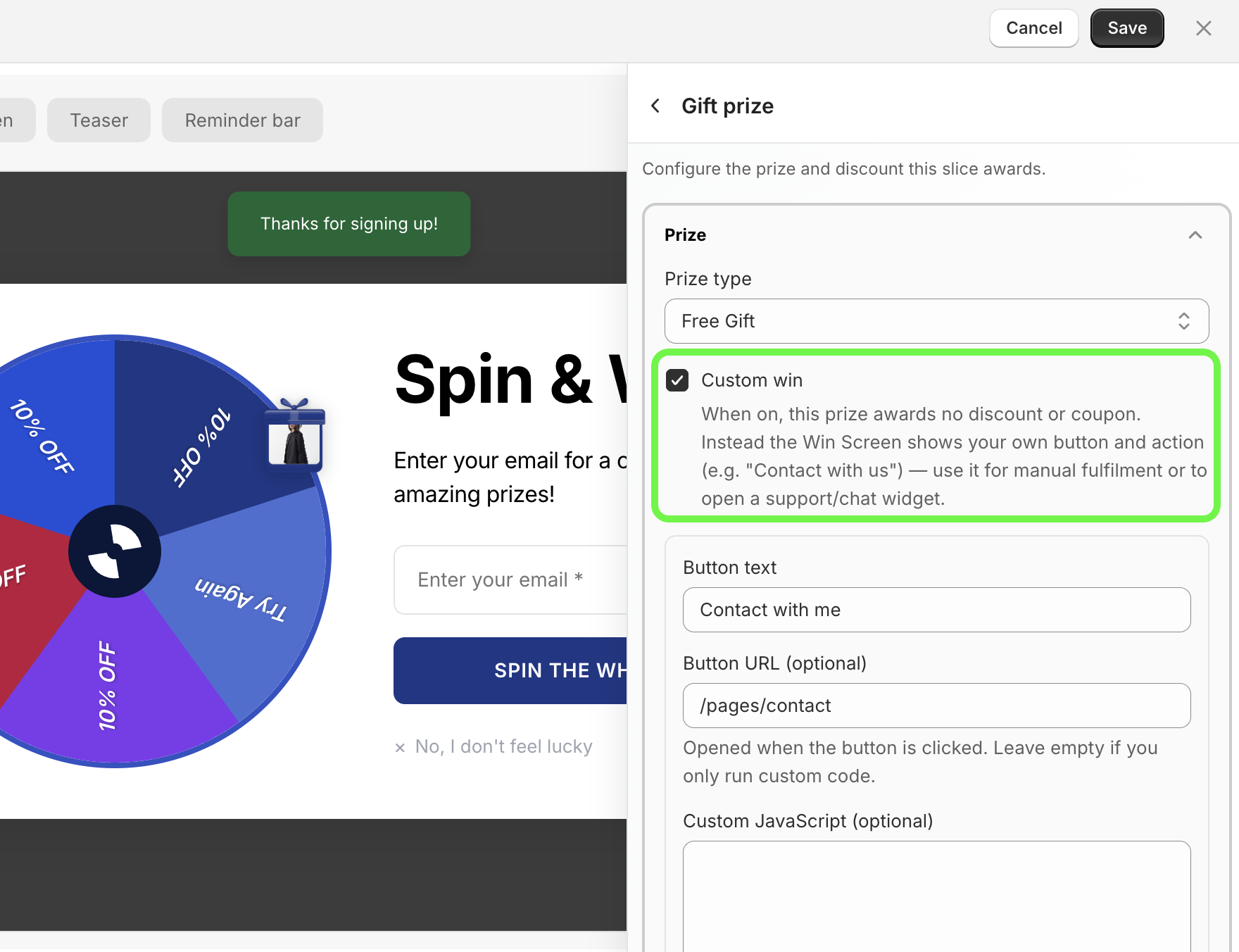
A new prize type that awards no discount and no coupon. Instead of a code, the Win Screen shows your own button and action — for example "Contact us" — so you can handle fulfilment manually or open a support/chat widget.
Where to find: Campaign → Slices → Prize type → Gift → Tick the "Custom win" option
What you can configure
Button text — e.g. "Contact with me"
Button URL (optional) — opened when the button is clicked. Leave empty if you only run custom code.
Custom JavaScript (optional) — runs when the button is clicked, e.g. open Intercom or Zoho chat. Advanced; leave empty to just use the URL.
Message (optional) — shown on the Win Screen in place of the coupon code.
Button background and Button text color
Why use it
Not every win has to be a discount. Custom win is for prizes you fulfil yourself — a consultation, a manual gift, a "book a call" offer — or for routing winners straight into a chat or support tool instead of handing out a code.
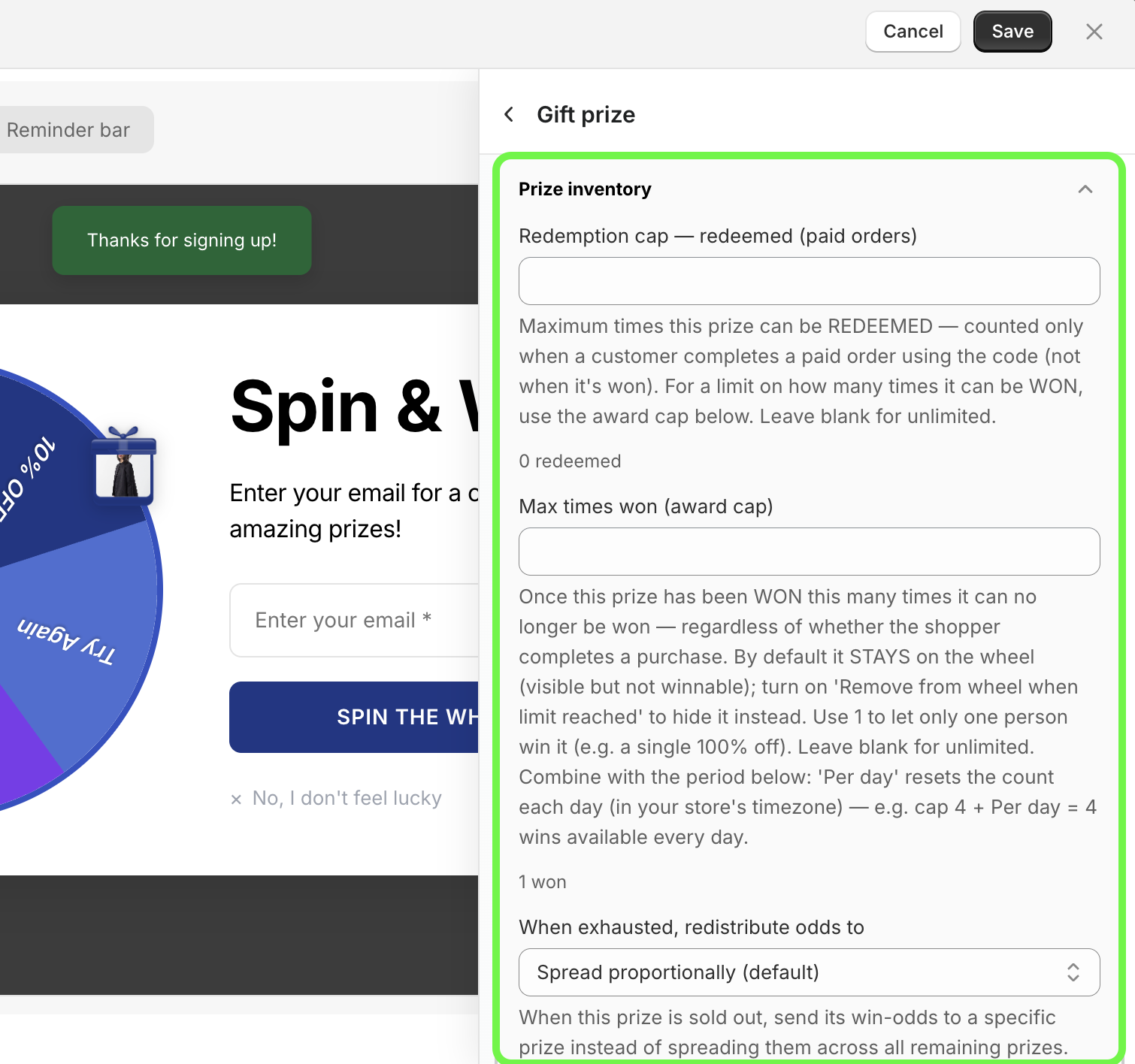
🎁 Prize inventory — award & redemption caps
You can now cap how many times a prize is won or redeemed, and control what happens to its odds when it runs out. This also covers gift inventory — set exactly how many times a free gift can be won.
Where to find: Campaign → Slices → Manage discount → Inventory
Redemption cap — redeemed (paid orders) The maximum number of times this prize can be redeemed — counted only when a customer completes a paid order using the code, not when it's won. Leave blank for unlimited.
Max times won (award cap) Once a prize has been won this many times it can no longer be won, regardless of whether the shopper completes a purchase. By default it stays on the wheel (visible but not winnable); turn on Remove from wheel when limit reached to hide it instead. Use 1 to let only one person win it (e.g. a single 100% off). Combine with the period option — cap 4 + Per day gives 4 wins available every day, reset in your store's timezone.
When exhausted, redistribute odds to When a prize is sold out, choose where its win-odds go:
Spread proportionally (default) — split across all remaining prizes
A specific prize — send all of it to one prize instead (e.g. "Try Again")
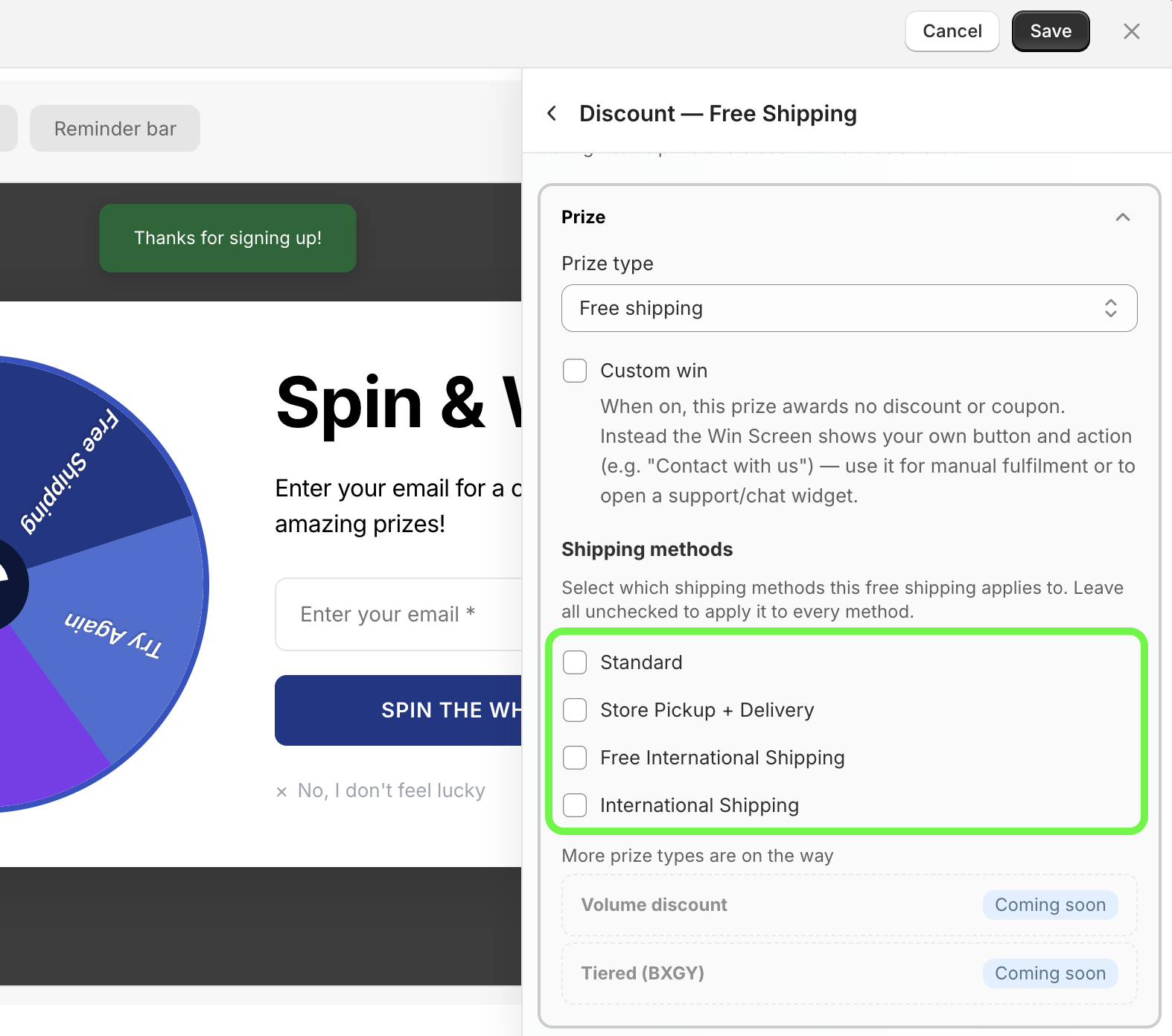
🚚 Free shipping — target specific shipping methods (per-slice)
A free-shipping slice can now grant free shipping on the specific delivery methods you offer — for example Premium or Express — instead of only standard shipping. Set it per slice, so different slices can unlock different shipping tiers.
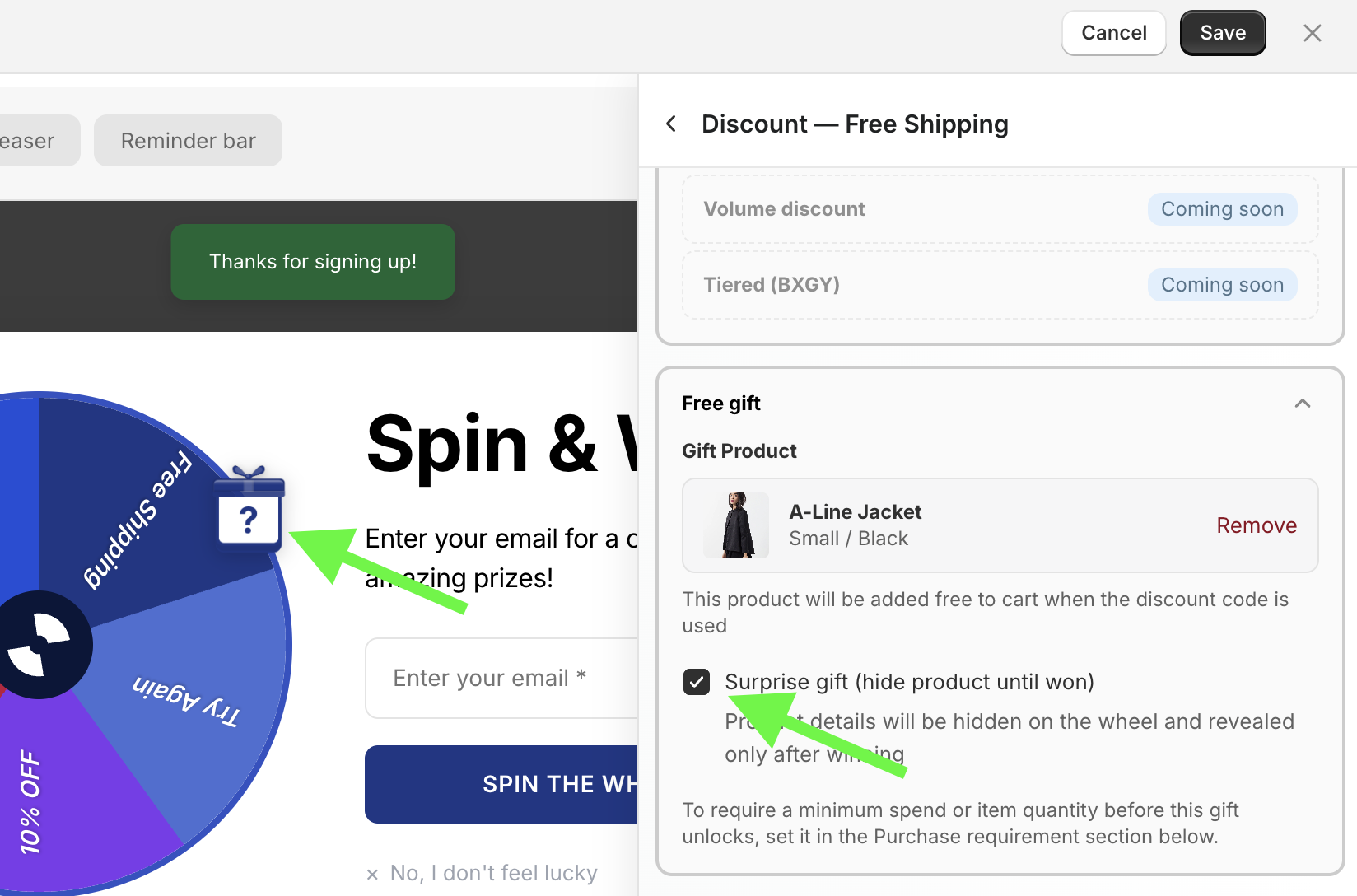
🎉 Surprise gift
A prize that stays hidden on the wheel and reveals a real product on the Win Screen after the customer wins. Good for building curiosity — the shopper knows they won something, but only sees exactly what once they've spun.
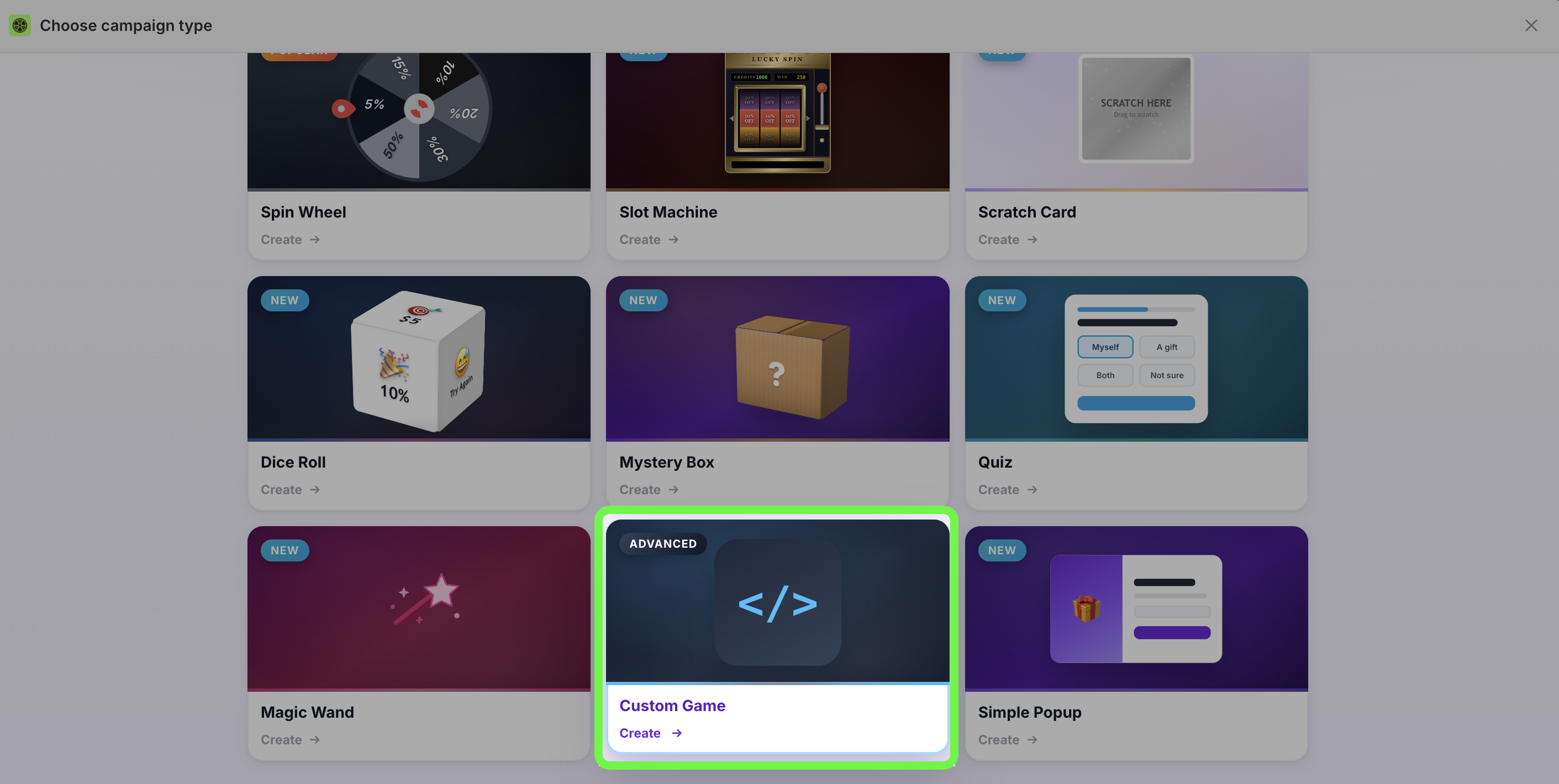
🧩 Headless / Custom game
Build your own game front-end and let PopupBoost handle the rest. You bring the interface; we provide the prize/discount engine and a spin() API that selects the prize and generates the discount.
Use this when the standard wheel, scratch card, or slot machine don't fit the experience you want — a fully custom animation, an on-brand mini-game, or a game embedded somewhere non-standard. Odds, prize inventory, caps, and discount generation all still run through our engine, so you only build the visual layer.
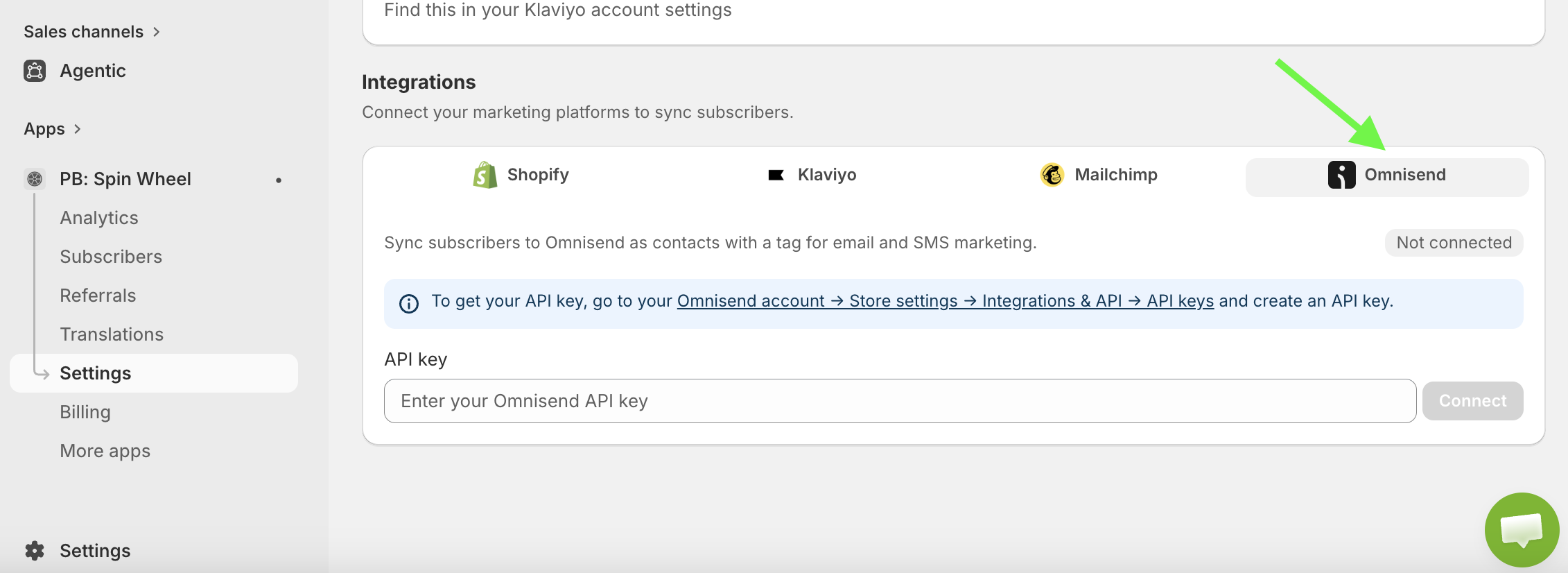
📧 Omnisend integration — with phone-only (SMS) sync
You can now sync spin wheel subscribers to Omnisend. The sync includes phone-only (SMS) subscribers, not just email contacts, so SMS-first signups flow through too.
Where to find: Settings → Integrations → Omnisend
👥 Refer a friend
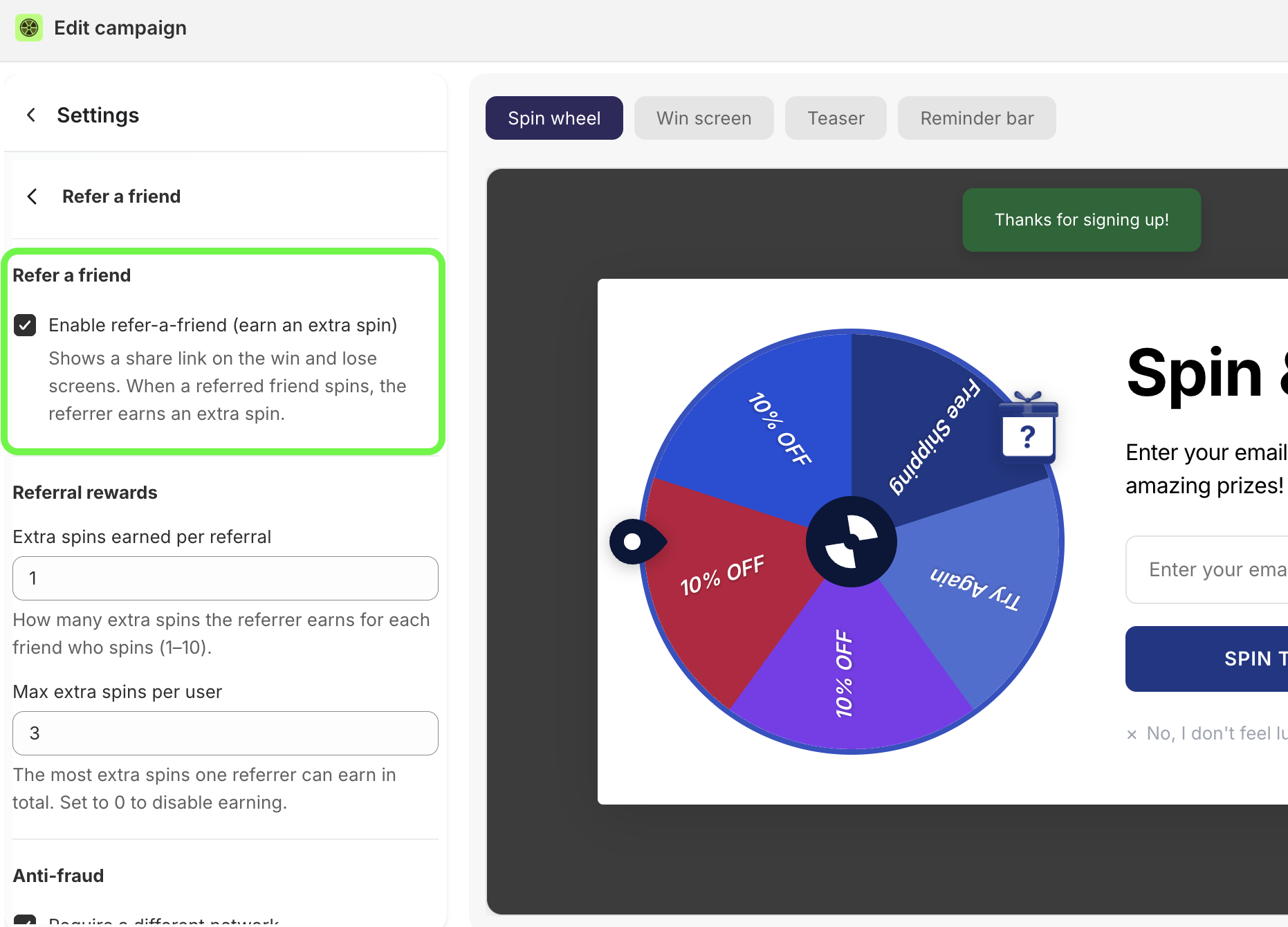
Turn your winners into a growth channel. When refer-a-friend is enabled, the win and lose screens show a share link — and when a referred friend spins, the referrer earns an extra spin. More spins is a real incentive to share, so your existing players bring you new ones.
Where to find: Settings → Refer a friend
How it works
Enable refer-a-friend — turns on the share link on the win and lose screens.
Extra spins earned per referral — how many extra spins the referrer earns for each friend who spins (1–10).
Max extra spins per user — the most extra spins one referrer can earn in total. Set to 0 to disable earning.
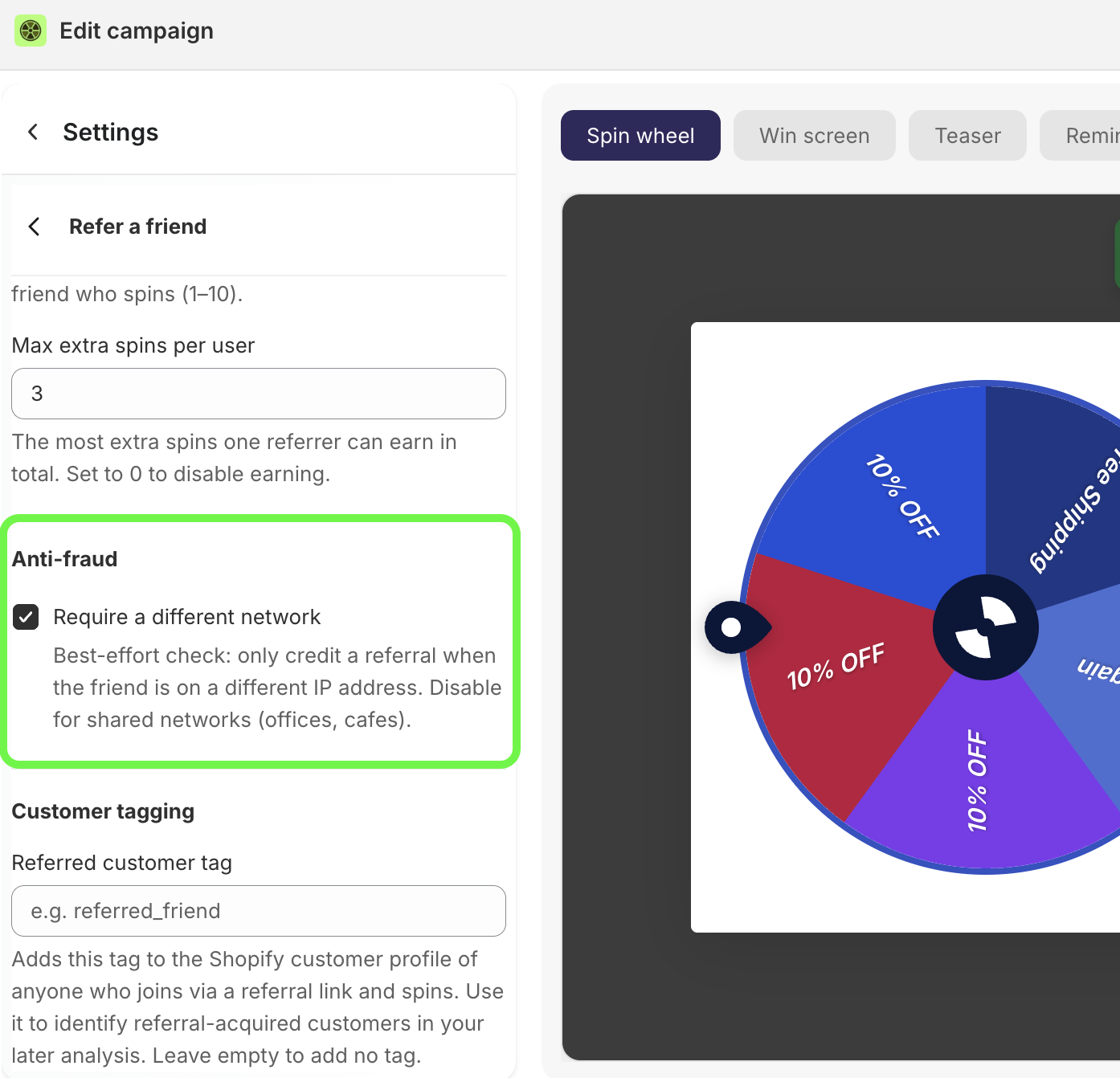
Anti-fraud
Require a different network — a best-effort check that only credits a referral when the friend is on a different IP address. Disable it for shared networks like offices and cafes.
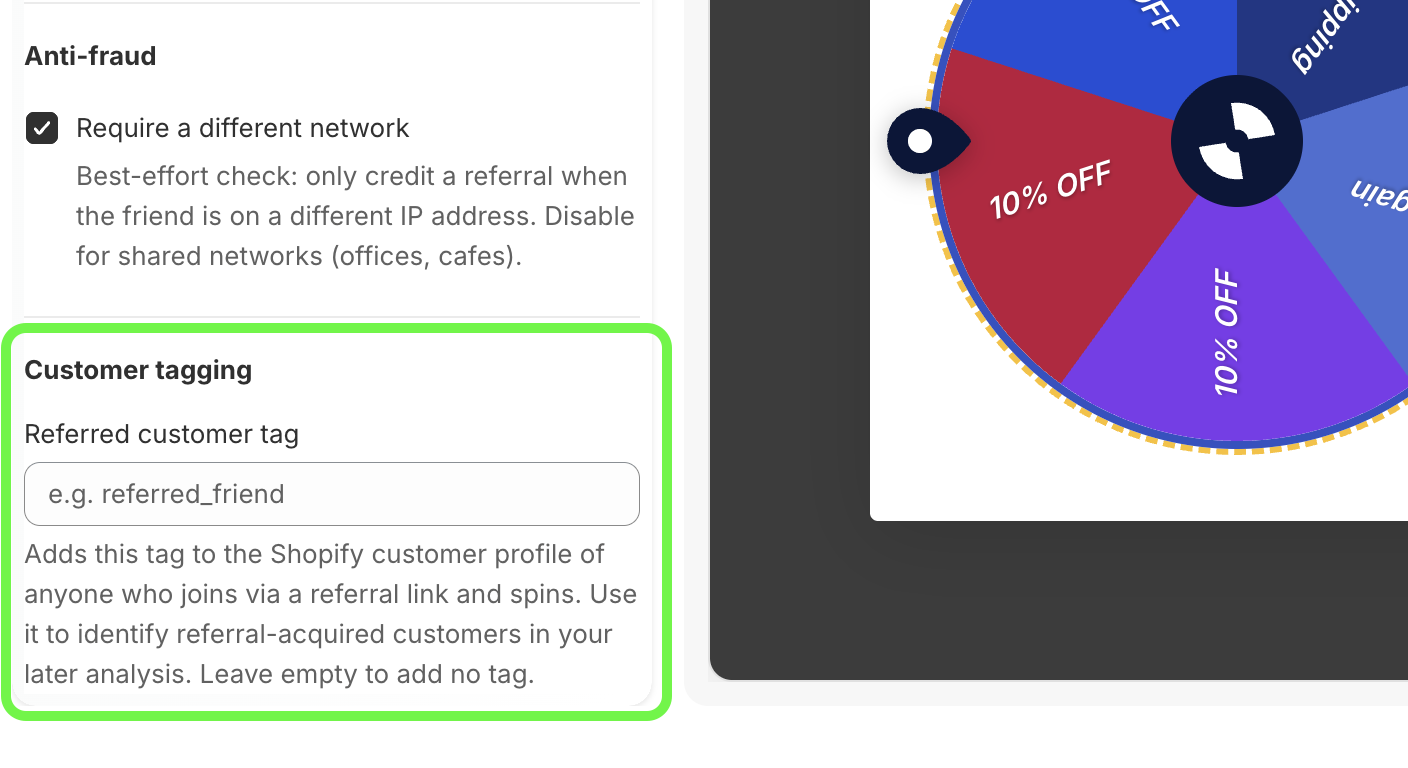
Customer tagging
Referred customer tag — a configurable Shopify customer tag added to anyone who joins via a referral link and spins. Use it to identify referral-acquired customers in your later analysis. Leave empty to add no tag.
🏷️ Shopify customer tags on spin (per-slice + campaign-wide)
You can now tag customers in Shopify automatically based on how they interact with the wheel.
Per slice
Order tag (on redemption) — added to the Shopify order when a customer completes a paid order using this prize's code. Use it to flag orders for fulfilment (e.g. a priority/queue-jump tag).
Customer tag (on win) — added to the Shopify customer when they win this prize, found or created by their email. Use it to segment winners, e.g.
15OFF99orFREEGIFT.
Campaign-wide
Customer tag (all spins) — added to everyone who spins the campaign, found or created by their email, e.g.
2026_BF.
Leave any field blank to skip that tag.
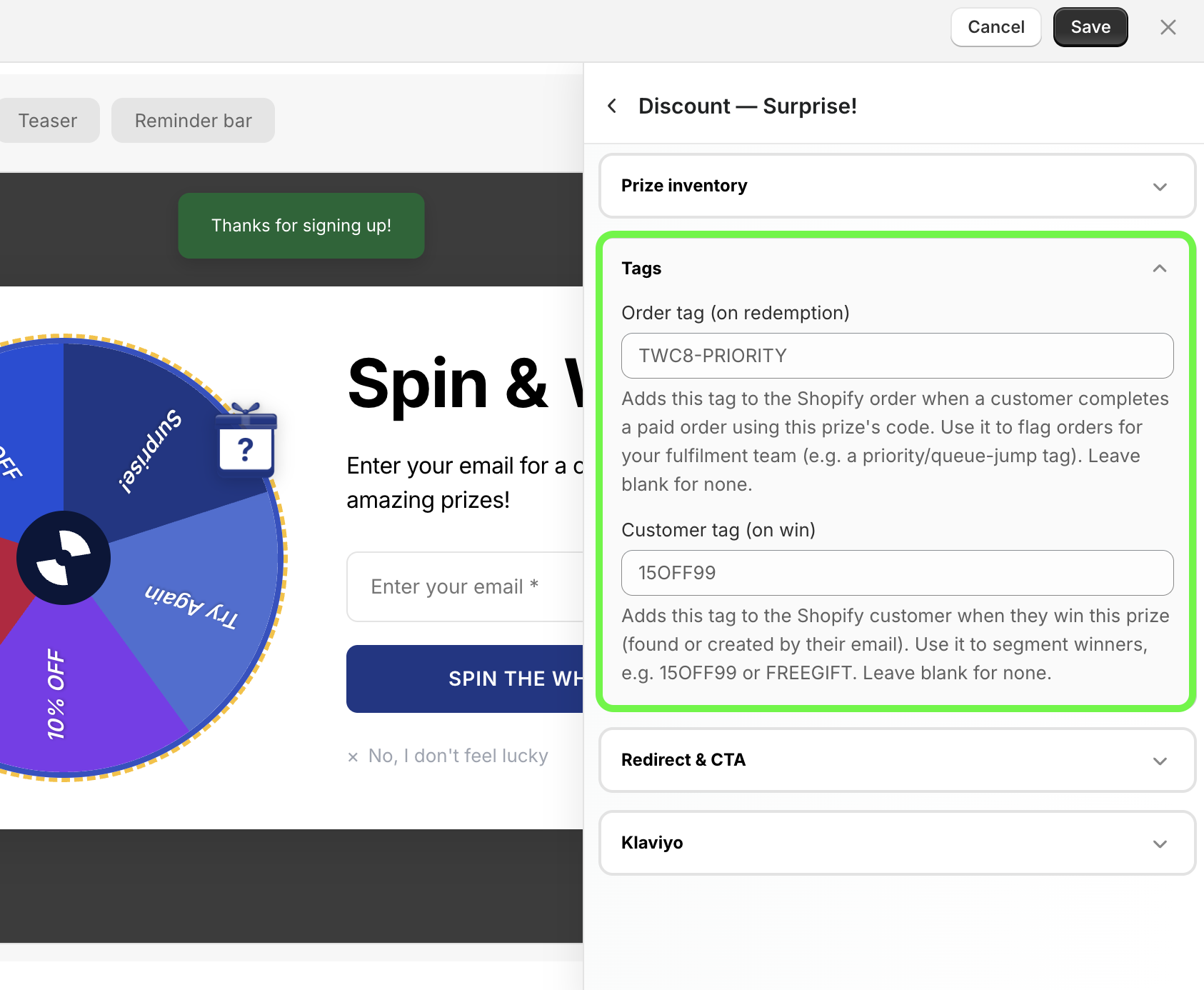
🎯 Per-teaser targeting
The teaser can now have its own targeting, separate from the campaign. Choose same as campaign to keep them in sync, or custom to show the teaser under different conditions than the popup itself.
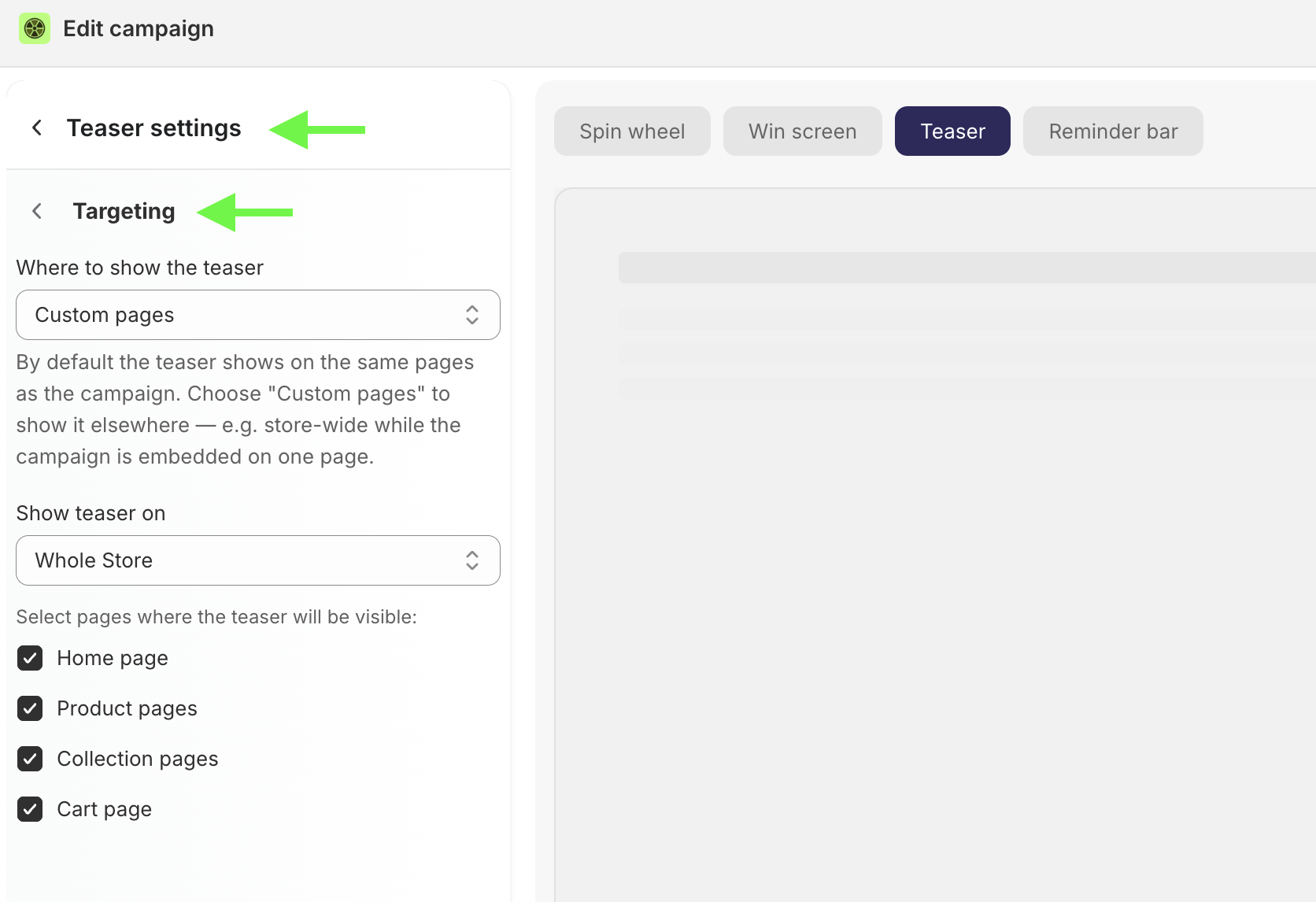
🛒 Cart Value Targeting
Control who sees the popup based on what's in their cart.
Where to find: Campaign → Display → Cart Value Targeting
Cart value condition
Show regardless of cart value
Show when cart value is above
Show when cart value is below
Cart item count condition
Show regardless of item count
Show when item count is above
Show when item count is below
Example
Show a free-shipping wheel only when the cart is above a threshold to nudge shoppers over your shipping minimum, or show a "don't leave" offer when the cart is below it to rescue small carts.
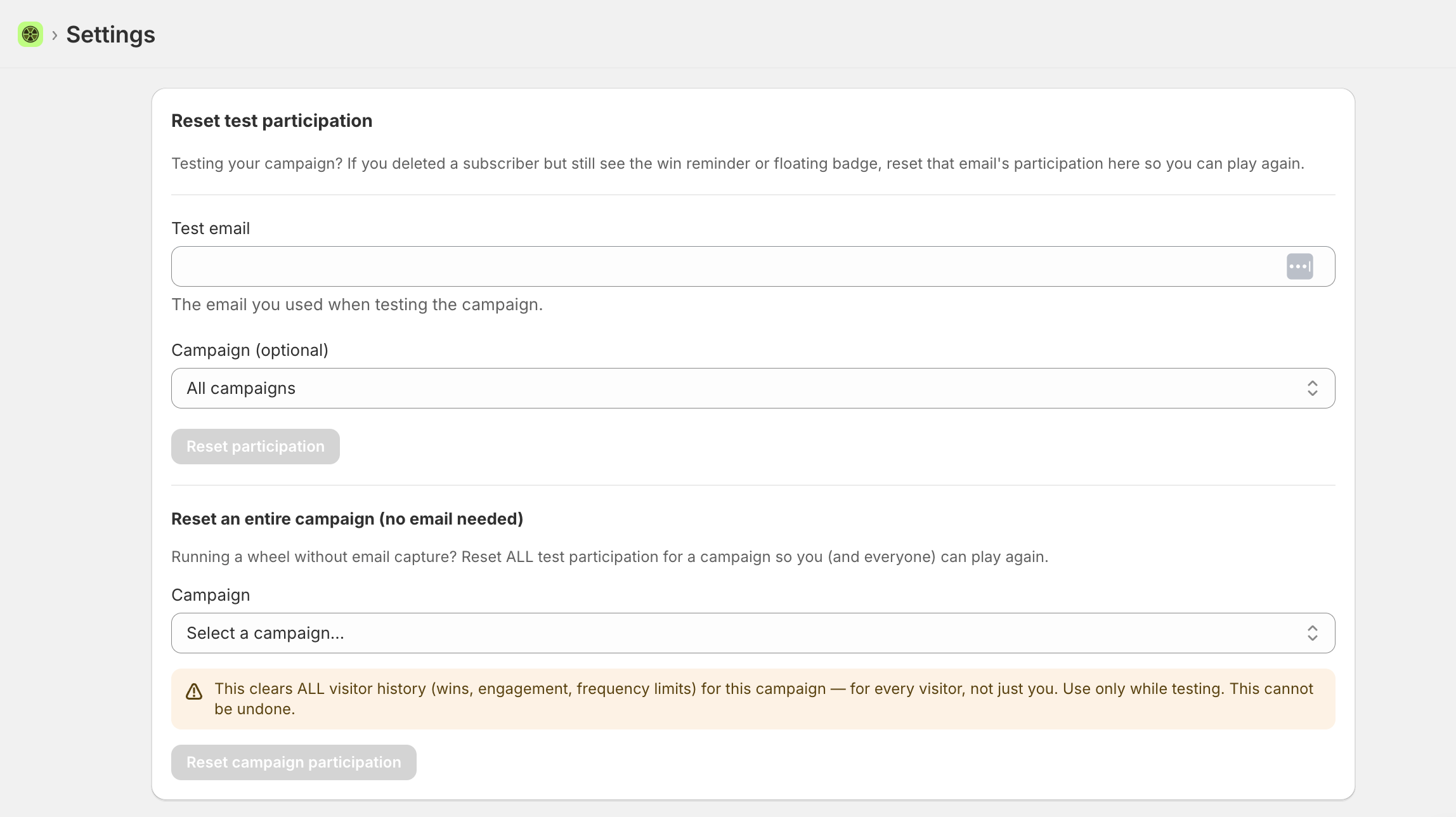
🔄 Reset test participation
Testing is easier to clean up. Two new tools under Settings → Reset test participation:
Reset test participation — if you deleted a subscriber but still see the win reminder or floating badge, reset that email's participation so you can play again. Optionally scope it to a single campaign.
Reset an entire campaign (no email needed) — running a wheel without email capture? Reset all participation for a campaign so you (and everyone) can play again.
⚠️ Resetting an entire campaign clears all visitor history — wins, engagement, and frequency limits — for every visitor, not just you. Use only while testing. This cannot be undone.
June 21, 2026
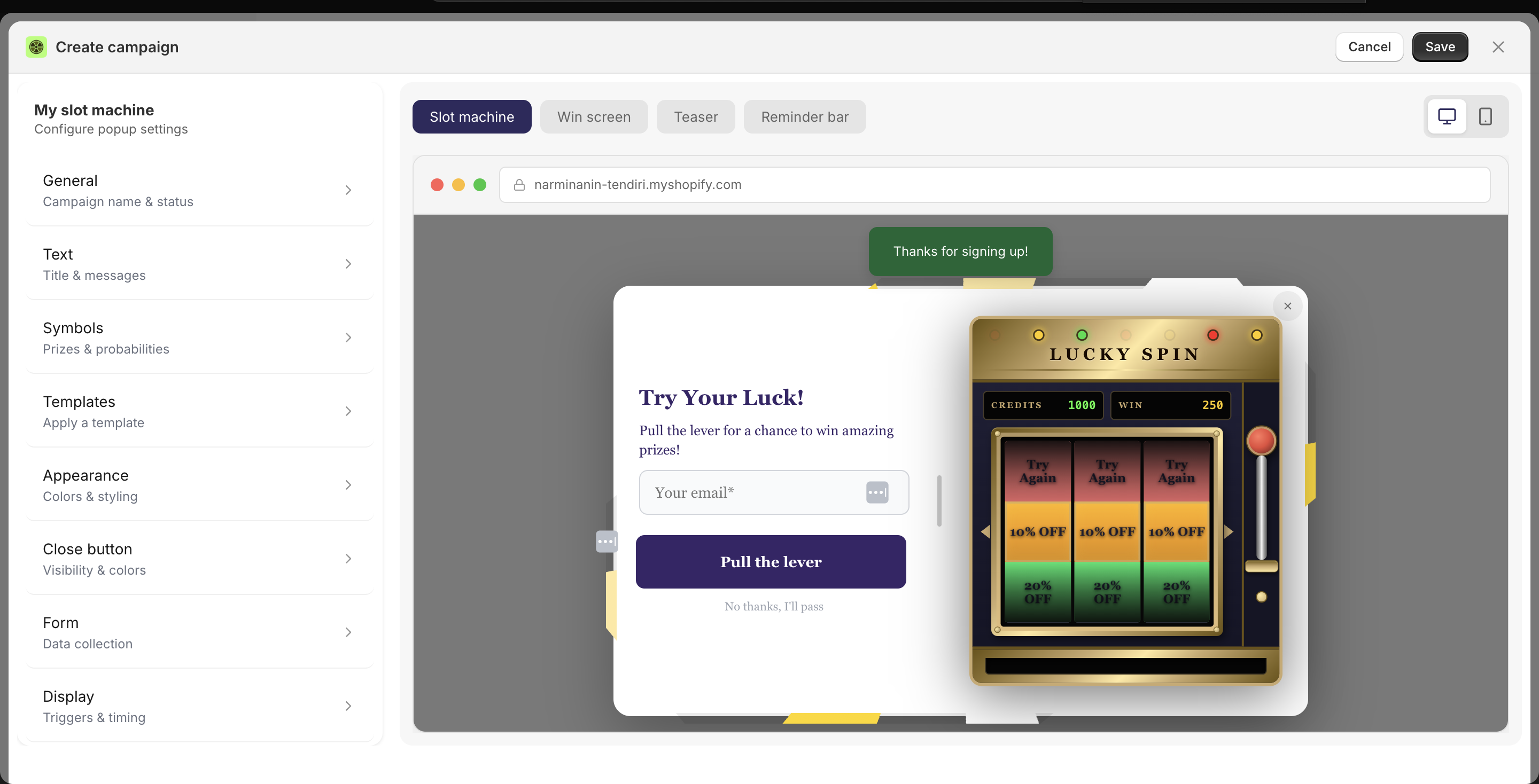
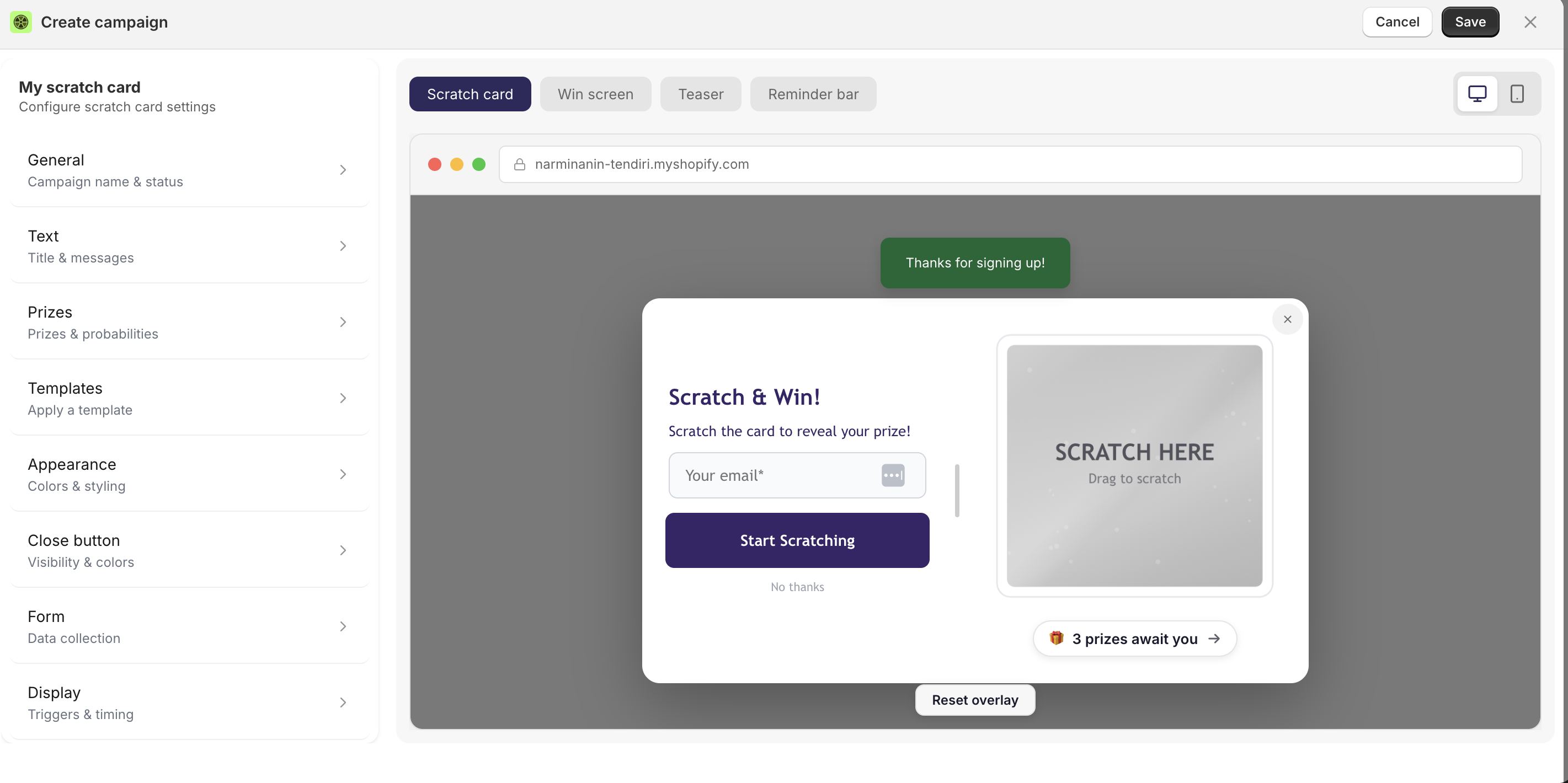
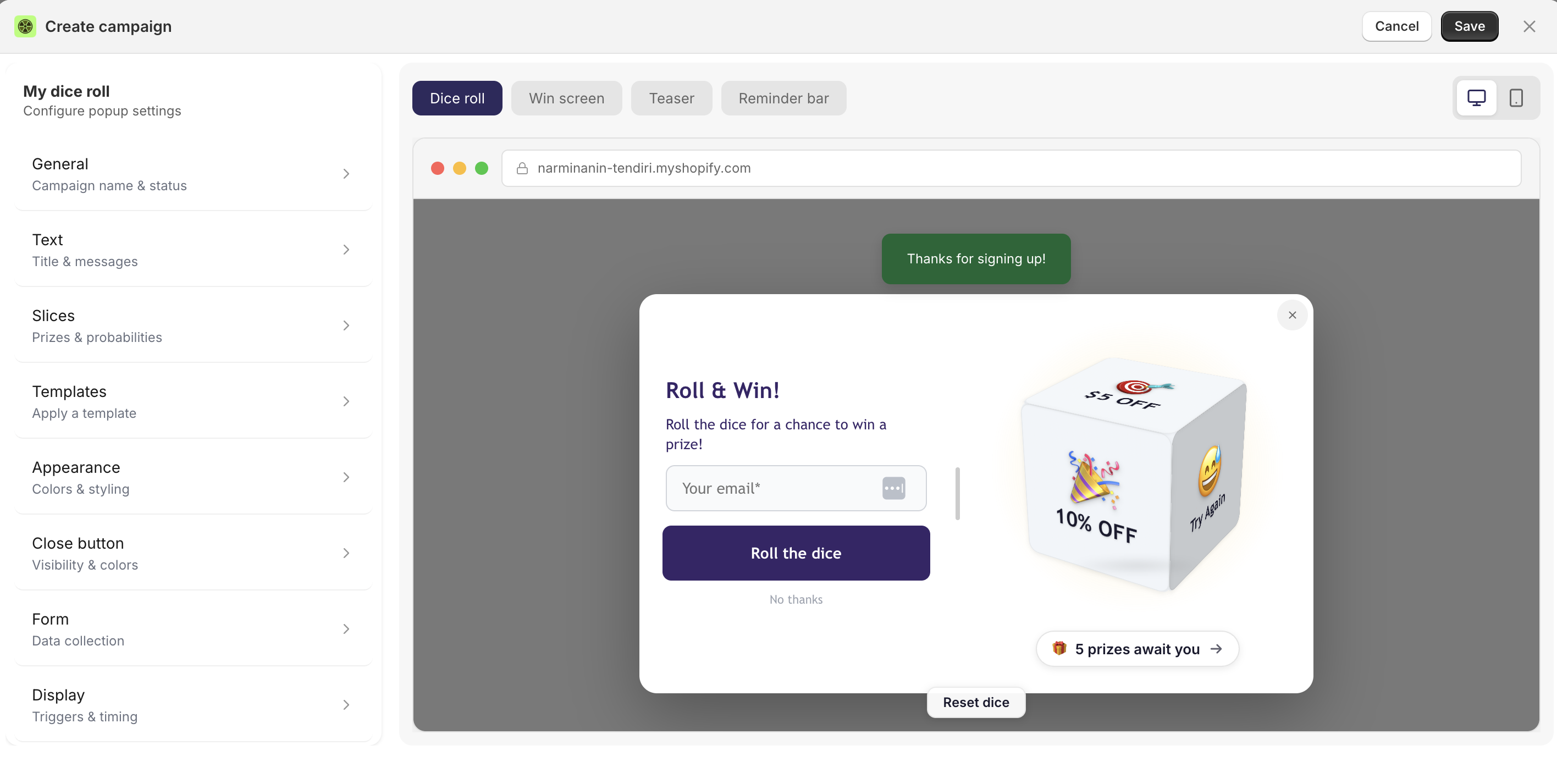
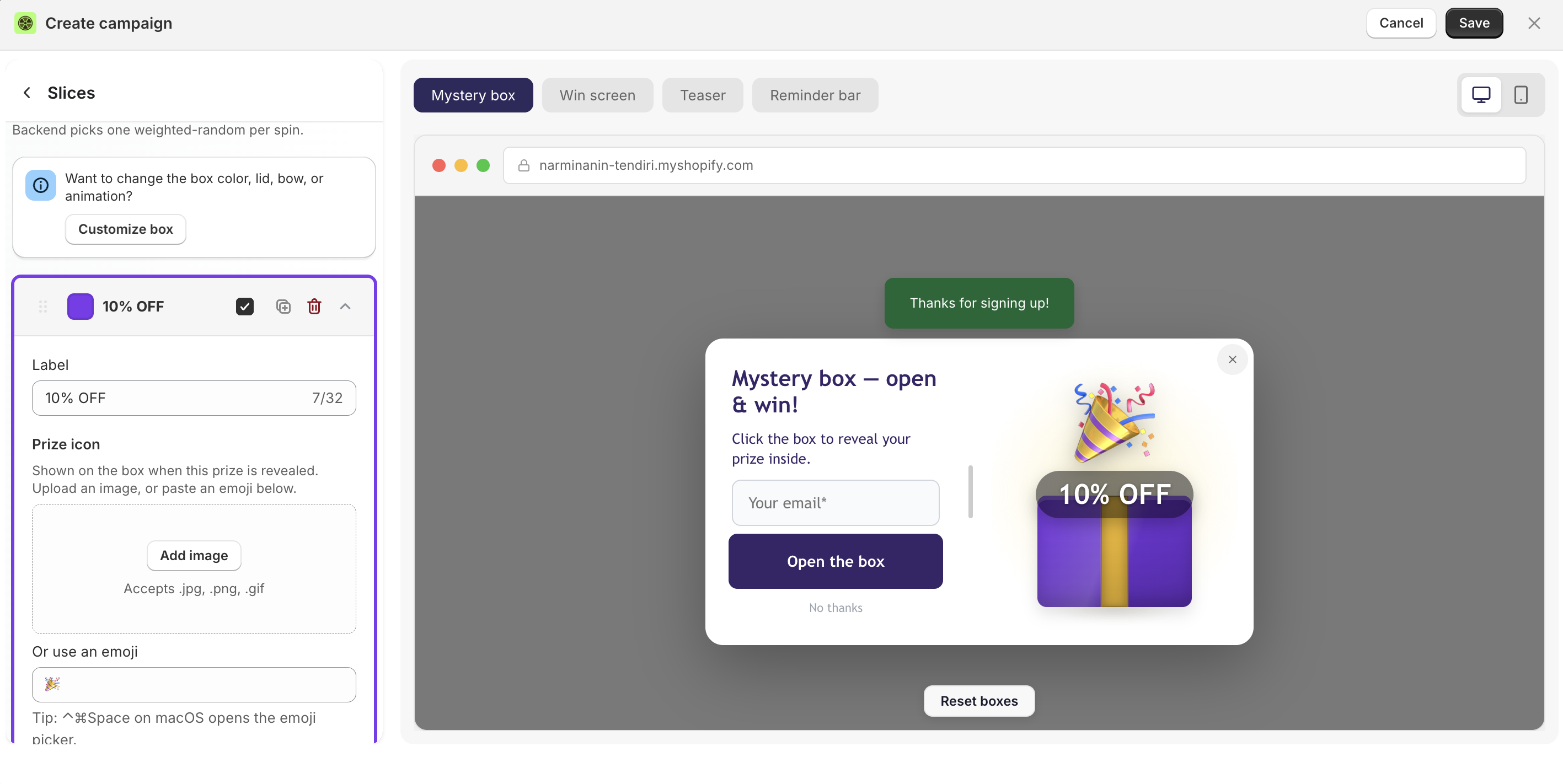
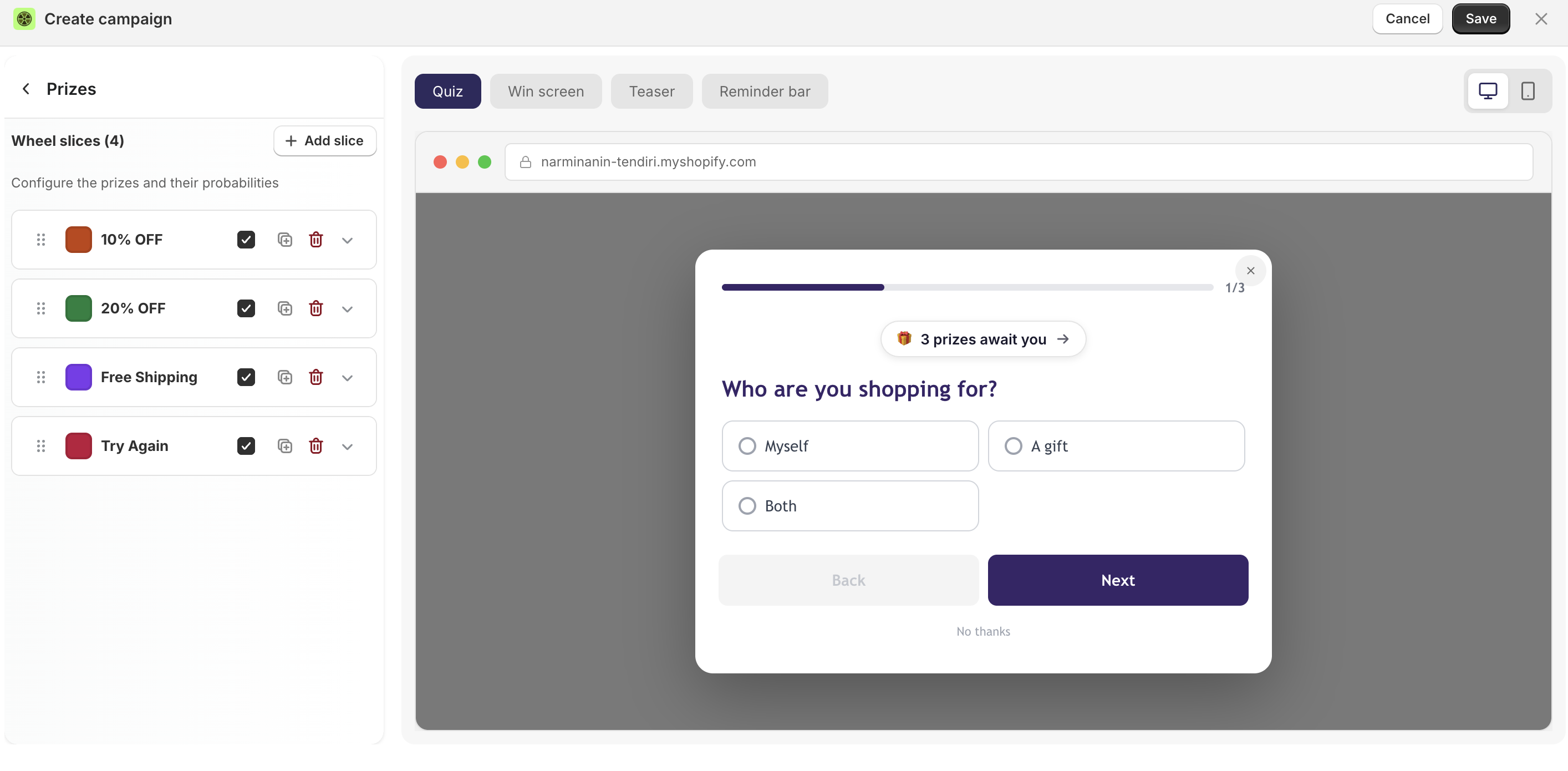
🎰 New campaign types: Slot Machine, Scratch Card, Dice Roll, Mystery Box, Quiz
Four new campaign types are now available on your dashboard - available for the Pro plan.
You can fully customize the visuals - anything!
Slot Machine — three reels, one spin. Classic casino feel with a high-excitement reveal.
Scratch Card — customers scratch to reveal their prize. Works especially well on mobile.
Dice Roll — simple, fast, low friction. Customers just roll to see if they won.
Mystery Box — customers open a box to discover what's inside. Good for building curiosity around prizes or new products.
Quiz — ask customers a few questions before revealing their prize. Useful if you want to collect preferences or segment by answer before showing a result.
🎭 New animations for teasers
We've shipped new attention grabbing teasers for all campaign types.
⚡ Multiple triggers
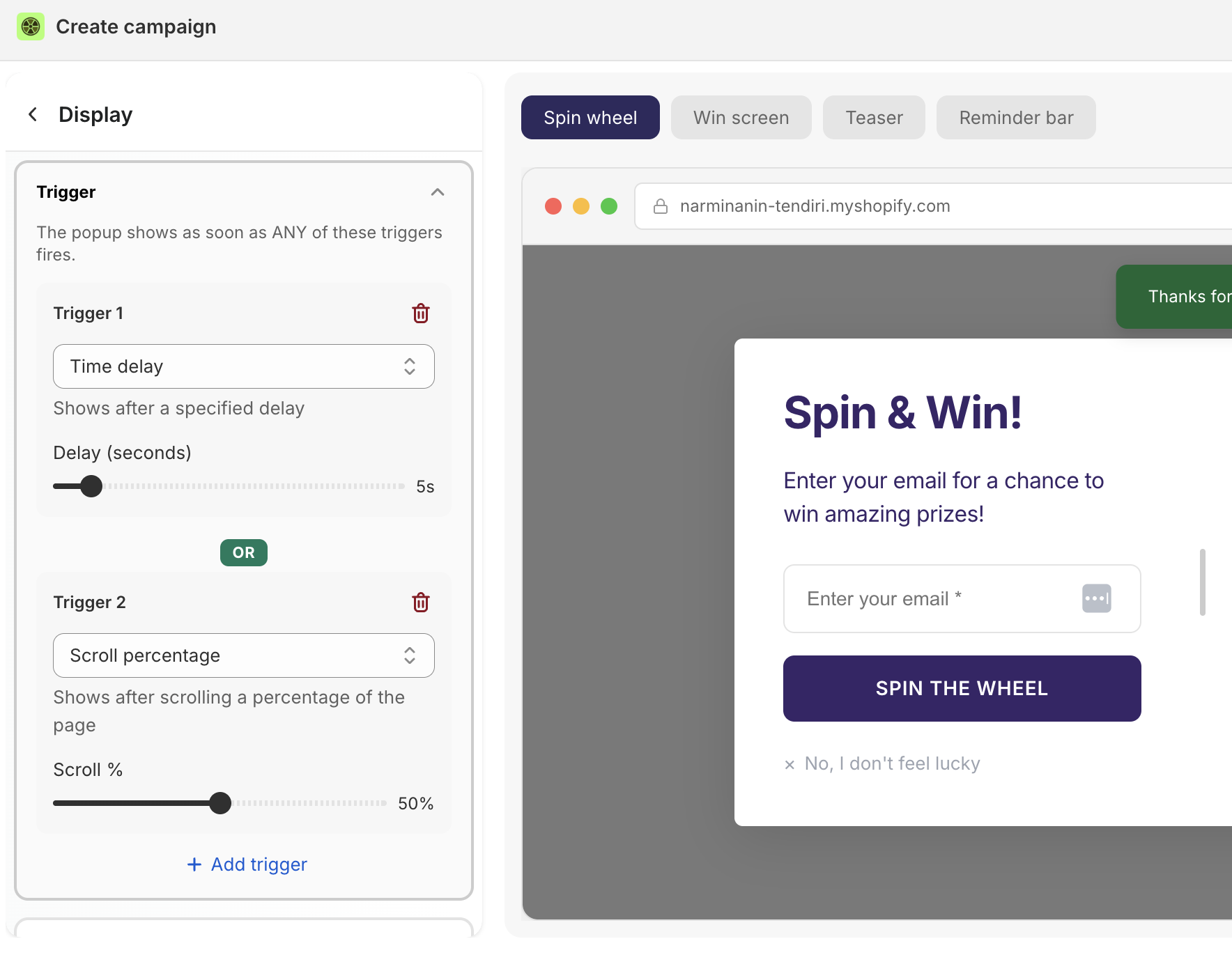
You can now add more than one trigger to a campaign. The popup shows as soon as any of the triggers fires — whichever comes first.
Available triggers:
Time delay — shows after a set number of seconds on page
Scroll percentage — shows after the visitor scrolls a defined percentage of the page
Exit intent — shows when the cursor moves toward leaving the page
How to set it up
In Display → Trigger, click + Add trigger and configure each one independently.
Why use multiple triggers
A single trigger misses visitors who behave differently. Some customers scroll immediately without waiting. Others read slowly and never scroll far. Exit intent alone catches people who are about to leave but misses engaged visitors mid-session.
Example
Set Trigger 1 to time delay (5s), Trigger 2 to scroll percentage (50%), and Trigger 3 to exit intent. A fast scroller sees the popup halfway down the page. A slow reader sees it after 5 seconds. A visitor heading for the back button gets one last chance. Same campaign, three capture points.
June 1, 2026
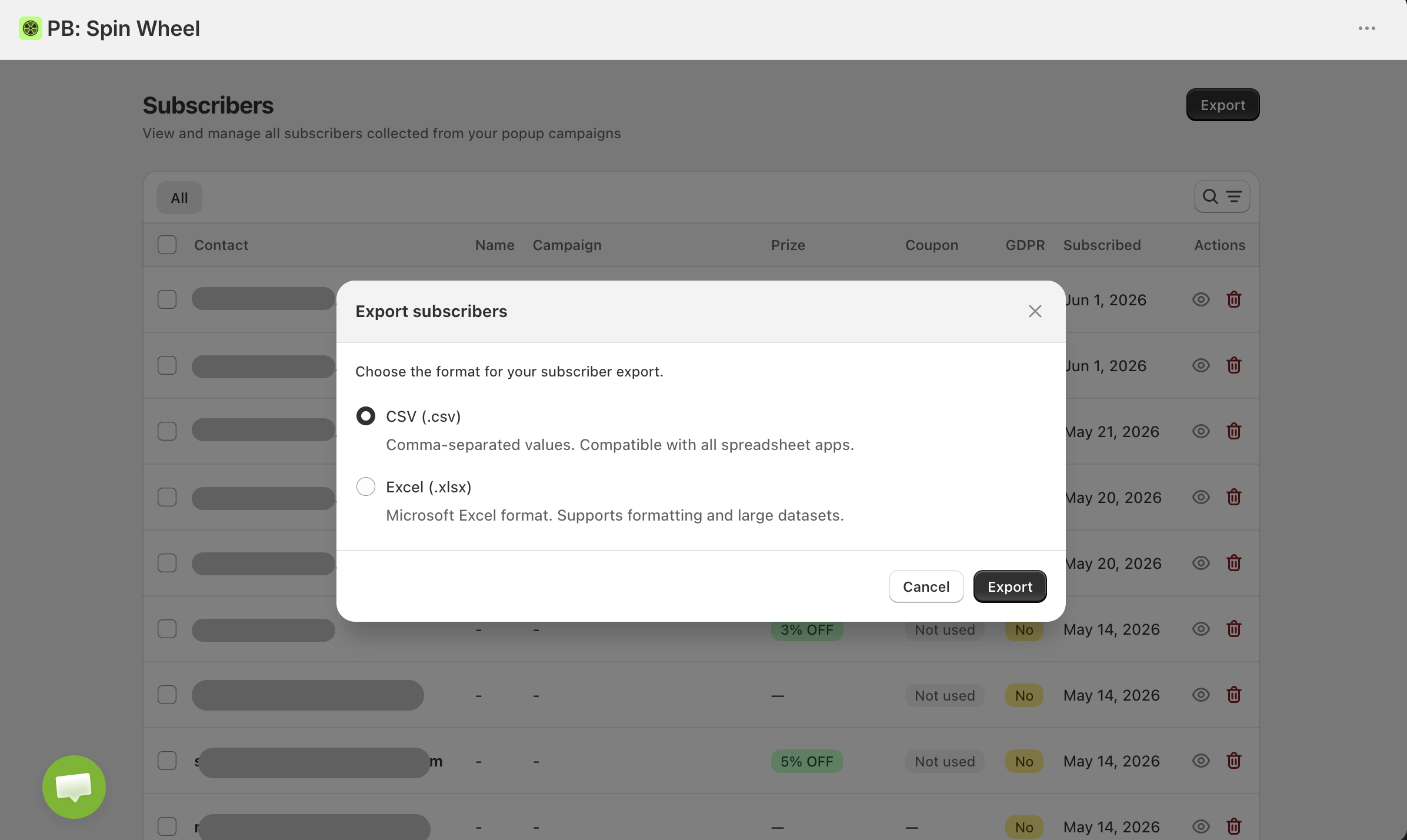
📤 Export subscribers (CSV or XLSX)
You can now export your subscriber list directly from PopupBoost.
For smaller lists, the file downloads immediately as CSV or XLSX. For larger exports, the file is generated in the background and sent to your email when ready.
🗂️ Custom form fields
Add fields beyond email to your spin wheel form — birthday, or anything else relevant to your store.
Type of the inputs:
Text input
Date input
Checkbox
Dropdown (select)
Radio buttons
Label
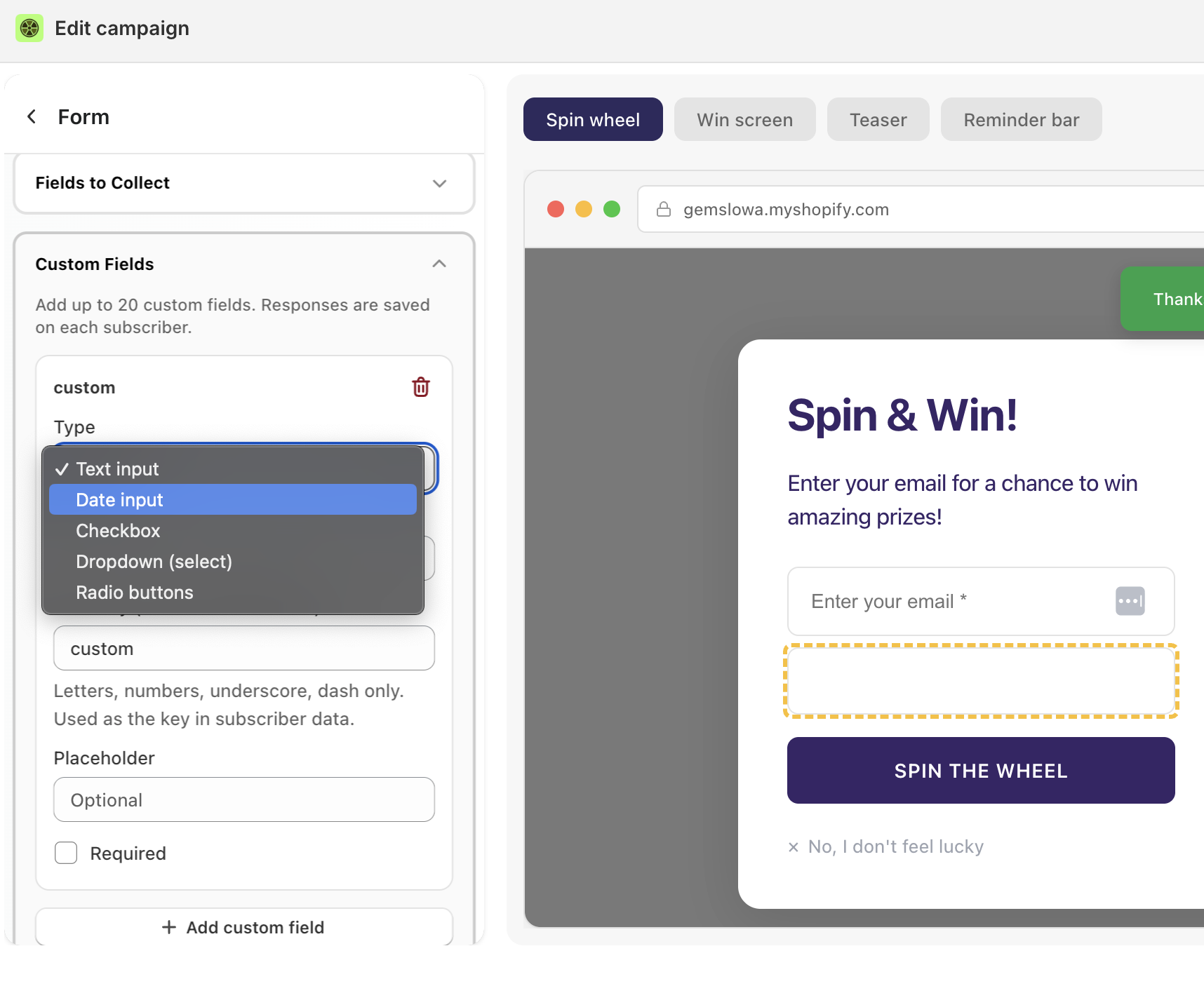
You can add up to 20 custom fields.
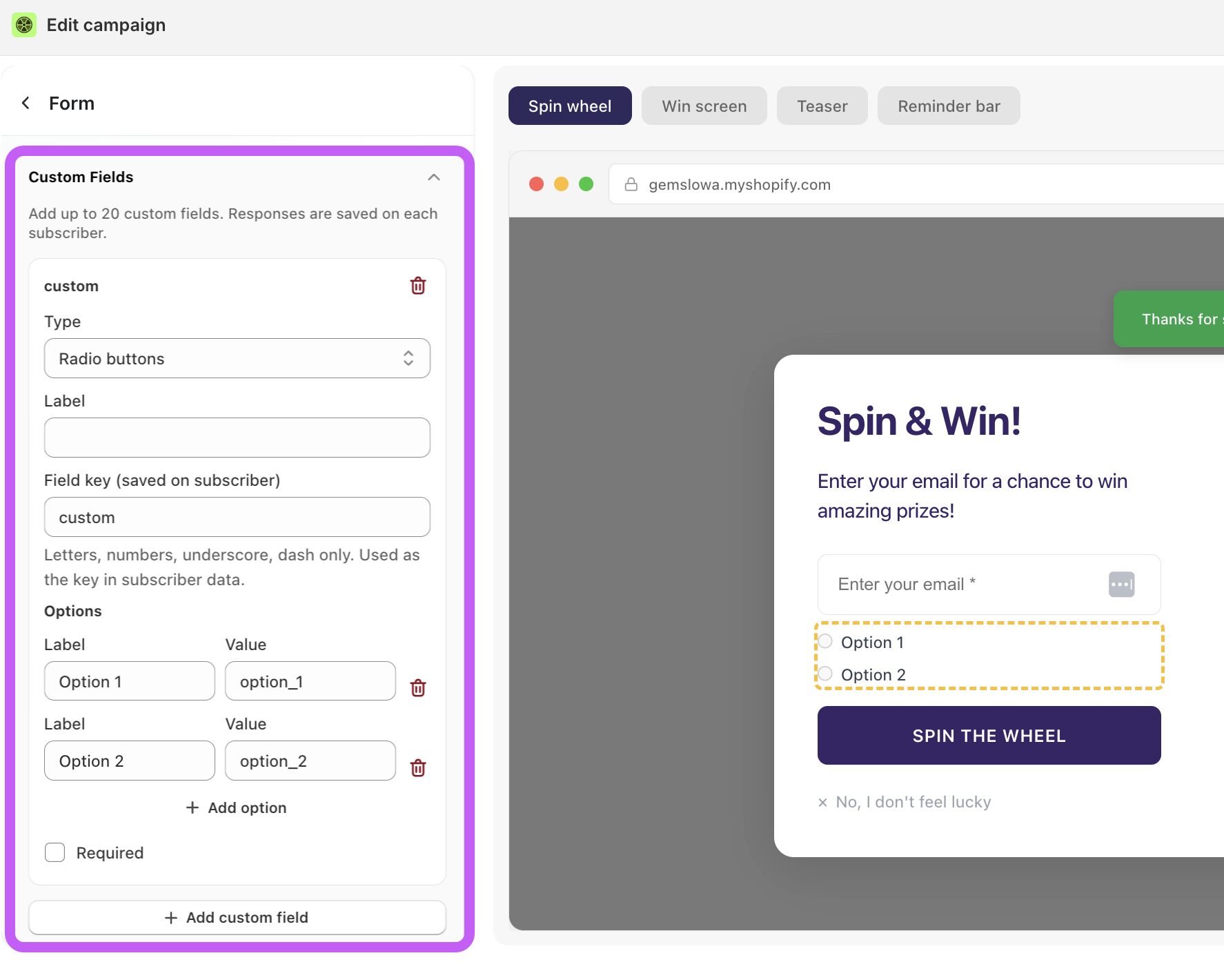
Example: birthday info
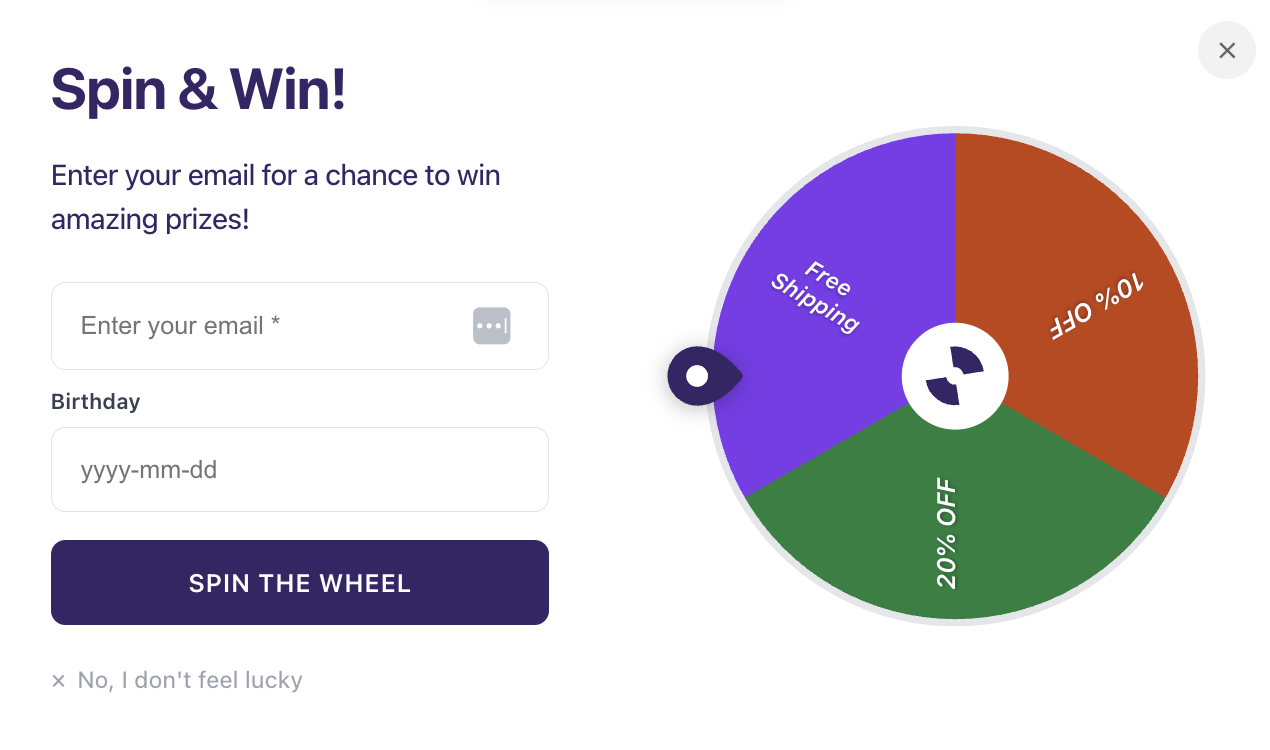
Collect the data that actually helps you personalize follow-ups. Birthday fields, for example, pair well with Klaviyo flows for timed discount reminders.
May 26, 2026
🎯 Per-slice Klaviyo list targeting
Previously, all spin wheel subscribers synced to a single Klaviyo list with a shared tag — no way to tell which prize a contact had won or route them into different flows.
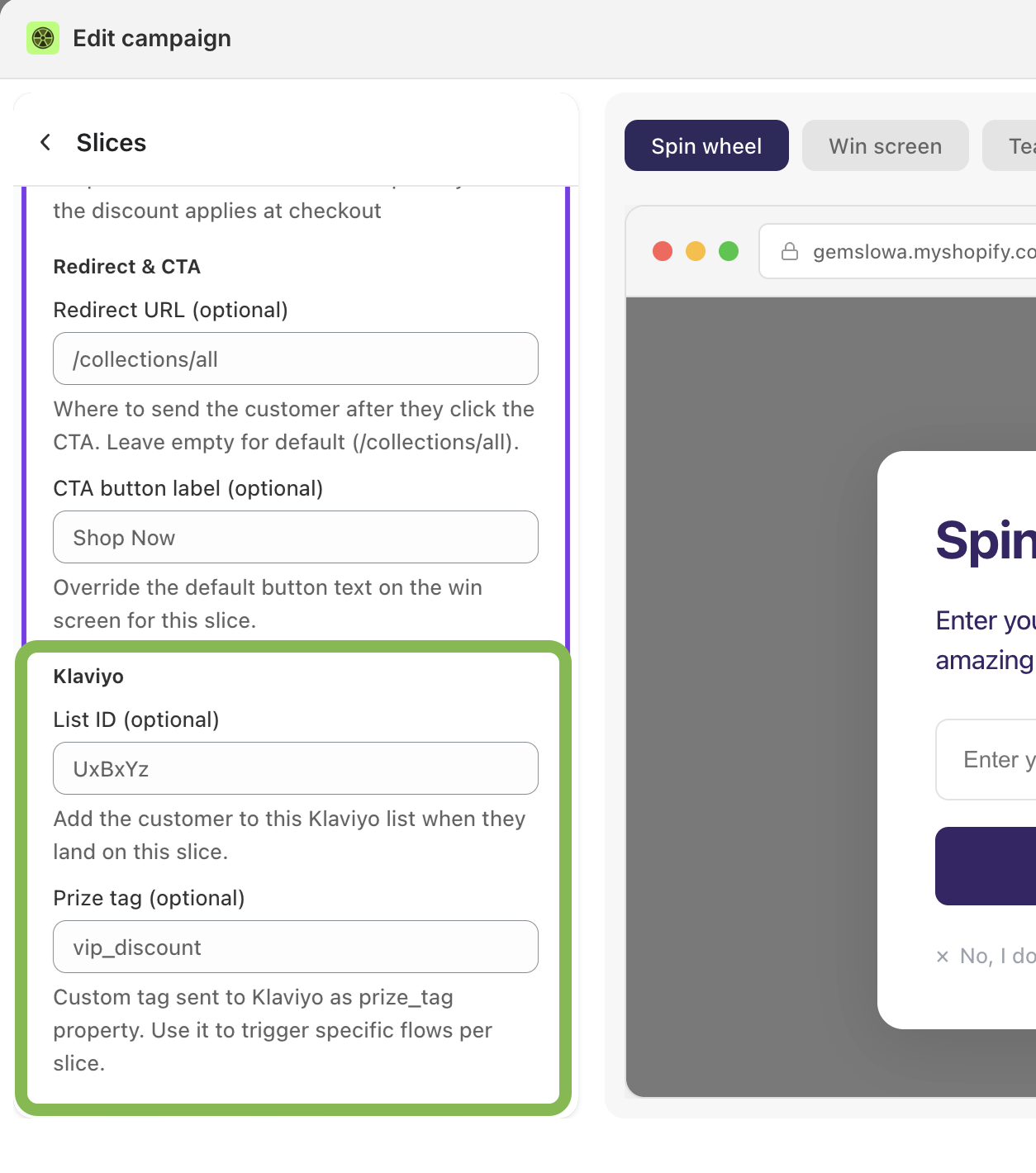
Now you can assign a specific Klaviyo list to each slice. When a customer lands on that slice's win screen, they're added to that slice's list — not just the global one.
📖 Read step-by-step guide here: Klaviyo integration
How it works
Create a list in Klaviyo for each prize (e.g. "Wheel — 20% OFF", "Wheel — Free Gift")
Copy the List ID from the Klaviyo URL (e.g.
klaviyo.com/list/RZ2m6t→RZ2m6t)Paste it into the slice settings under Klaviyo → List ID
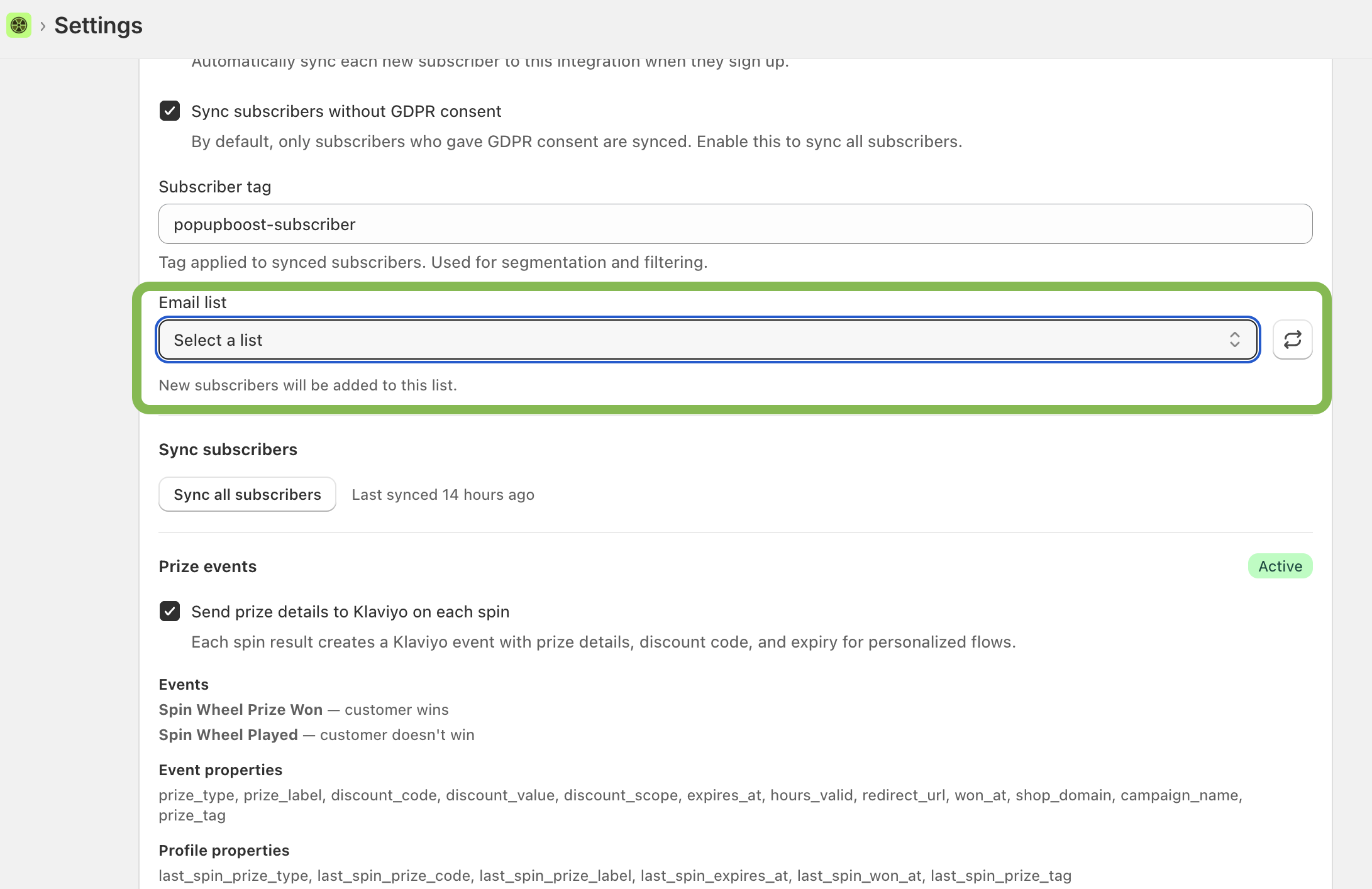
In Settings → Integrations, set your default list — this is where subscribers go when no slice-level list is assigned.
Sync behavior
No list ID on slice → subscriber syncs to the default list only
List ID added to slice → subscriber syncs to both the slice list and the default list
Prize tag
Each slice also accepts a Prize tag (e.g. vip_discount, free_gift). This tag is sent to Klaviyo as the prize_tag property and can be used to trigger specific flows per prize.
Example
You have four slices: 20% off, free gift, free shipping, and "better luck next time." Create a separate Klaviyo list for each winning slice. Build flows in Klaviyo that fire when a contact is added to each list, with the email body pulling in discount_code, prize_label, and expires_at from the event properties. Each winner gets a personalized email — "You won free shipping, use code FS-XXXX before midnight" — without any manual segmentation.
Prize tag + Audience targeting — example
You're running two wheels: one for new visitors (0 orders) offering a first-purchase discount, and one for returning customers (1+ orders) offering a loyalty reward.
Set the audience on each campaign to match — New customers only for the first wheel, Existing customers only for the second. Then assign a prize tag per slice: first_purchase on the new visitor wheel, loyalty_reward on the returning one.
In Klaviyo, build two separate flows triggered by prize_tag. New visitors get an urgency email — "Your 15% off expires in 24 hours, here's your first order waiting." Returning customers get a different tone entirely — "Welcome back. You've earned this."
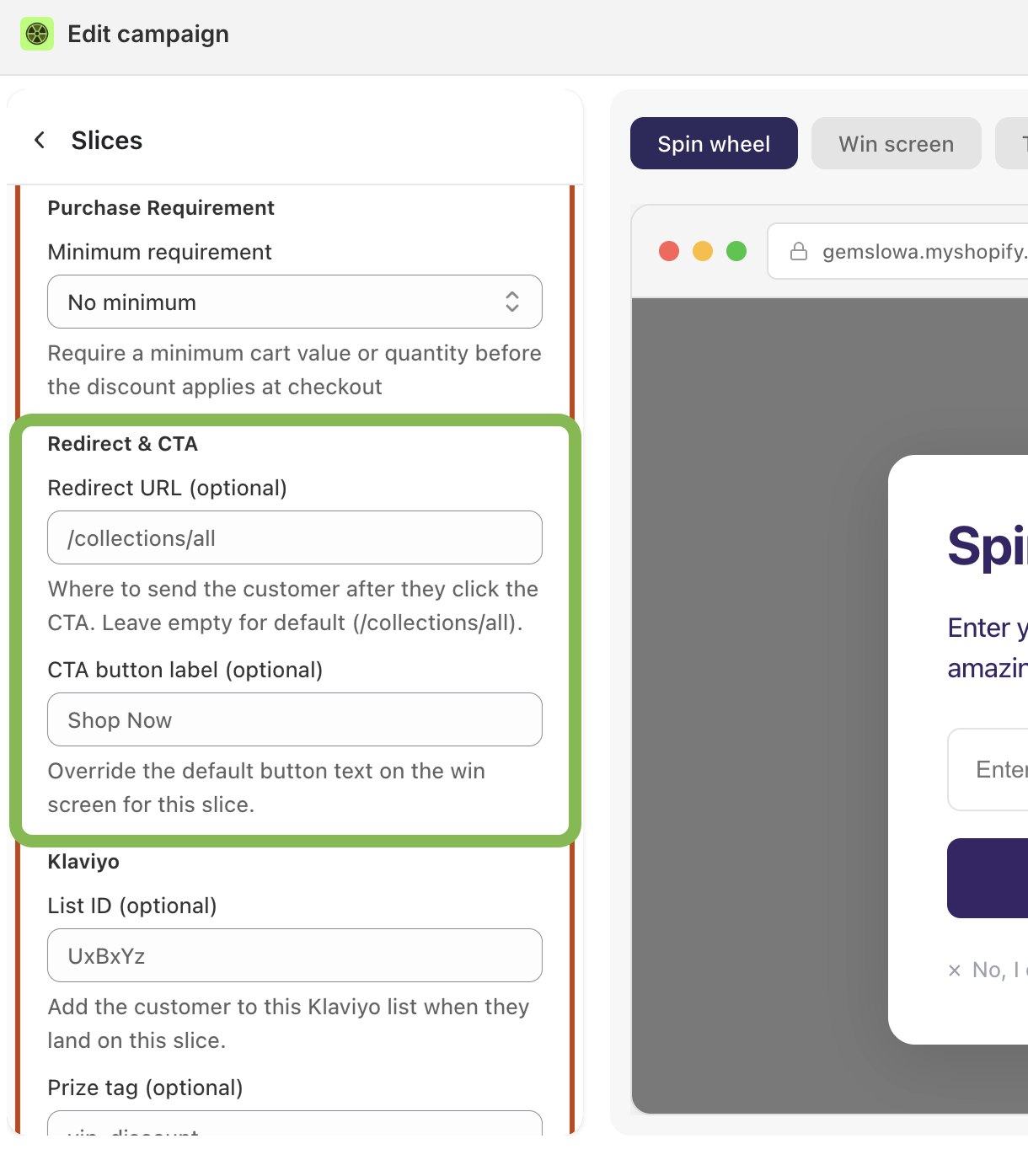
🔗 Custom redirect URL & CTA per slice
After a customer sees their win screen, you can now control exactly where they go next — and what the button says.
Settings per slice
Redirect URL — where to send the customer after they click the CTA. Leave empty to use the default (
/collections/all)CTA button label — override the default button text on the win screen for this slice
Why this matters
When a customer wins a free gift, Shopify requires them to have an item in their cart before the free gift can be applied at checkout — you can't send them directly to checkout with nothing in their cart. With a custom redirect, you can point them straight to the relevant product page or collection instead of landing them on an empty cart.
Examples
Free gift slice → redirect to
/products/gift-itemwith CTA label "Claim your gift" — customer lands on the exact product they need to add before the gift applies20% off slice → redirect to
/collections/new-arrivalswith CTA "Shop the new drop" — the discount feels intentional, not randomFree shipping slice → redirect to
/collections/allwith CTA "Start shopping" — standard browse experience, no friction
May 21, 2026
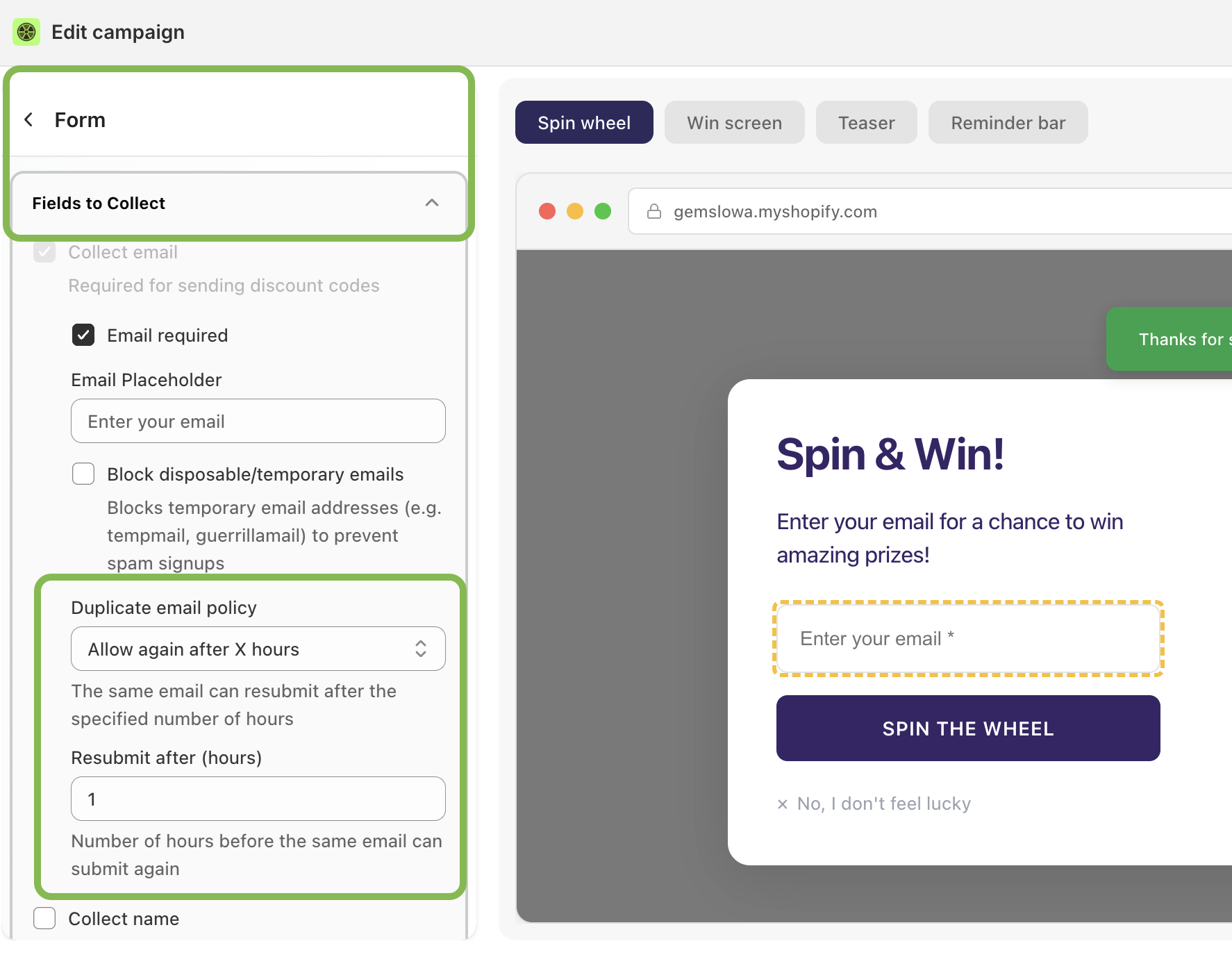
📧 Duplicate email policy — hours support added
Previously, the minimum interval for allowing the same email to resubmit was 1 day. You can now set it to hours instead.
Campaign → Form → Fields to collect
Options
Block resubmission
Allow again after X hours (new)
Allow again after X days
Example combinations
Running a flash sale? Set Frequency for user to Specific day/hour later → 2 hours and Duplicate email policy to Allow again after 4 hours — the same visitor can spin again later that day without being permanently blocked.
Want a one-time-per-person experience? Set Duplicate email policy to Block resubmission for any audience segment.
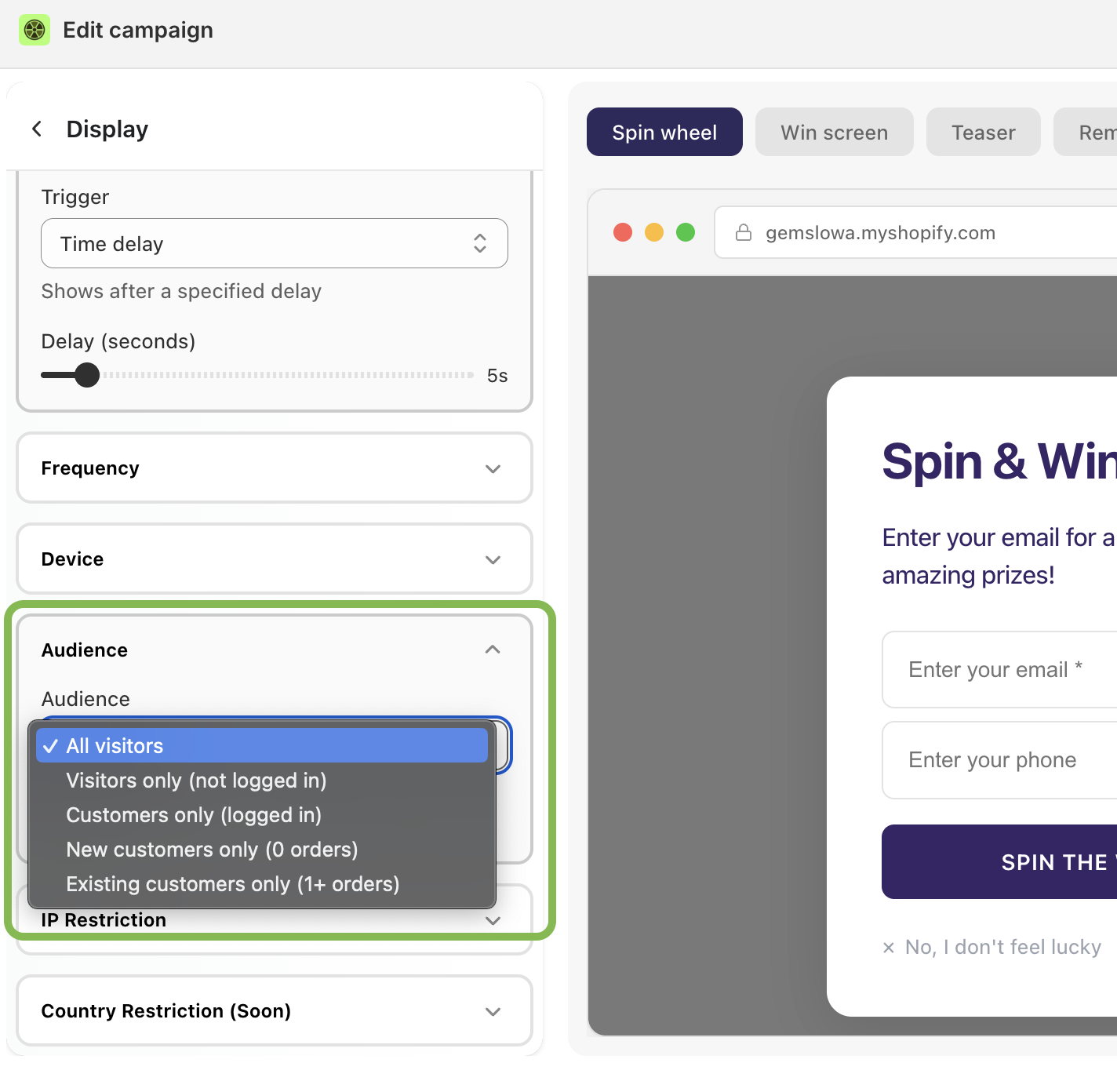
👥 Audience targeting based on order count
Now you can choose who sees the popup based on their order count. Before only login status was supported.
Option | Who sees it |
|---|---|
All visitors | Everyone |
Visitors only (not logged in) | Guests browsing without an account |
Customers only (logged in) | Anyone with a store account |
New customers only (0 orders) | Logged-in customers who haven't purchased yet |
Existing customers only (1+ orders) | Repeat buyers |
Campaign → Display → Audience
Example combinations
Re-engage loyal buyers: Set audience to Existing customers only + Duplicate email policy to Allow again after 7 days — returning customers see a new spin offer each week without spamming new visitors.
Convert window shoppers: Set audience to Visitors only + Frequency for user to Specific day/hour later → 1 hour — guests who don't engage on first view get a second chance after an hour.
Nurture new signups: Set audience to New customers only (0 orders) + Duplicate email policy to Block resubmission — each potential first-time buyer gets one targeted offer, not repeated prompts.
🛒 Purchase requirement for winning prizes
You can now require a minimum cart value or quantity before the winning discount applies at checkout. Previously this was only available for the Free Gift prize type.
Campaign → Display → Audience
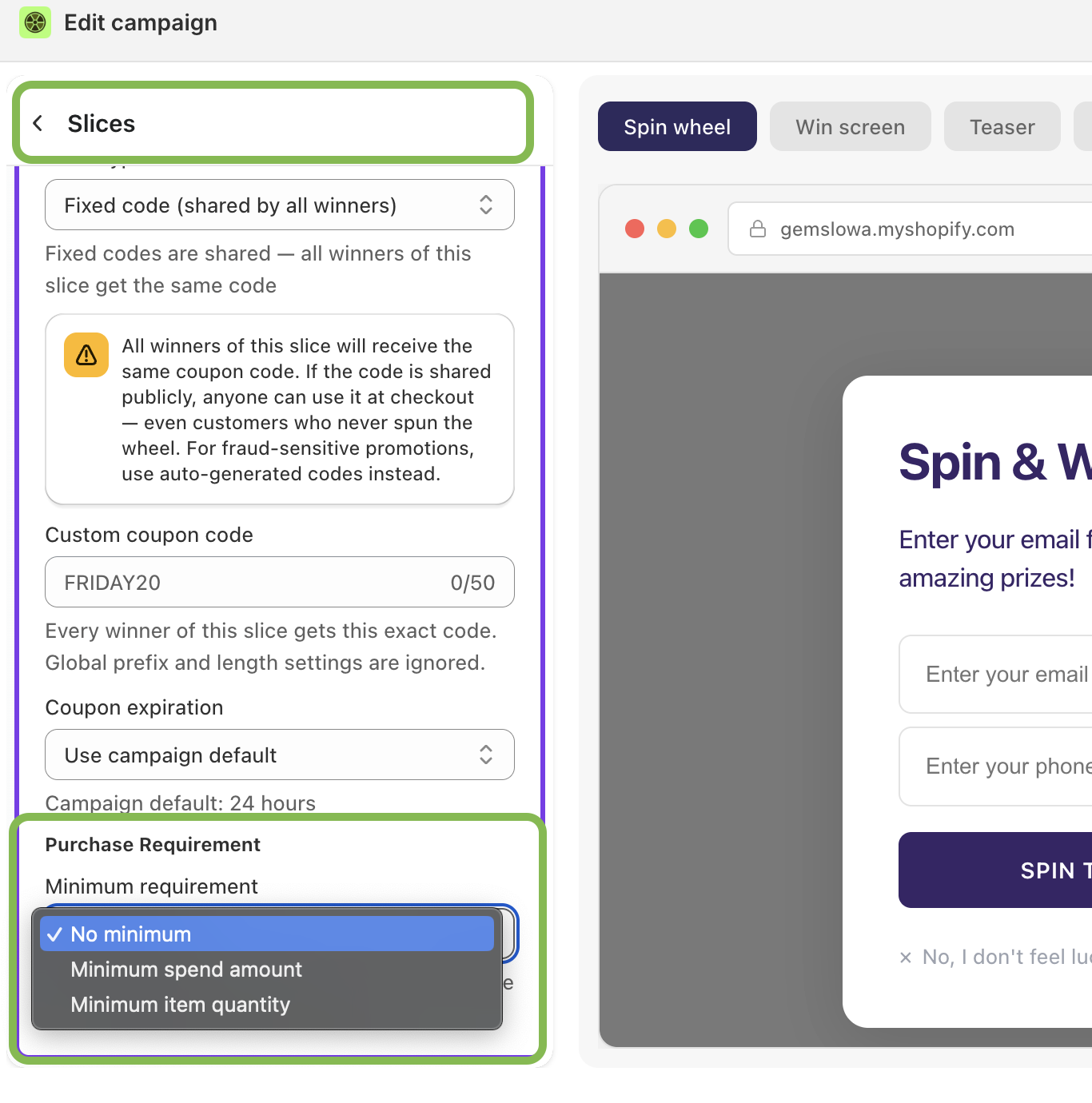
Minimum requirement options:
No minimum — discount applies regardless of cart contents
Minimum spend amount — customer must reach a set cart value before the discount activates. Use {amount} in the requirement message to display the formatted value (e.g., Minimum purchase of {amount} required)
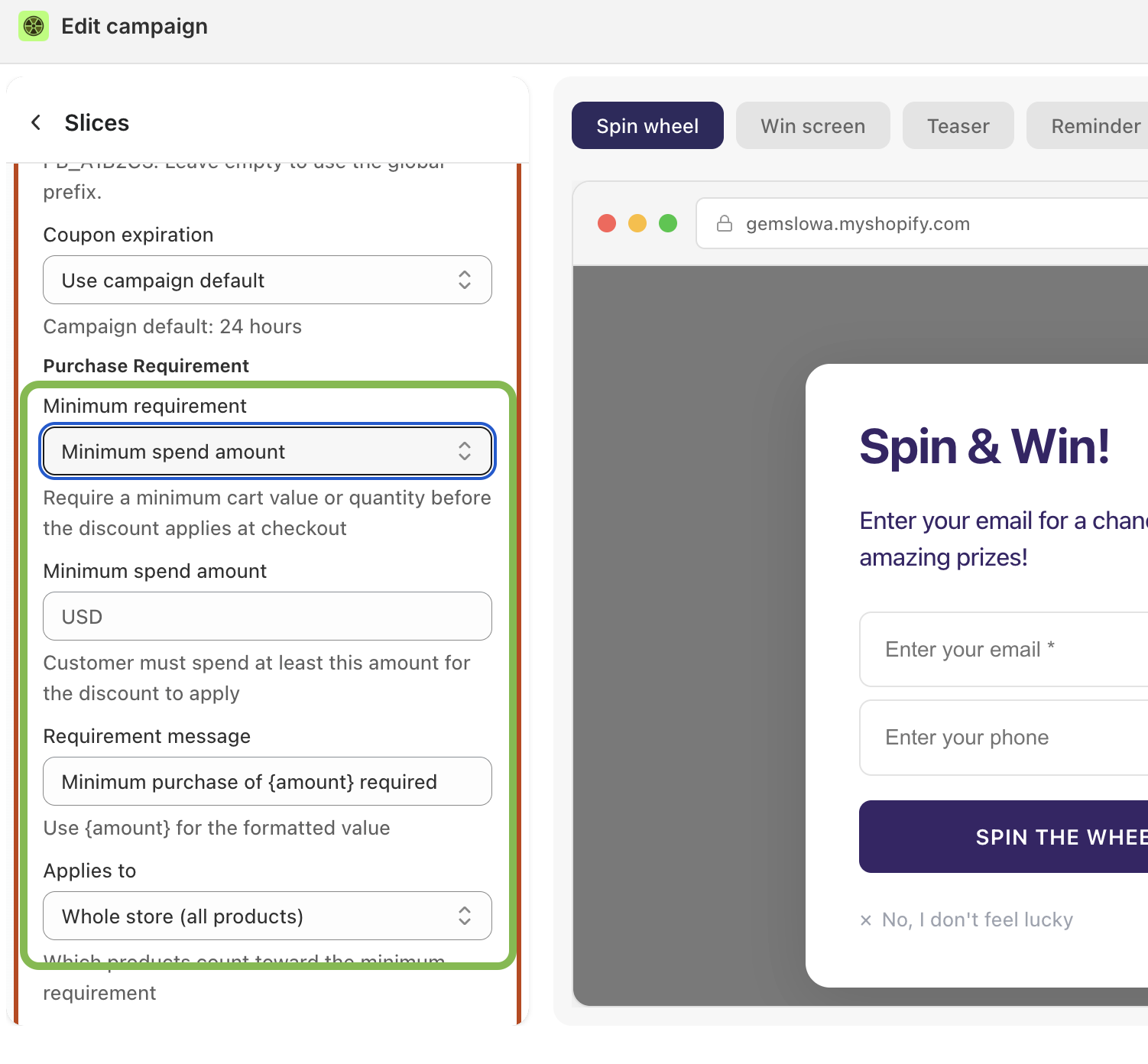
Minimum item quantity — customer must have a set number of items in cart. Use {quantity} in the message (e.g., Minimum {quantity} items required in cart)
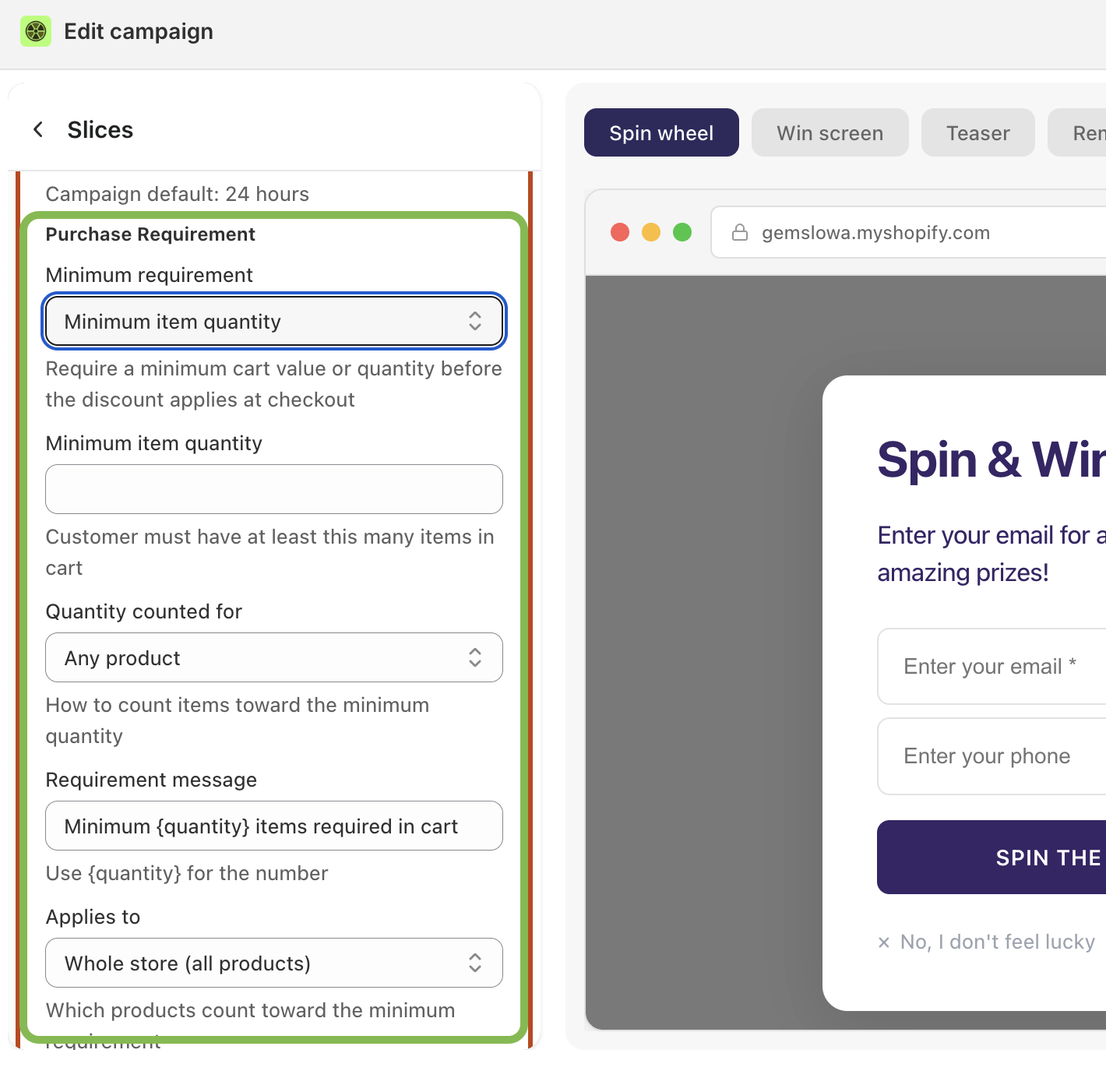
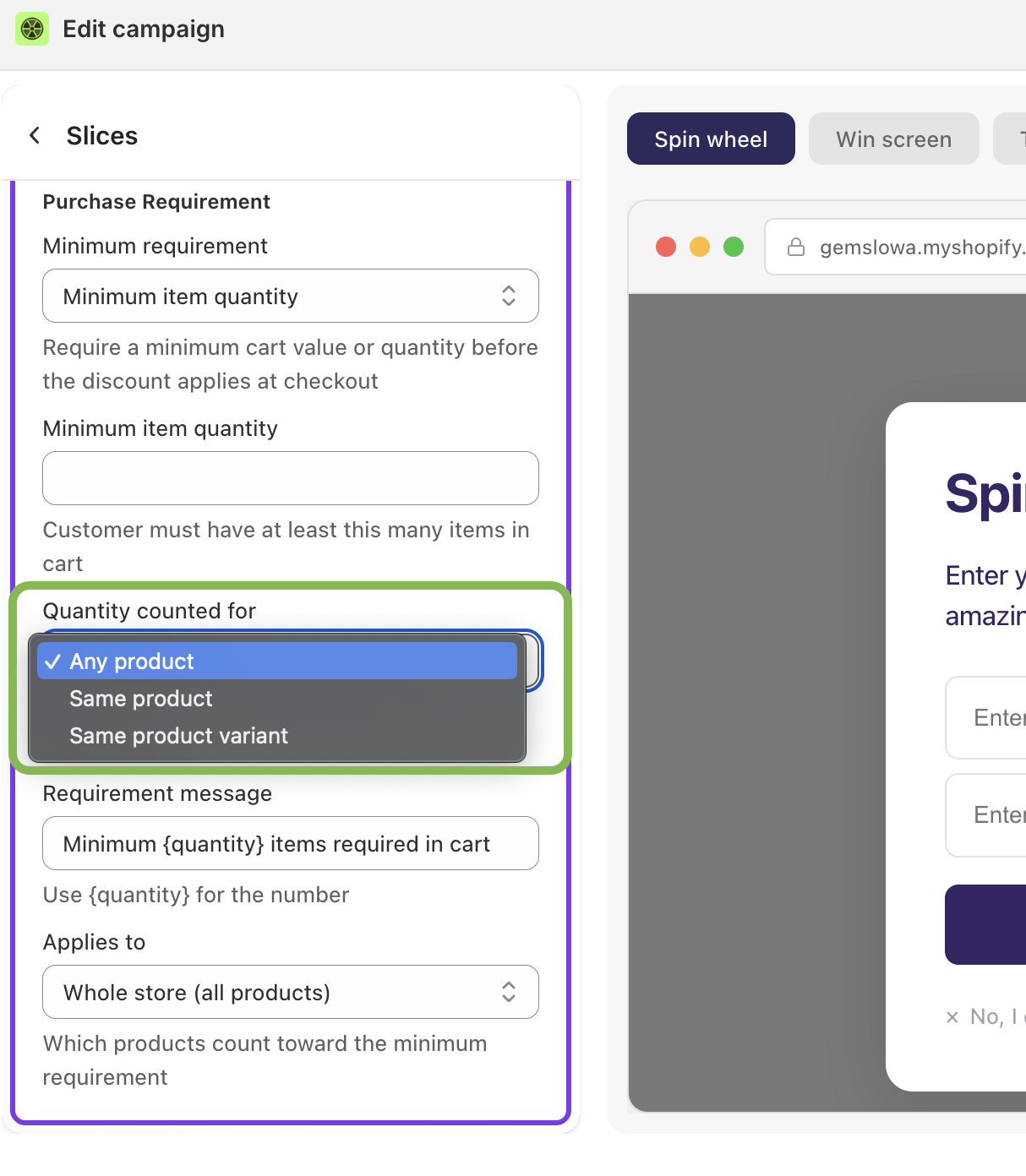
Quantity counted for (available with Minimum item quantity)
Any product
Same product
Same product variant
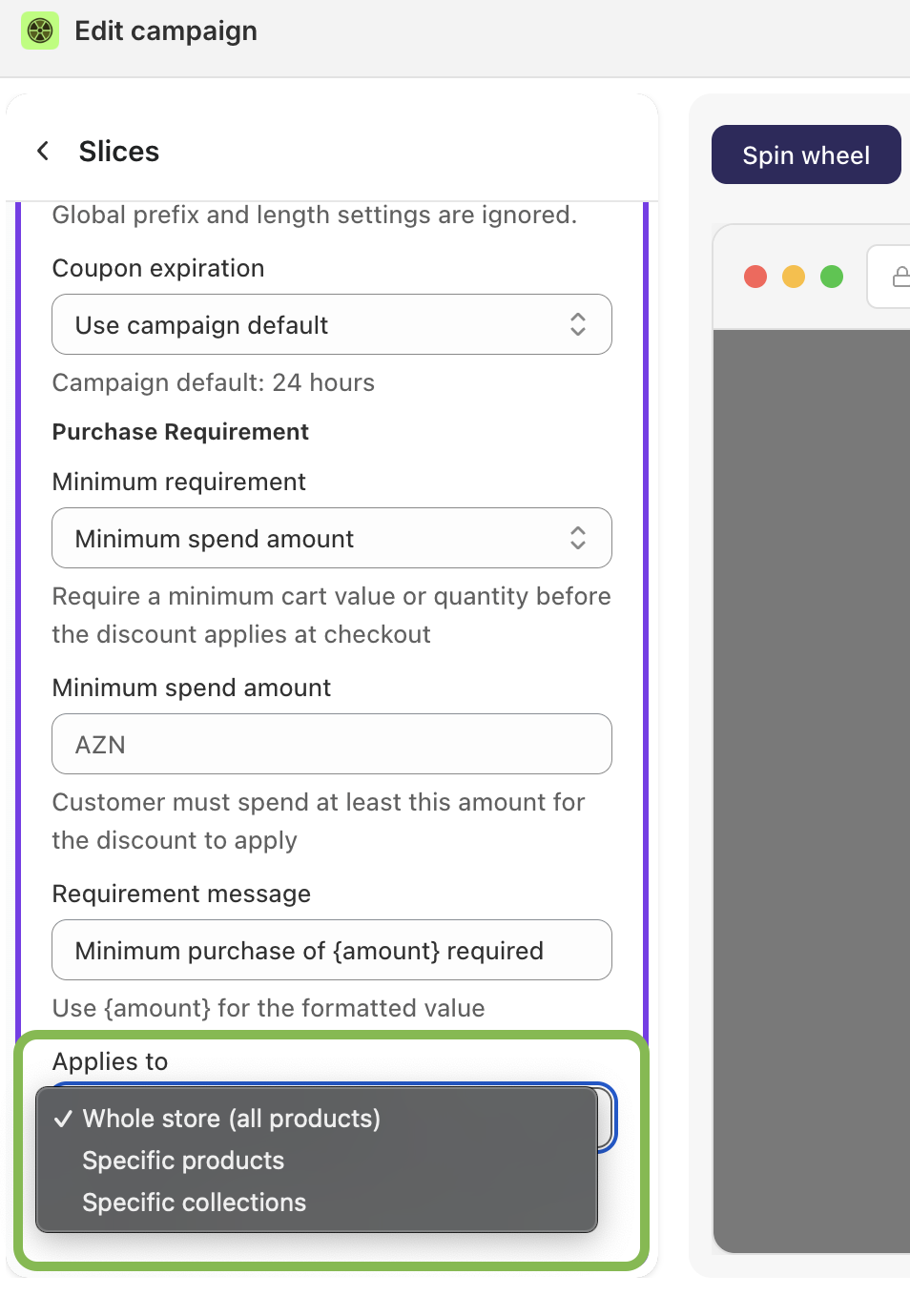
Applies to
Whole store (all products)
Specific products
Specific collections
Examples
Set Minimum spend amount to $50 scoped to Specific collections — customers who win a discount on your new arrivals collection must hit $50 before it activates, protecting margin on low-AOV orders.
Set Minimum item quantity to 3 with Quantity counted for: Same product — the discount only kicks in when the customer adds at least 3 units of the same item, making it a natural volume incentive.
🖼️ Center image / logo on spin wheel and floating bar
👉 Add a logo or image to the center of your spin wheel.
In the editor, click the center of the wheel — this will take you directly to the image setup.
Or, Campaign → Appearance → Wheel settings → Center logo (for spin wheel)
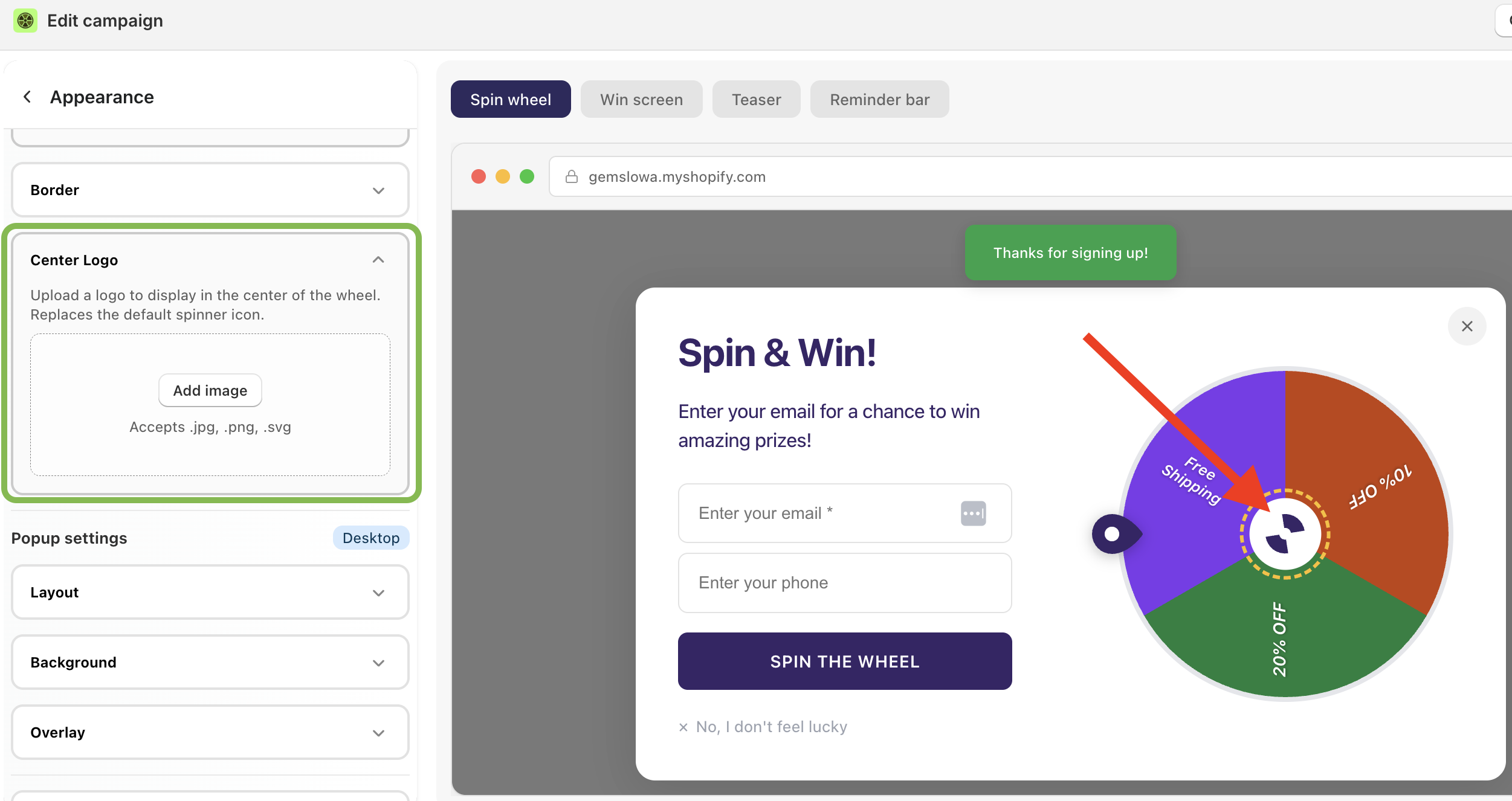
👉 Add a logo or image to the center of your floating bar
In the Reminder bar tab, click on the floating bar — this will take you directly to the image setup.
Or, Campaign → Reminder bar → Reminder settings → Floating Coupon Badge → Badge image
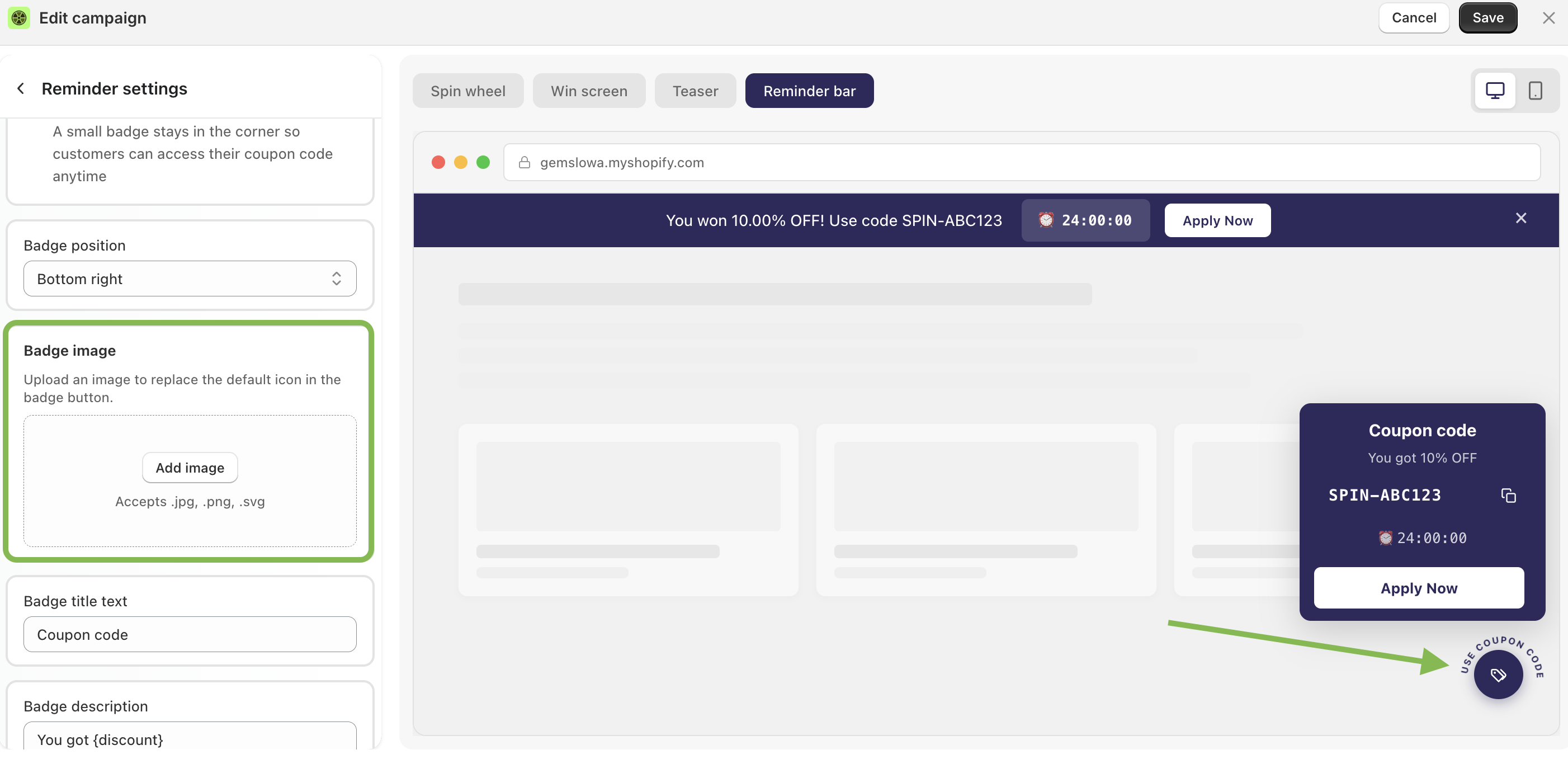
🎟️ Custom coupon code
Set a fixed coupon code for a specific wheel slice (brought back by customer request).
Where to find: Campaign → Slices → Coupon settings → Code type
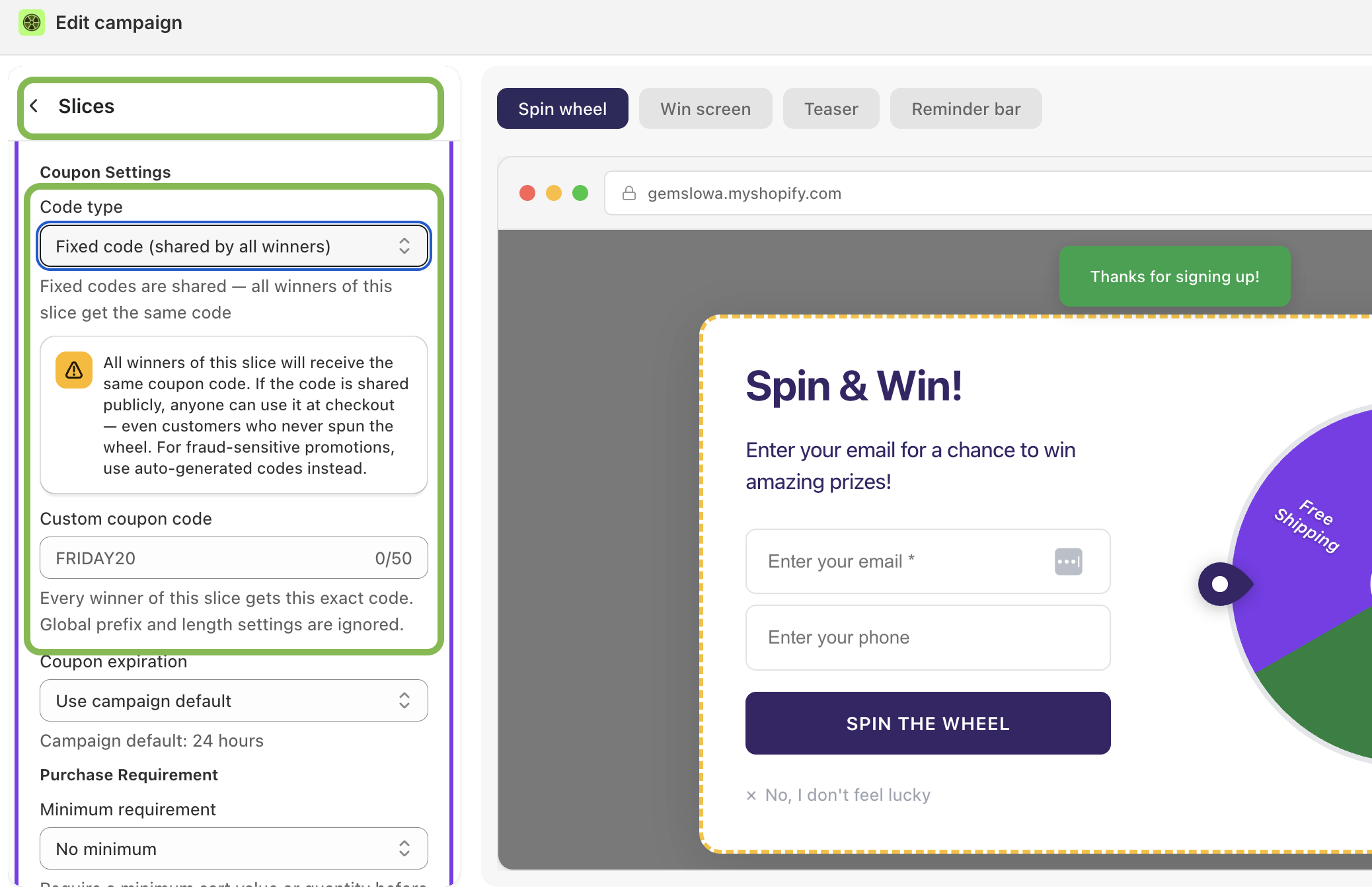
⚠️ All winners of this slice receive the same code. If the code is shared publicly, anyone can use it at checkout — even customers who never spun the wheel. For fraud-sensitive promotions, use auto-generated codes instead.
🔢 Coupon code length
Control the length of the random part of auto-generated coupon codes.
You can now set the length to 4-6-8-10-12 characters
Where to find: Campaign → General → Coupon settings
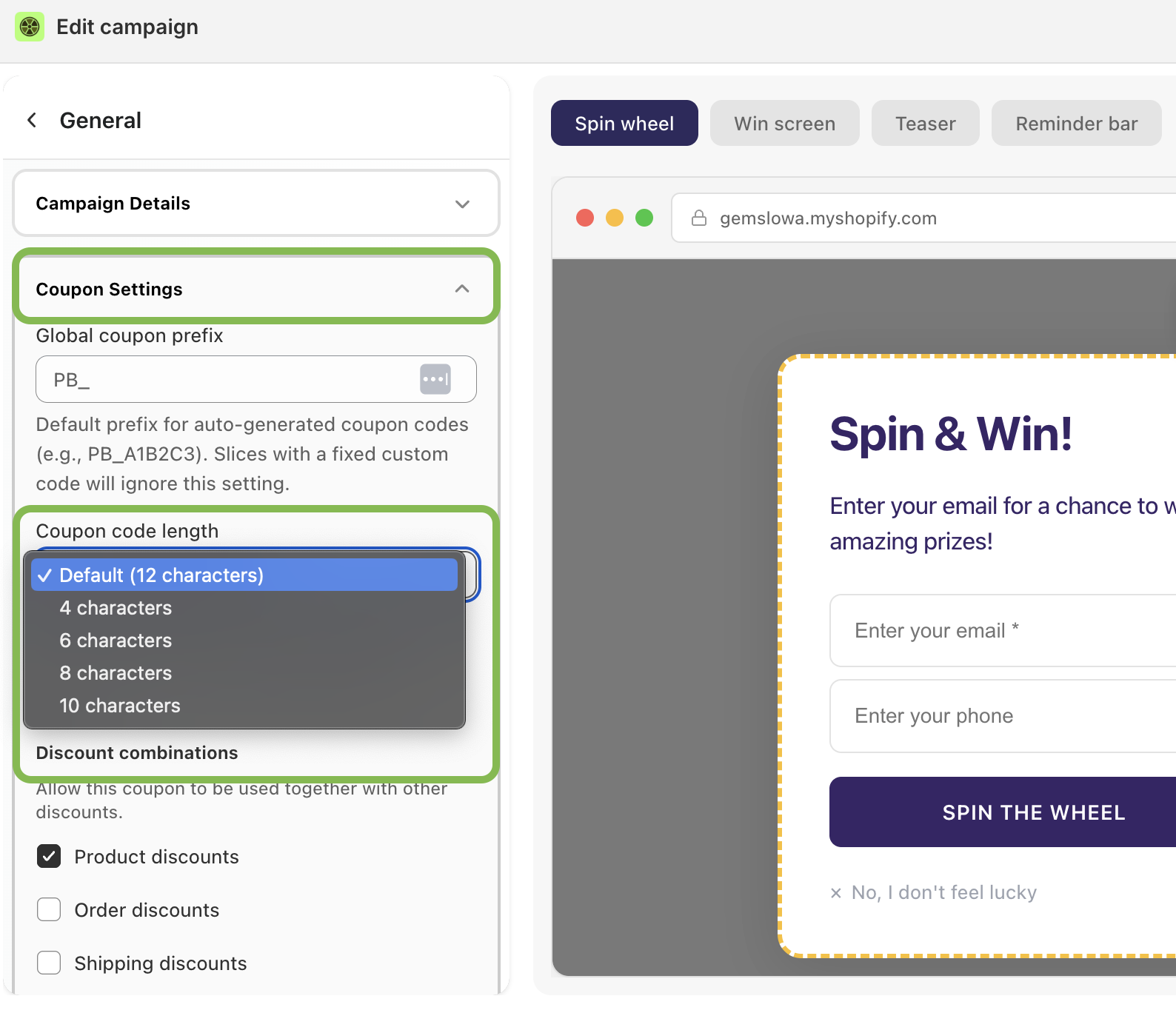
Shorter codes are easier for customers to type but carry a slightly higher chance of collision at high volume. The default prefix for auto-generated codes follows the format PB_A1B2C3.
May 13, 2026
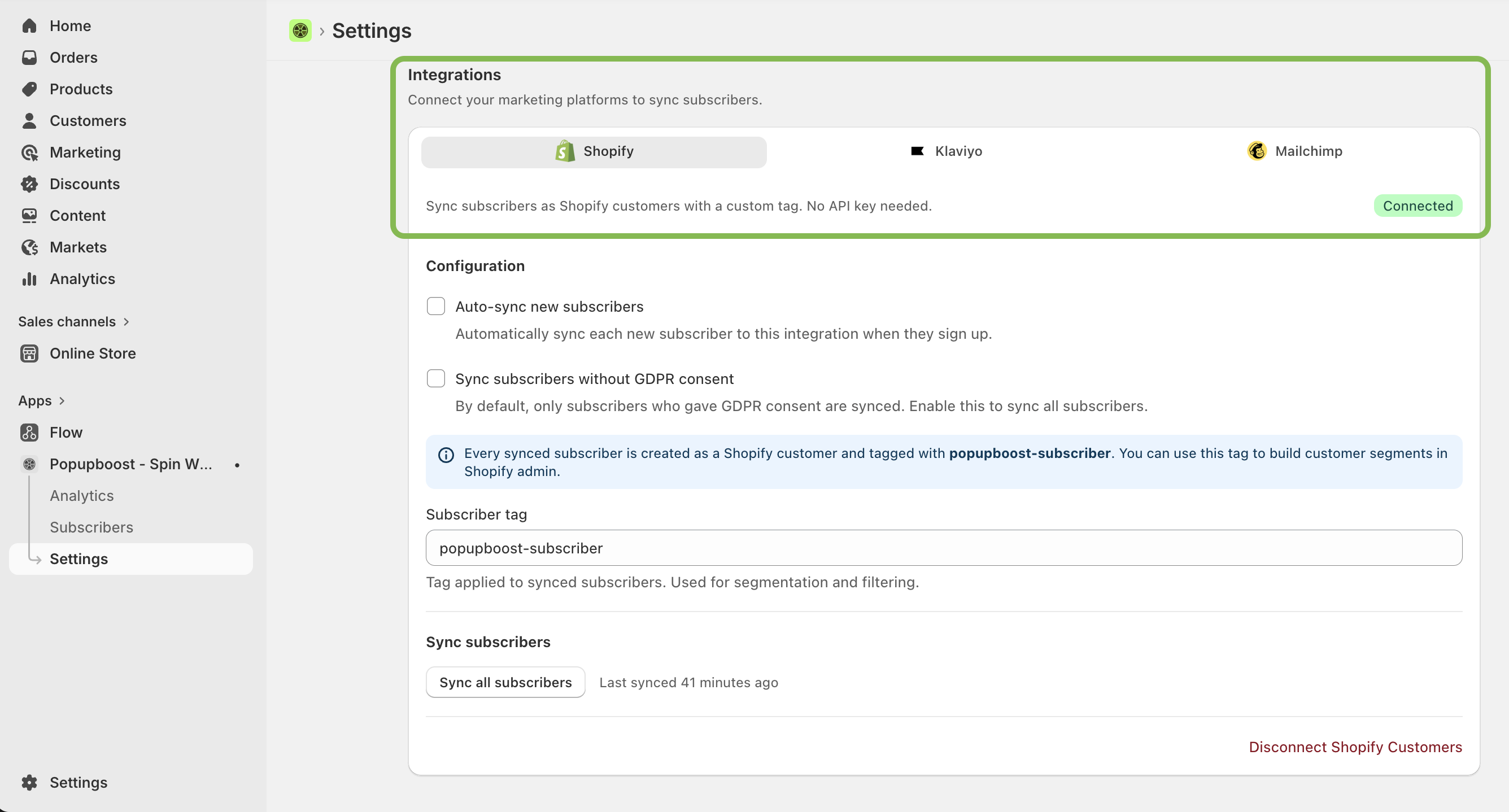
🔗 Subscriber sync — Shopify, Klaviyo & Mailchimp
Collected emails can now be synced directly to your Shopify customers list, Klaviyo, or Mailchimp.
How to set it up
Go to Settings → Integrations. Enter your API key for Klaviyo or Mailchimp, or simply click Enable for Shopify. Then hit Sync.
Shopify sync options
☑ Auto-sync new subscribers
☑ Sync subscribers without GDPR consent
April 18, 2026
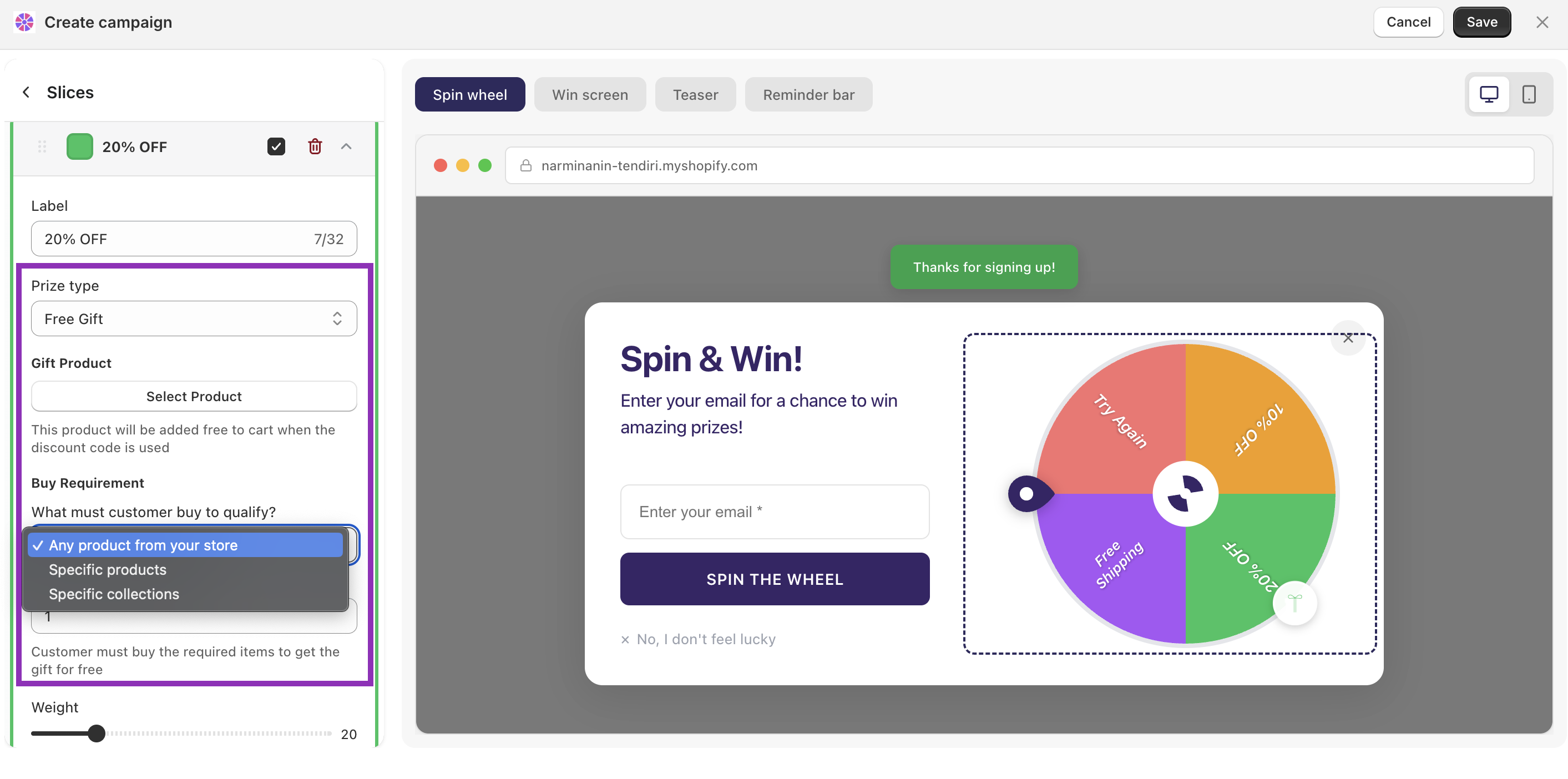
🎁 Free gift prize type
Spin wheel slices can now award a free product instead of a discount code. When a customer wins, the selected product is added to their cart automatically.
Configuration
- Gift product:
Select any product from your store to be added free to the winner's cart when the discount code is applied.
- Buy requirement:
Require customers to purchase a minimum quantity before qualifying for the gift. Choose from any product, specific products, or specific collections.
Any product from your store
Specific products
Specific collections
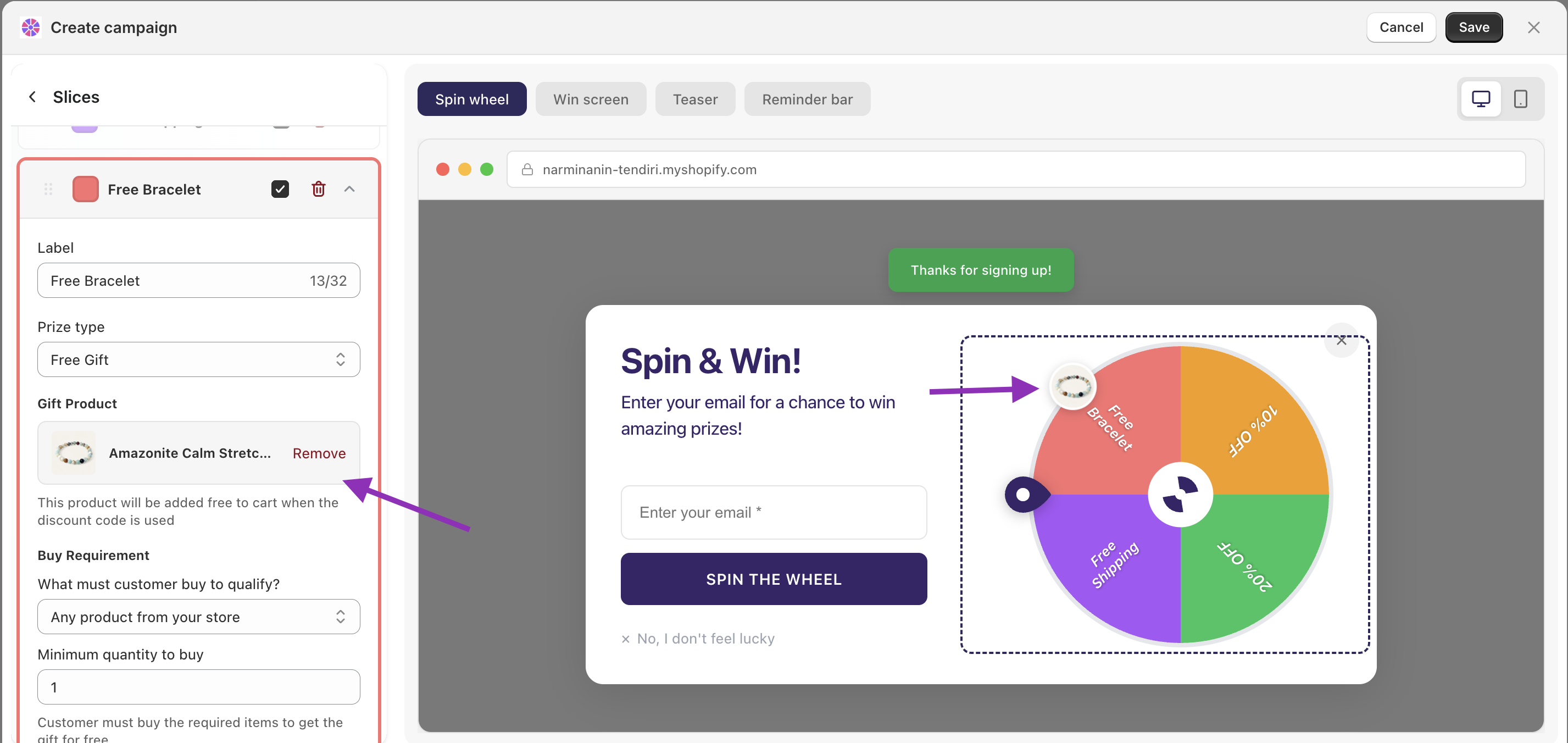
Configure this under Slices in your campaign — select a slice and choose Free Gift as the prize type.
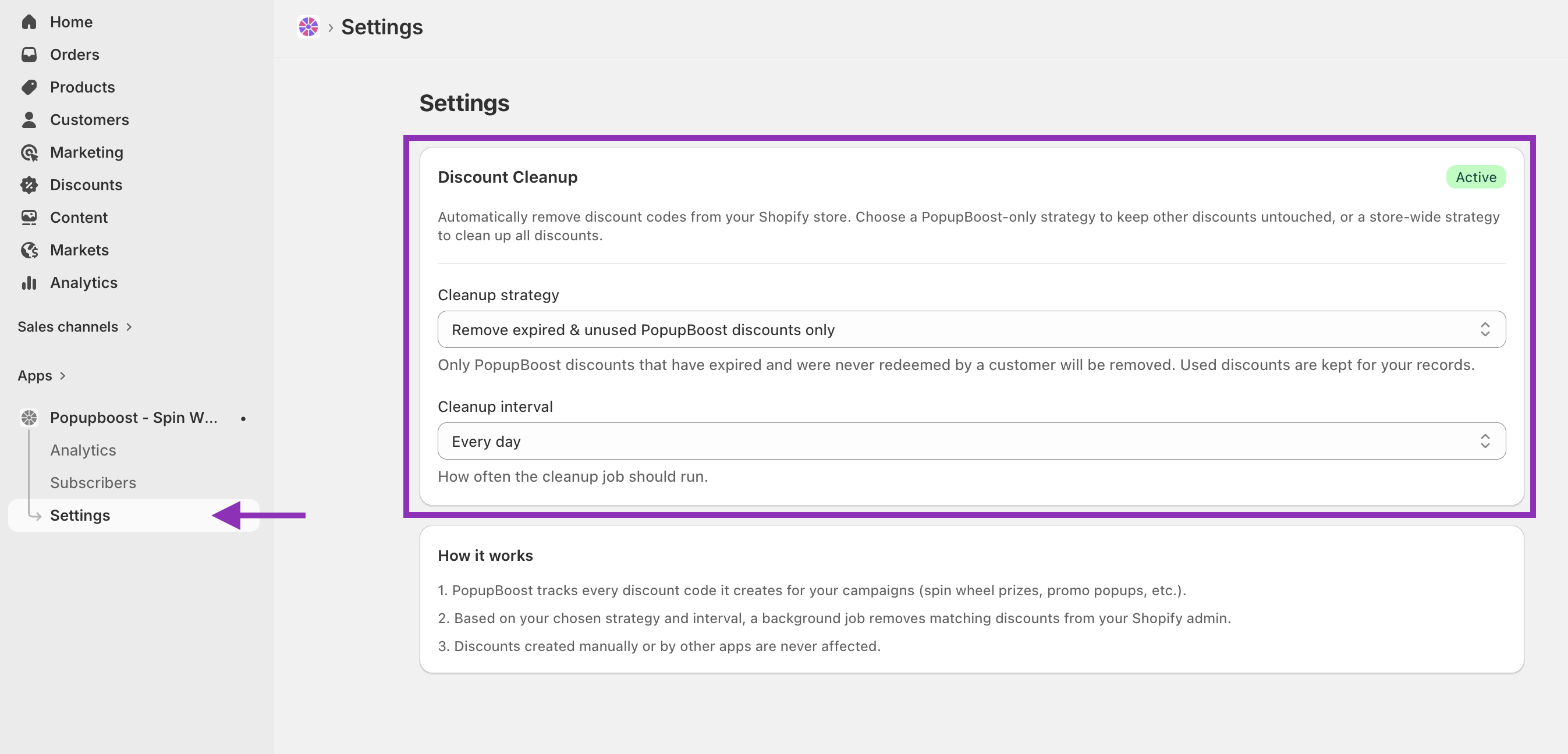
🧹 Discount cleanup
Automatically remove expired PopupBoost discount codes from your Shopify store on a schedule. Other discounts (manually created or from other apps) are never affected.
Cleanup strategy
Disabled: No discounts are removed automatically.
Remove expired & unused PopupBoost discounts only: Removes codes that have expired and were never redeemed. Used codes are kept for your records.
Remove all expired PopupBoost discounts (used or not): Removes all expired codes regardless of whether they were redeemed.
Cleanup intervals:
Every day
Every 3 days
Every week
Find these settings under App → Settings