
PopupBoost is a Shopify app for creating spin wheel, slot machine, scratch card, and other popup campaigns. By connecting PopupBoost to Omnisend, you can sync subscribers to Omnisend and use spin-wheel events to create targeted automations and campaigns.
👉 Omnisend on Shopify: Omnisend Email Marketing & SMS
Benefits
Automatically sync new PopupBoost subscribers to Omnisend.
Sync existing PopupBoost subscribers to Omnisend.
Apply a custom tag to subscribers synced from PopupBoost.
Send spin-wheel events to Omnisend when customers play and win.
Use PopupBoost events and contact data to create targeted Omnisend automations.
Setup Process
Step 1. Create an Omnisend API key
In your Omnisend account:
Go to Integrations & API → API keys.
Create a new API key.
Give the API key the following permissions:
Contacts: Read + Write
Events: Read + Write
Copy the API key.
These permissions allow PopupBoost to sync subscribers and send spin-wheel events to Omnisend.
📖 Learn how to generate an API Key in Omnisend
Step 2. Connect Omnisend to PopupBoost
Open PopupBoost in your Shopify admin.
Go to Settings → Integrations.
Find Omnisend.
Paste your Omnisend API key into the API key field.
Click Connect.
PopupBoost will verify the API key before enabling the integration.
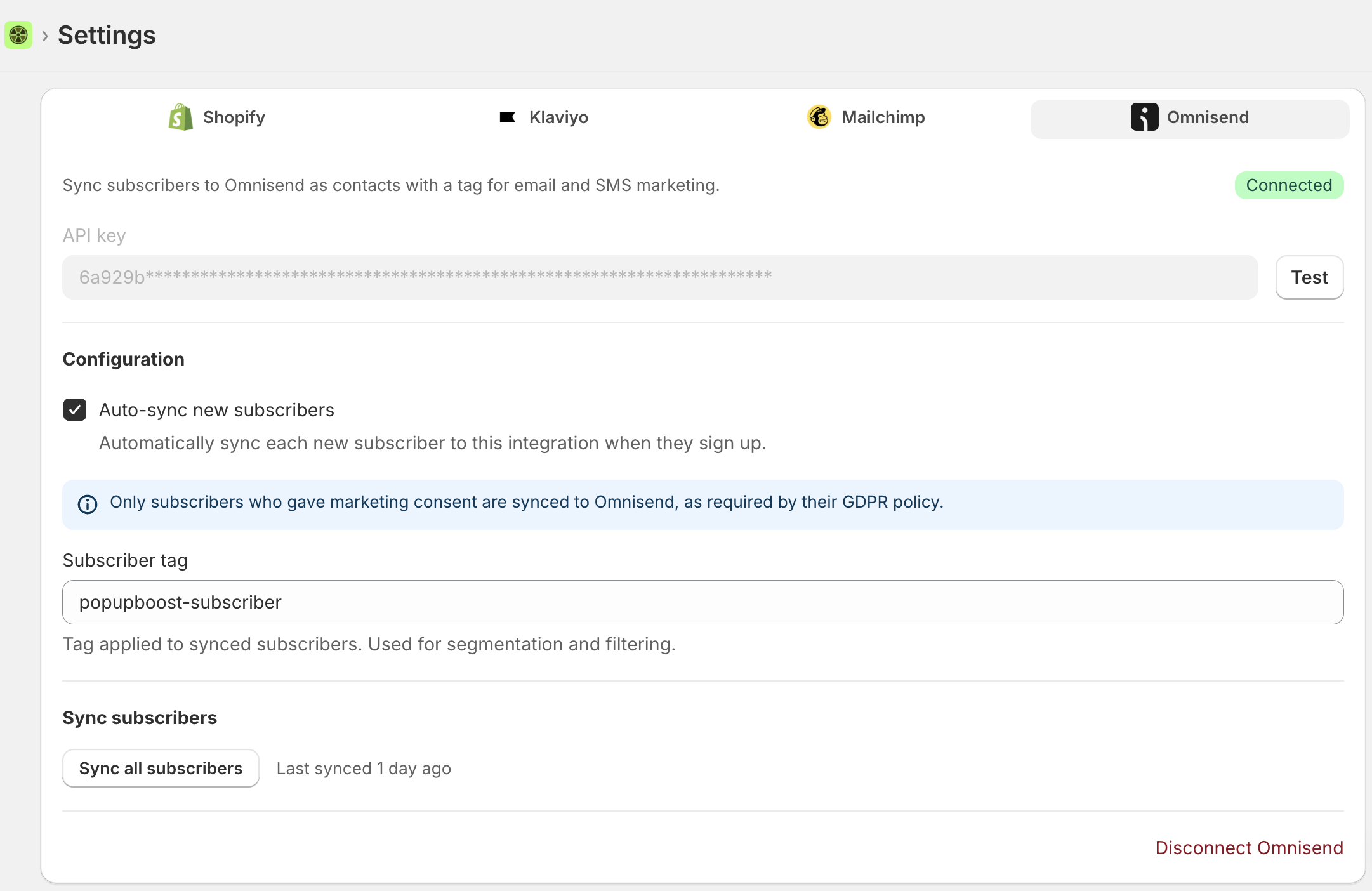
Step 3. Configure subscriber syncing
Once connected:
Enable Auto-sync new subscribers if you want PopupBoost to automatically send new subscribers to Omnisend.
Enter the Subscriber tag you want to apply to synced contacts.
The default tag is:
popupboost-subscriber
You can change this tag to match your Omnisend segmentation strategy.
Step 4. Sync existing subscribers
To send your existing eligible PopupBoost subscribers to Omnisend:
Go to Settings → Integrations → Omnisend.
Click Sync all subscribers.
Wait for the sync to complete.
PopupBoost displays the sync progress and the number of subscribers synced.
What Data Is Passed
PopupBoost can send subscriber information and spin-wheel activity to Omnisend.
Subscriber data
Data | Type | Description |
|---|---|---|
Contact field | The subscriber's email address | |
Phone | Contact field | The subscriber's phone number, when available |
Subscriber tag | Tag | Identifies contacts synced from PopupBoost |
Only subscribers who have provided marketing consent are synced to Omnisend.
Spin-wheel events
When a customer plays a gamification campaign, PopupBoost can send an event to Omnisend.
The following events are available:
Spin Wheel Prize Won — the customer wins a prize.
Spin Wheel Played — the customer plays but does not win.
Event properties can include:
prize_typeprize_labelprize_valuediscount_codediscount_valuediscount_scopeexpires_athours_validredirect_urlwon_atcampaign_nameprize_tag
You can use these events in Omnisend automations, for example to send a follow-up message after a customer wins a discount.
Consent Requirements
PopupBoost syncs only subscribers who have provided marketing consent to Omnisend.
This is required for the Omnisend integration, so PopupBoost does not provide an option to sync subscribers without marketing consent.
Using PopupBoost Events in Omnisend
After connecting PopupBoost, you can use the events sent by PopupBoost as triggers or conditions in your Omnisend automations.
For example:
Customer spins → wins a discount → Omnisend receives "Spin Wheel Prize Won" → send a follow-up message
You can use the event properties, such as the discount code, prize type, prize value, and expiration time, to personalize your automation.
FAQ
Which subscribers are synced to Omnisend?
PopupBoost syncs subscribers who have provided marketing consent and have an email address or phone number.
Are existing subscribers synced automatically?
Connecting the integration starts the initial sync of eligible existing subscribers. You can also use Sync all subscribers to manually start another bulk sync.
Can I automatically sync new subscribers?
Yes. Enable Auto-sync new subscribers in the Omnisend integration settings. Note that only subscribers who gave marketing consent are synced to Omnisend, as required by their GDPR policy.
Can I change the PopupBoost subscriber tag?
Yes. In Settings → Integrations → Omnisend, edit the Subscriber tag field.
The default tag is popupboost-subscriber.
What permissions does the Omnisend API key need?
The API key should have:
Contacts — Read + Write
Events — Read + Write
What if the connection doesn't work?
Check that:
You copied the complete API key from Omnisend.
The API key has Contacts Read + Write permissions.
The API key has Events Read + Write permissions.
The key was pasted into PopupBoost → Settings → Integrations → Omnisend.
The integration shows Connected in PopupBoost.
If the connection is successful but subscribers are not syncing, make sure the subscribers have provided marketing consent and that Auto-sync new subscribers is enabled.
How do I disconnect Omnisend?
Go to PopupBoost → Settings → Integrations → Omnisend and click Disconnect.