Embedding lets you place a popup directly inside a page instead of showing it as an overlay / popup. This is useful for full-page forms, landing sections, or inline signup blocks.
Before you start
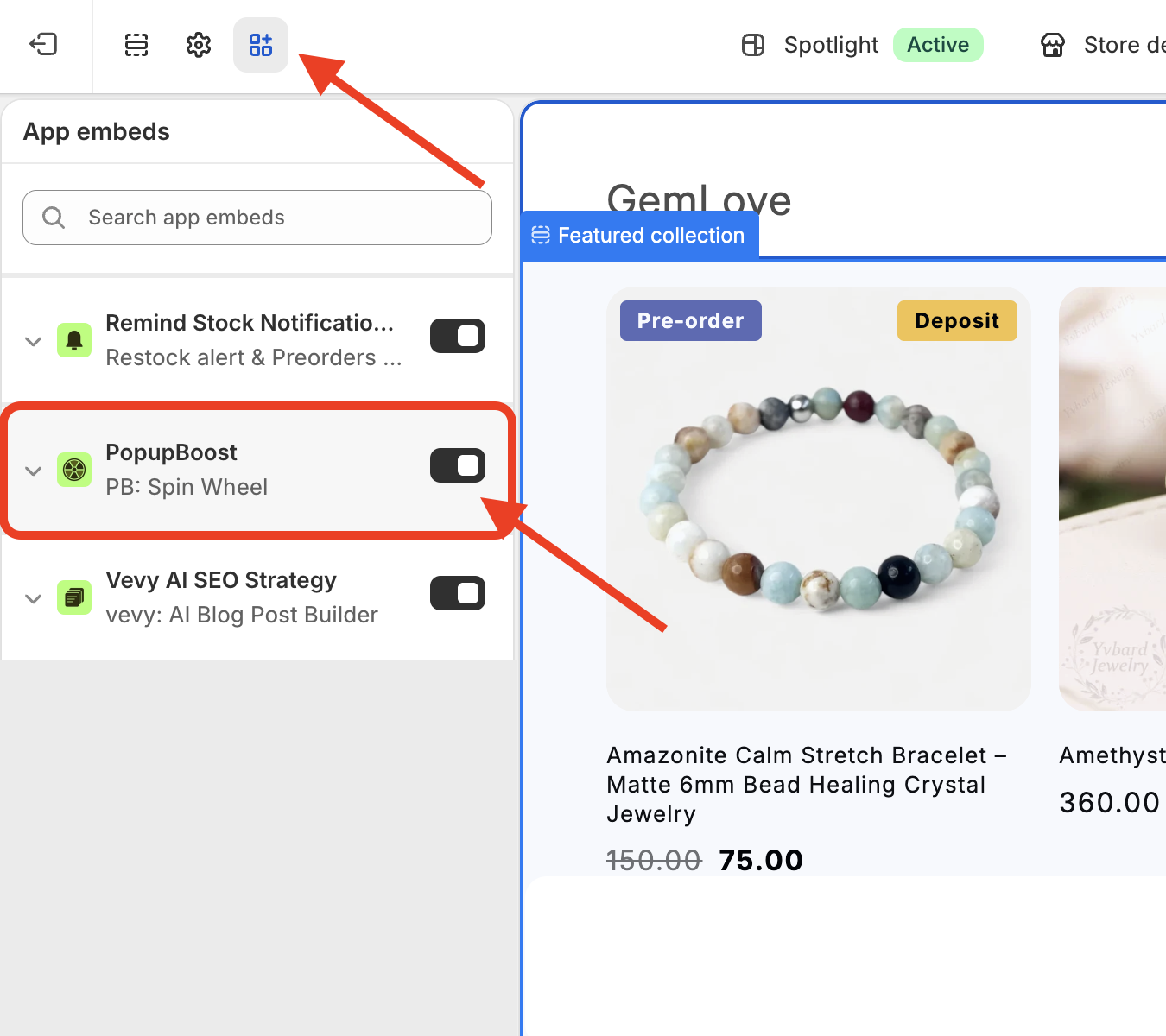
Make sure the app is enabled in your theme editor. If it isn't, the embedded popup won't render on your storefront.
Sales channels → Online Store → Edit theme → Apps and extensions:
Steps
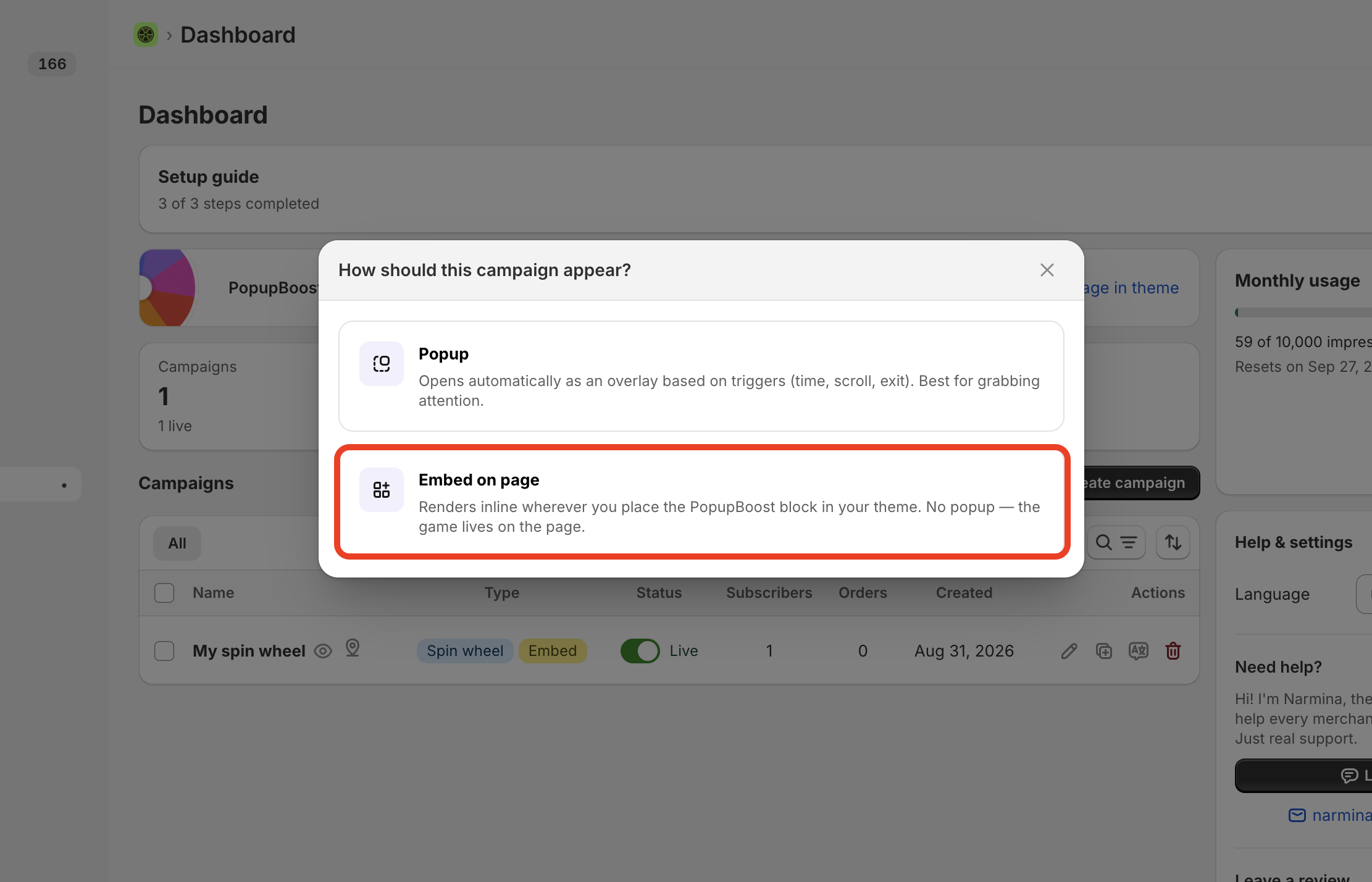
When you create a popup, choose the Embed option.
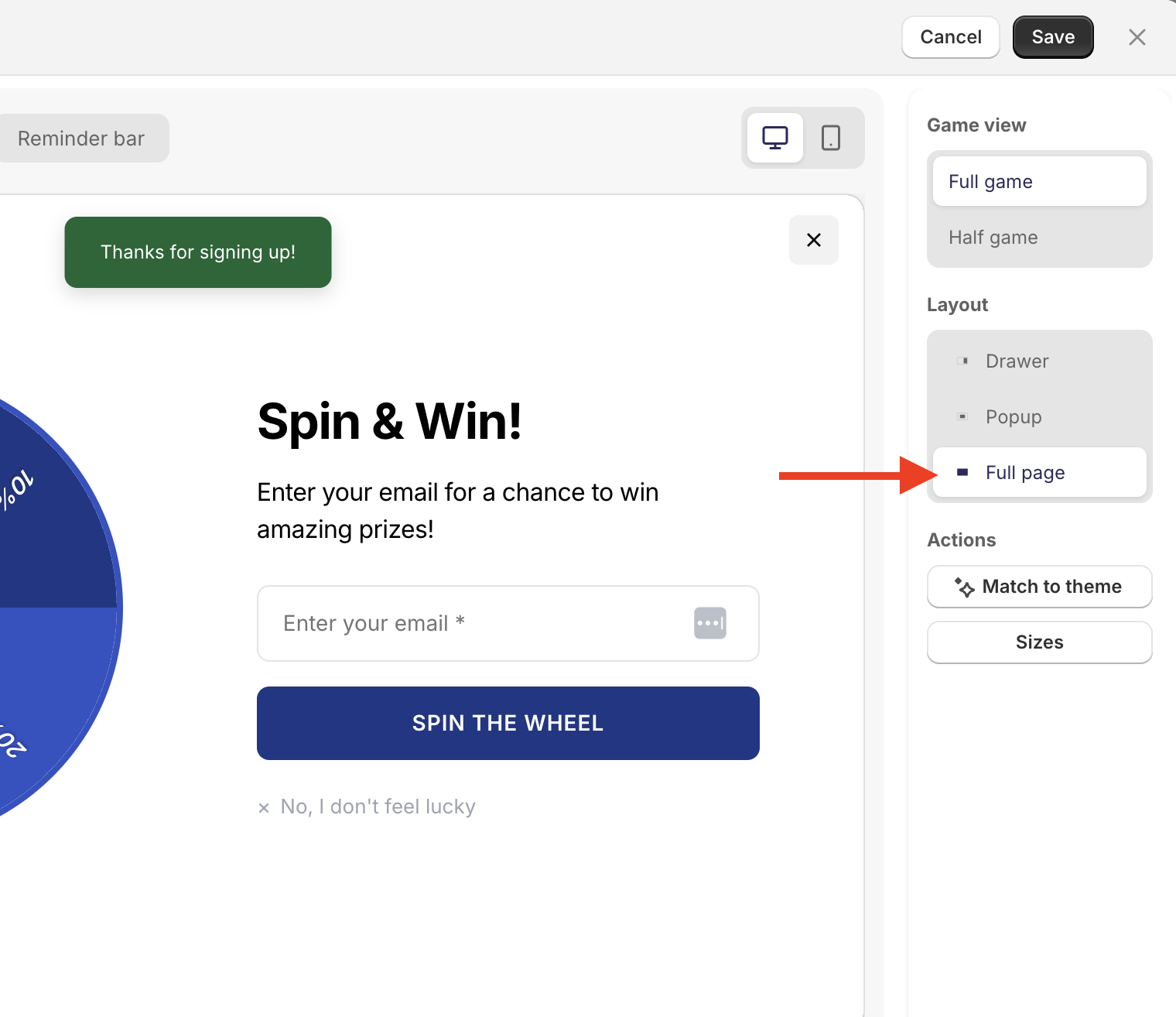
In the Layout section, select Full Page.
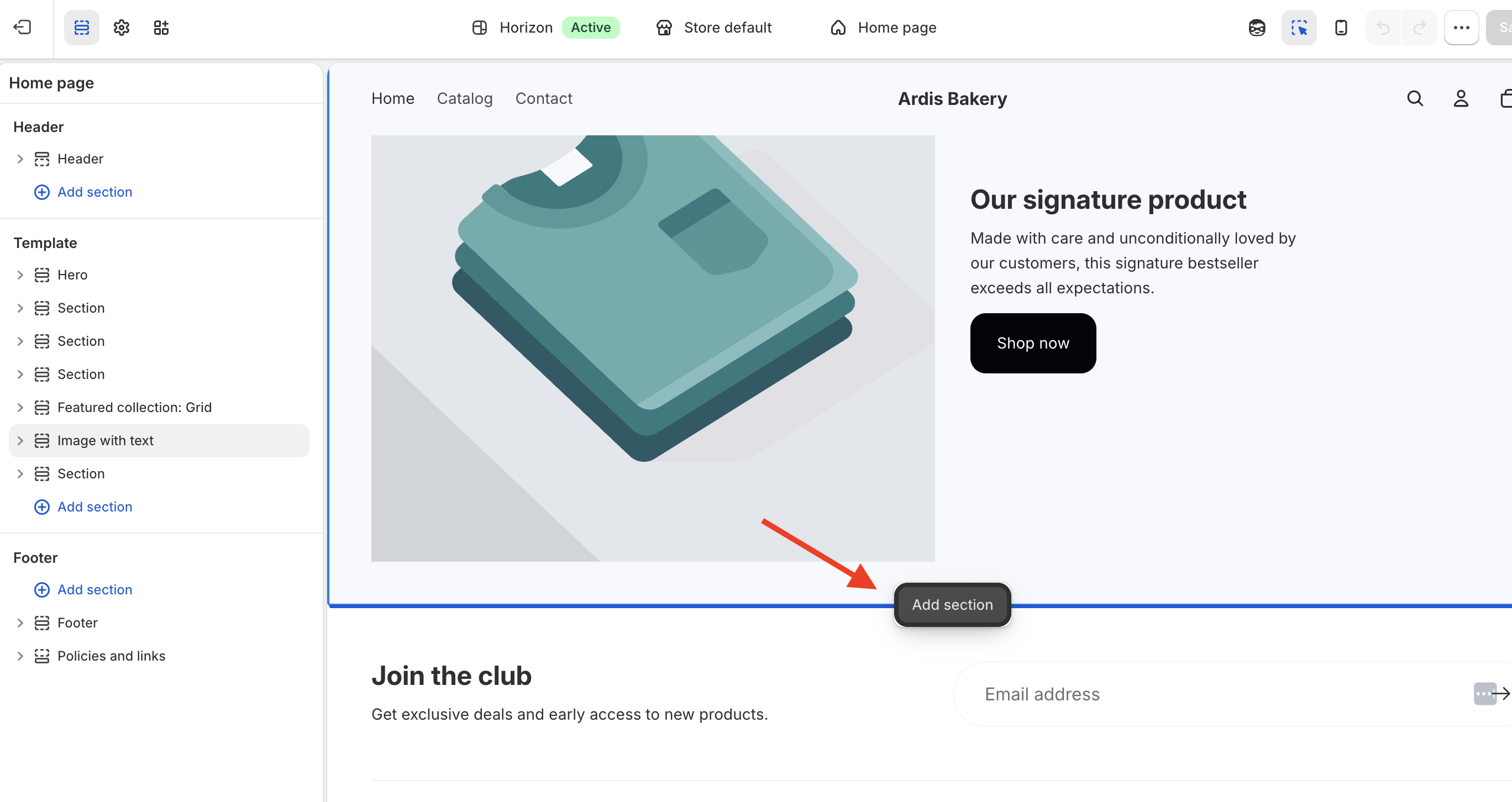
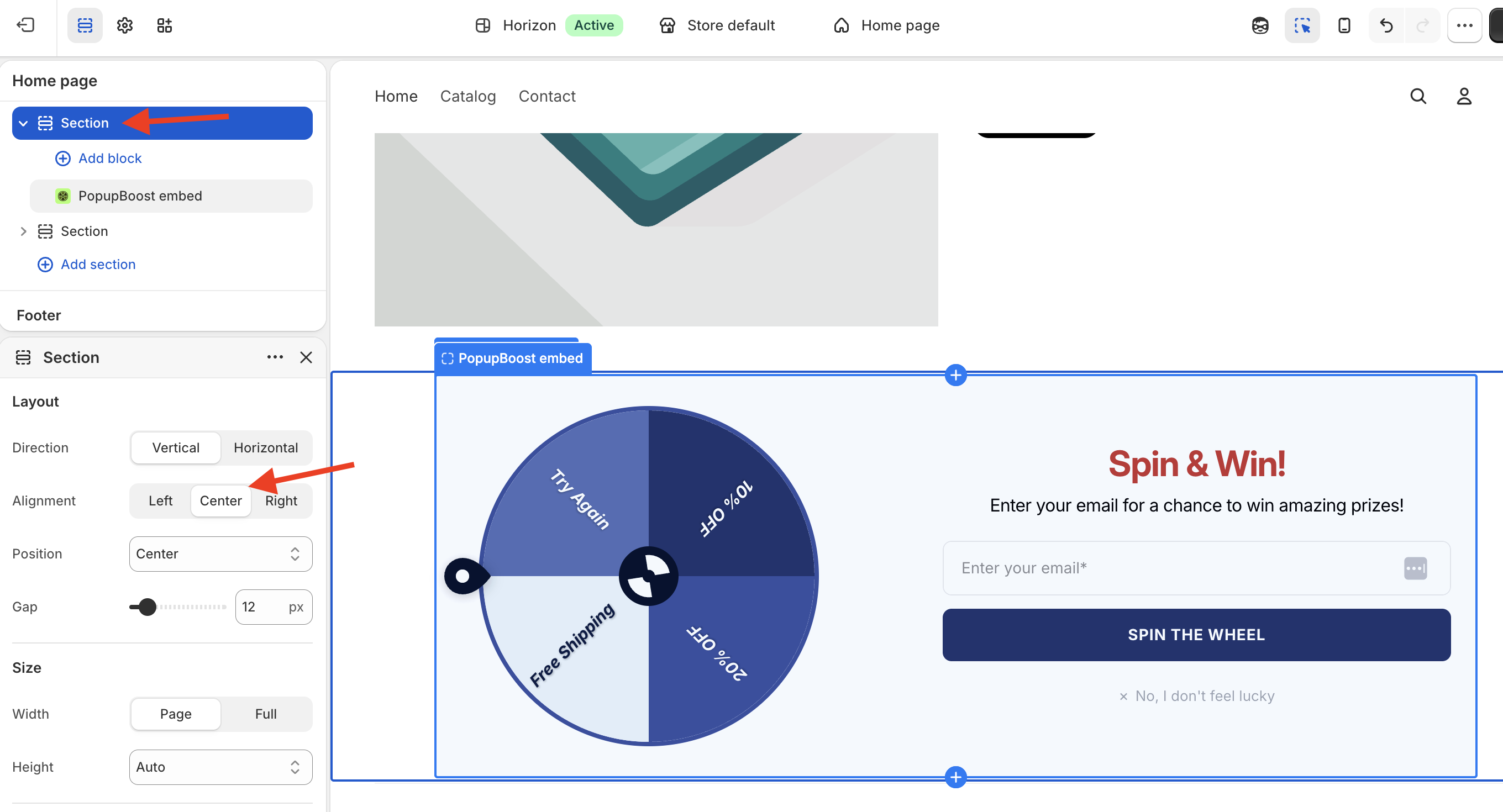
Open your theme editor and add an app block to the section where you want the popup to appear.
Click to "Add section"
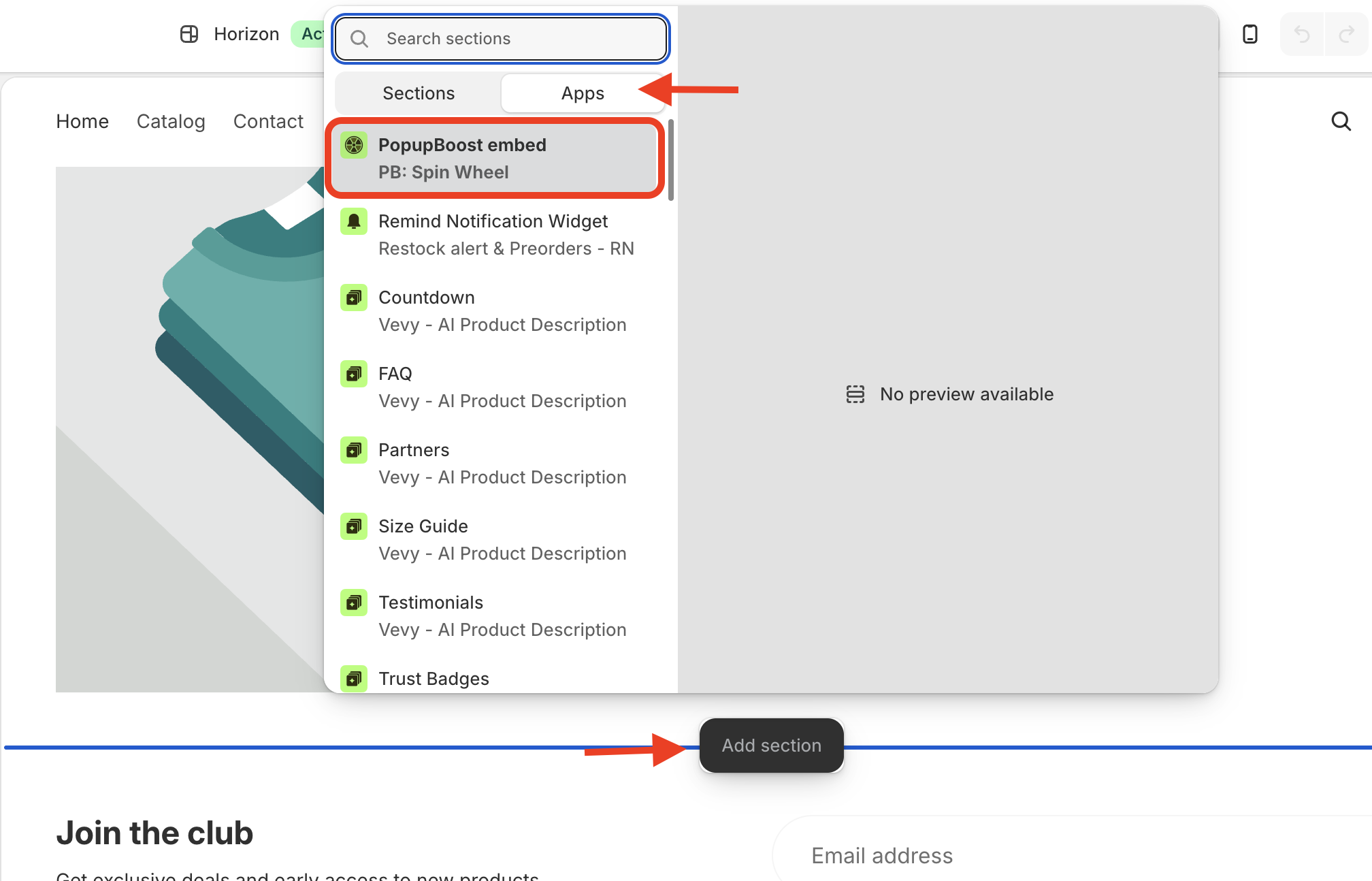
Click to apps and select PopupBoost
Copy the Campaign ID from the popup and paste it into the Campaign ID field of the block.
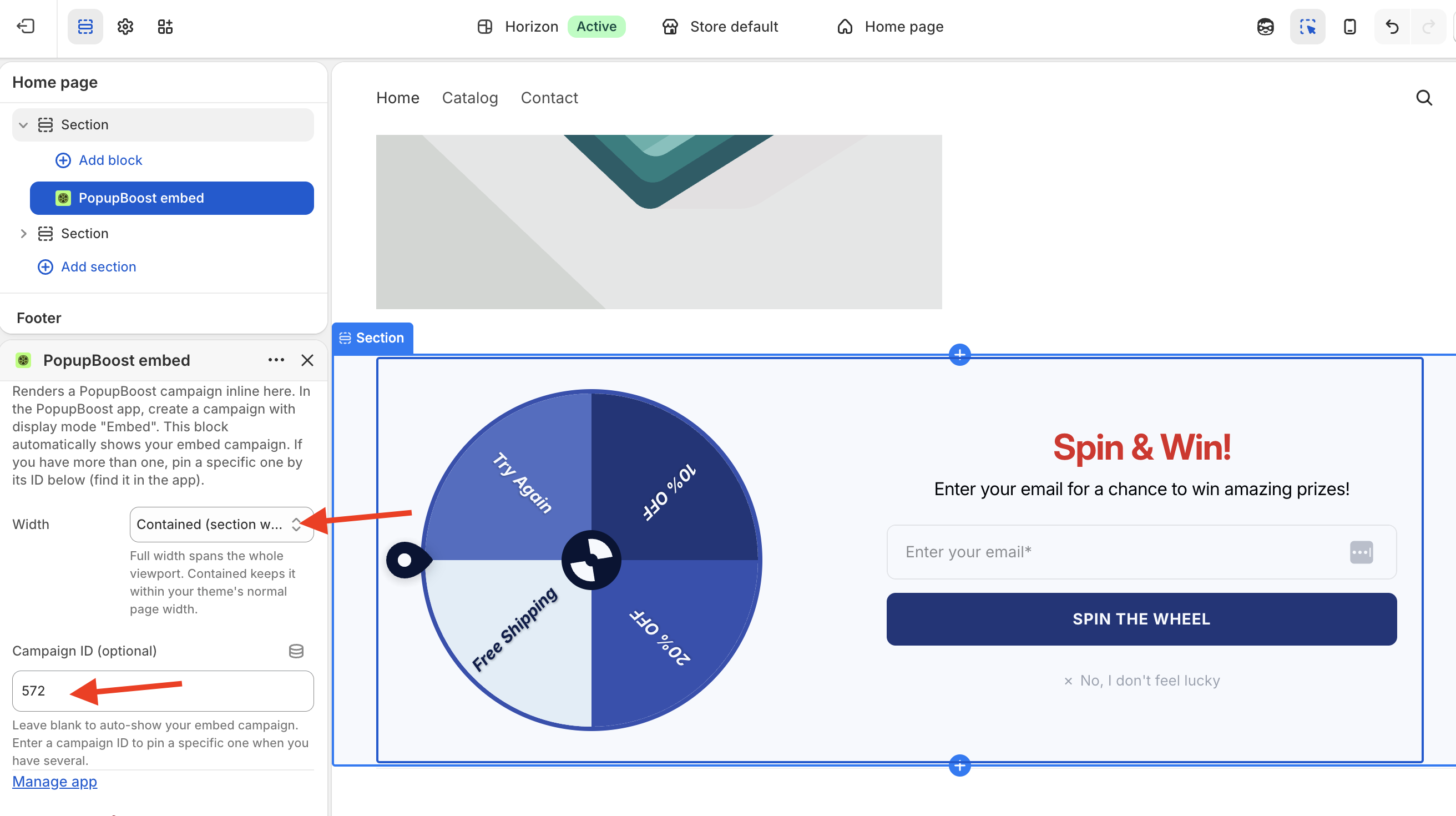
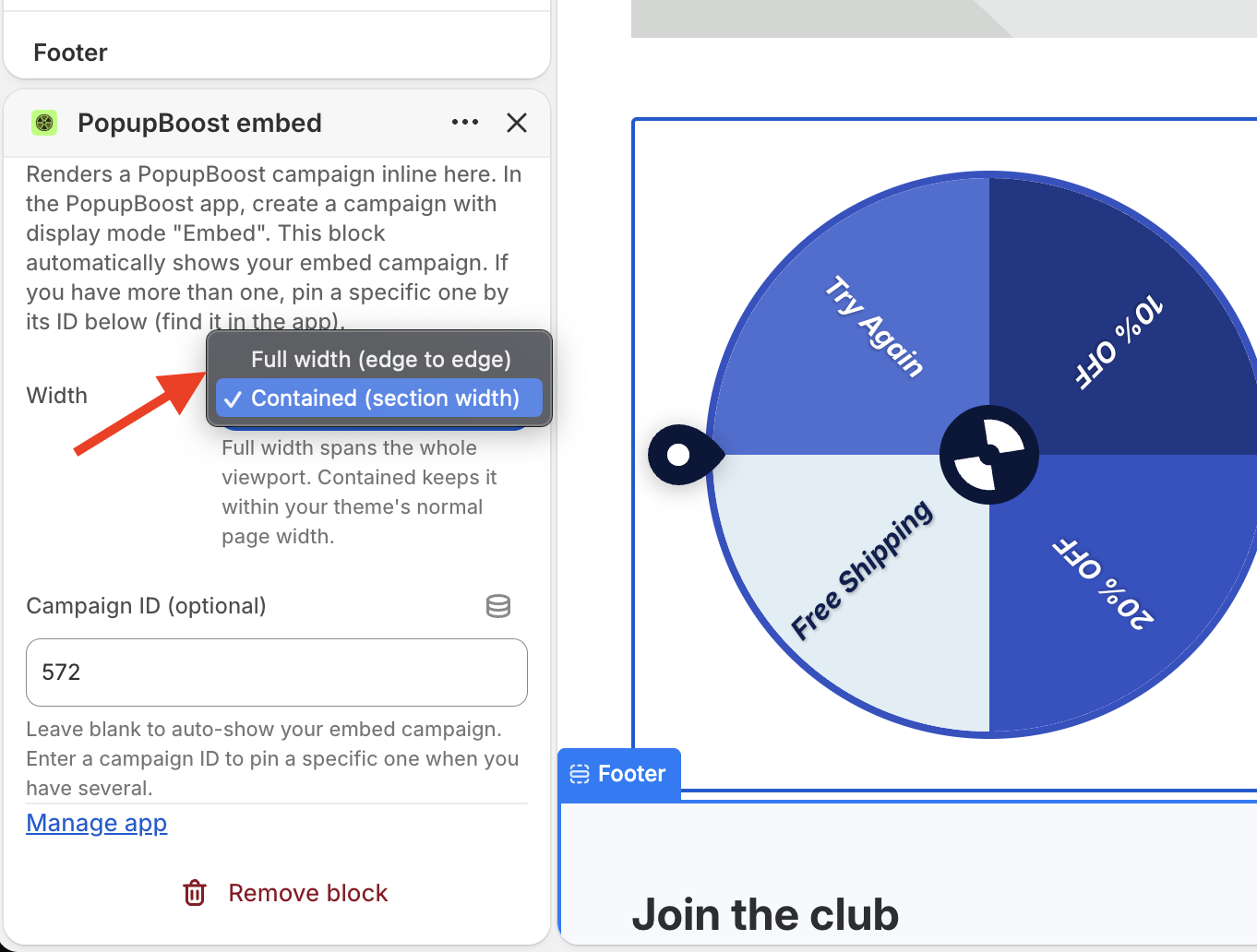
In the same block, use the width dropdown to set the popup as Full Width or Contained within the section. Select contained for wider width.
Open the section settings and set the alignment to Left, Center, or Right.
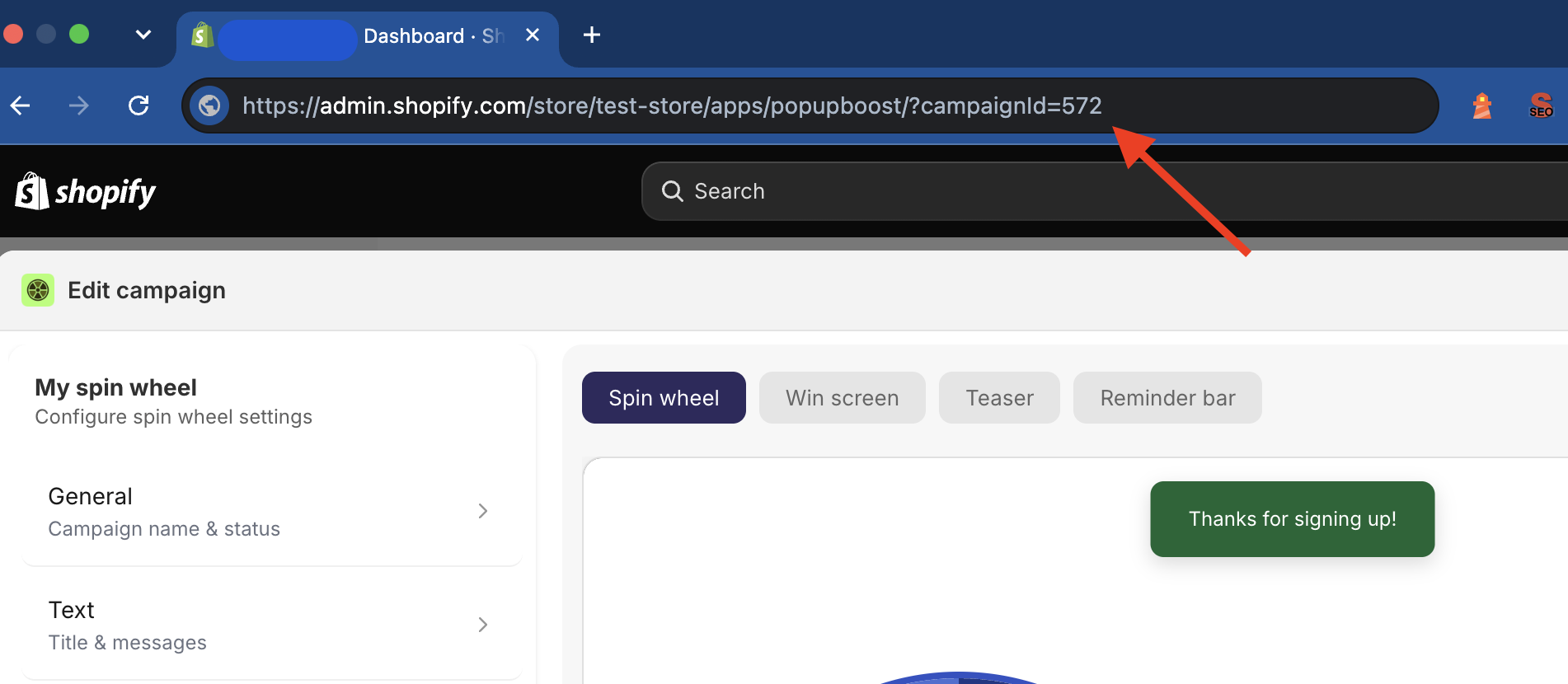
How to find campaign ID
Click to the campaign you want to embed
at the end of the URL, you'll the campaign ID (
https://admin.shopify.com/store/test-store/apps/popupboost/?campaignId=572)