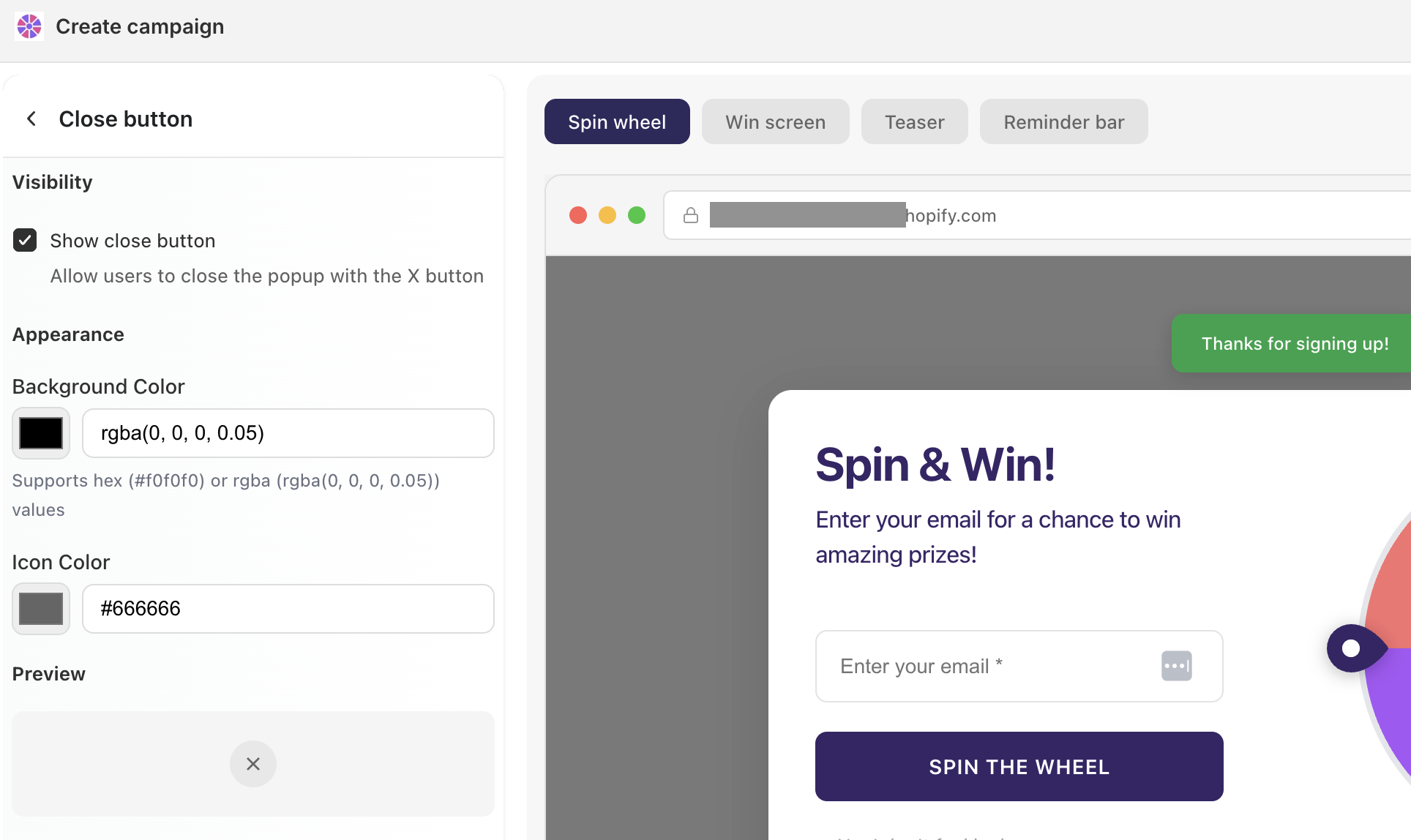
Every spin wheel campaign is fully customizable — from the background image down to the color of each individual slice. You can start from a ready-made template and tweak it to match your brand, or build your own look from scratch.
The quickest way to edit anything: click directly on the element you want to change in the campaign preview. This takes you straight to that setting without hunting through menus.
Templates
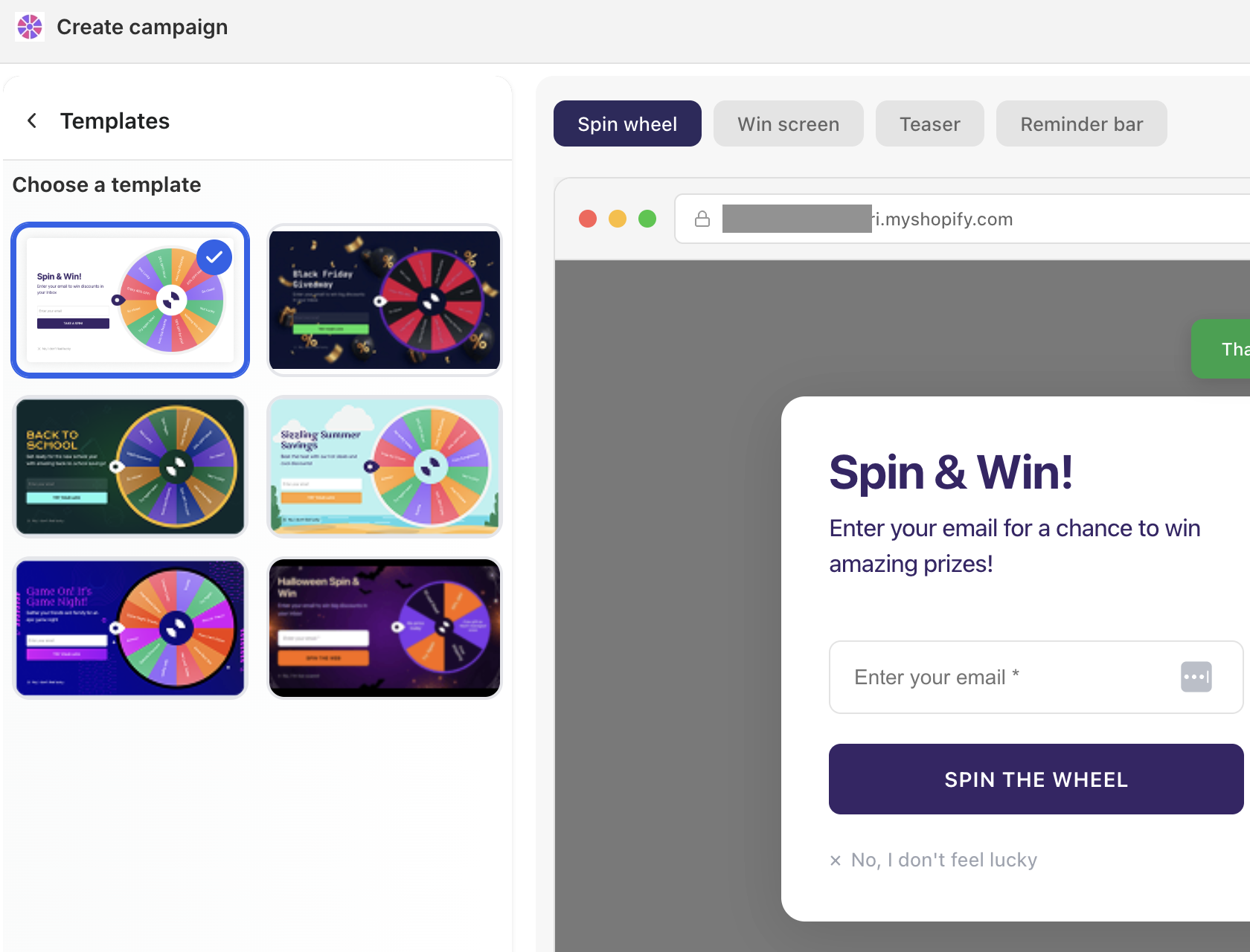
Templates give you a pre-built starting point with colors, copy, and a visual style already in place. All elements remain fully editable after you pick one.
To pick a template, navigate to a campaign → Templates
Customization options
Once you've picked a template (or started from scratch), here's everything you can customize:
Background image
Layout
Background color
Overlay color
Button color
Slice colors
Close button
Overall, you can change any color and texts in the popup from the "Appearance" and "Texts" sections.
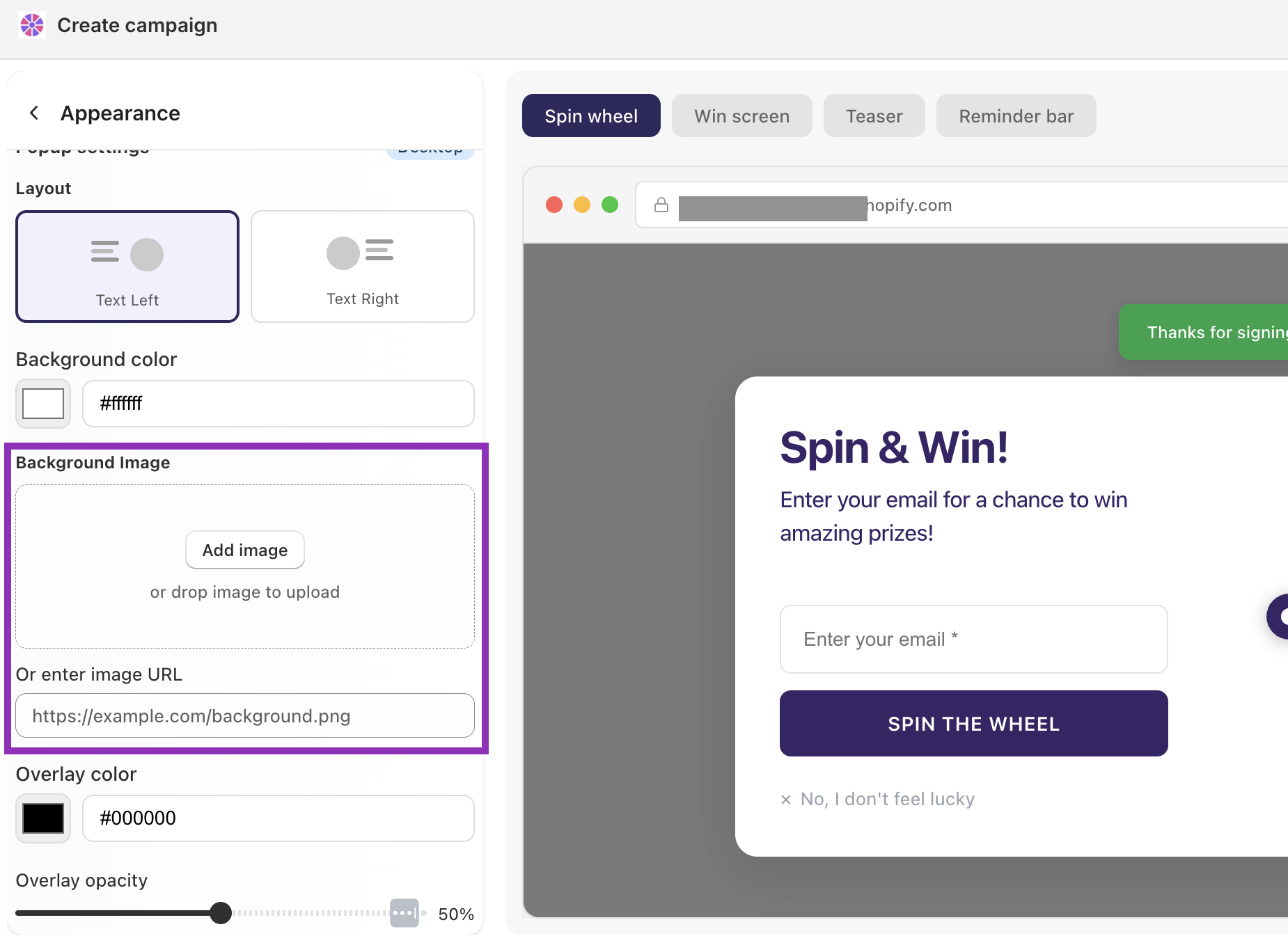
Background image
Go to Appearance → Background image
Upload your own image as the campaign background or enter image URL.
Layout
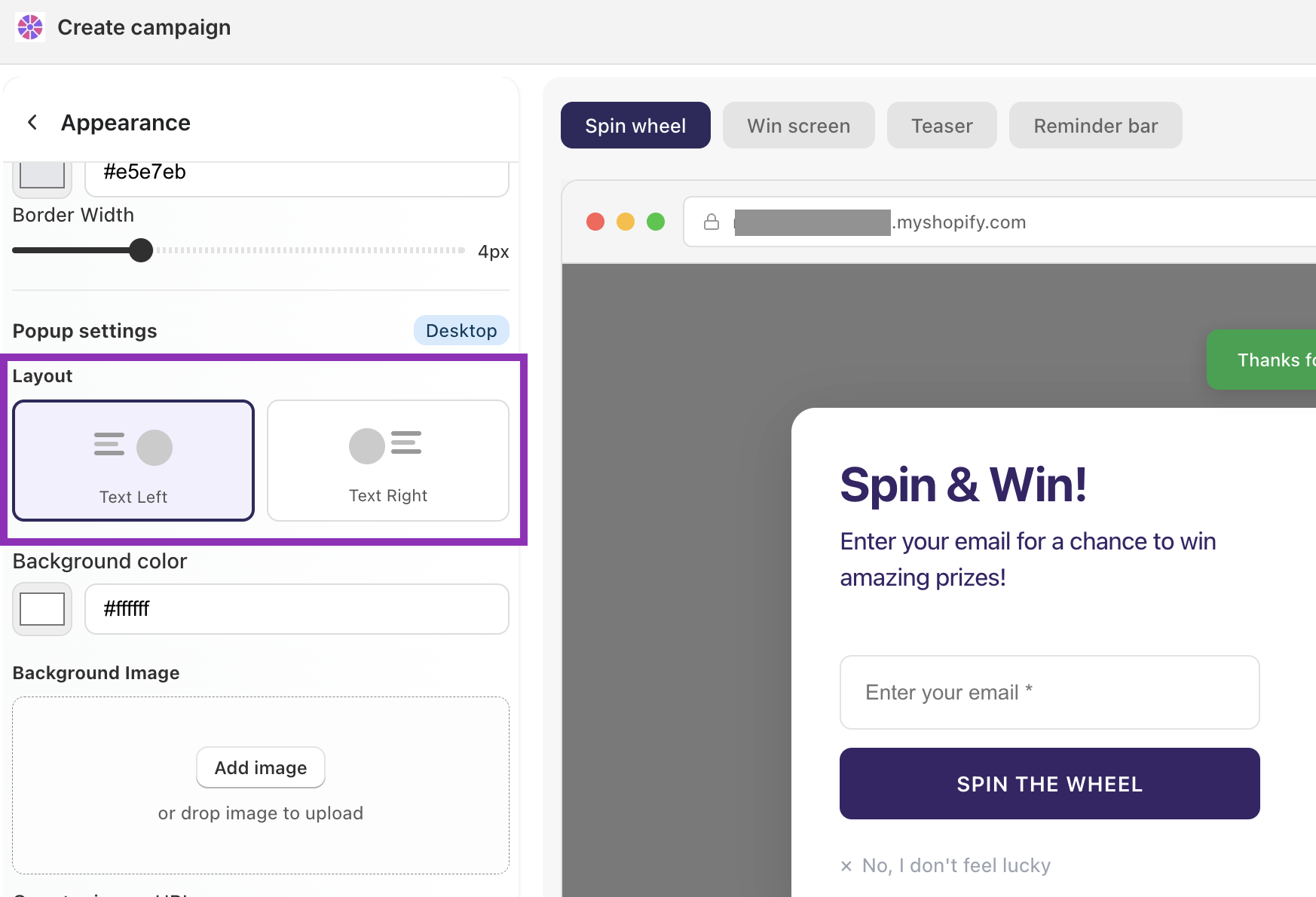
Go to Appearance → Layout
Choose whether the text and form sit on the left or right side of the wheel. Pick whichever side feels more balanced with your background image.
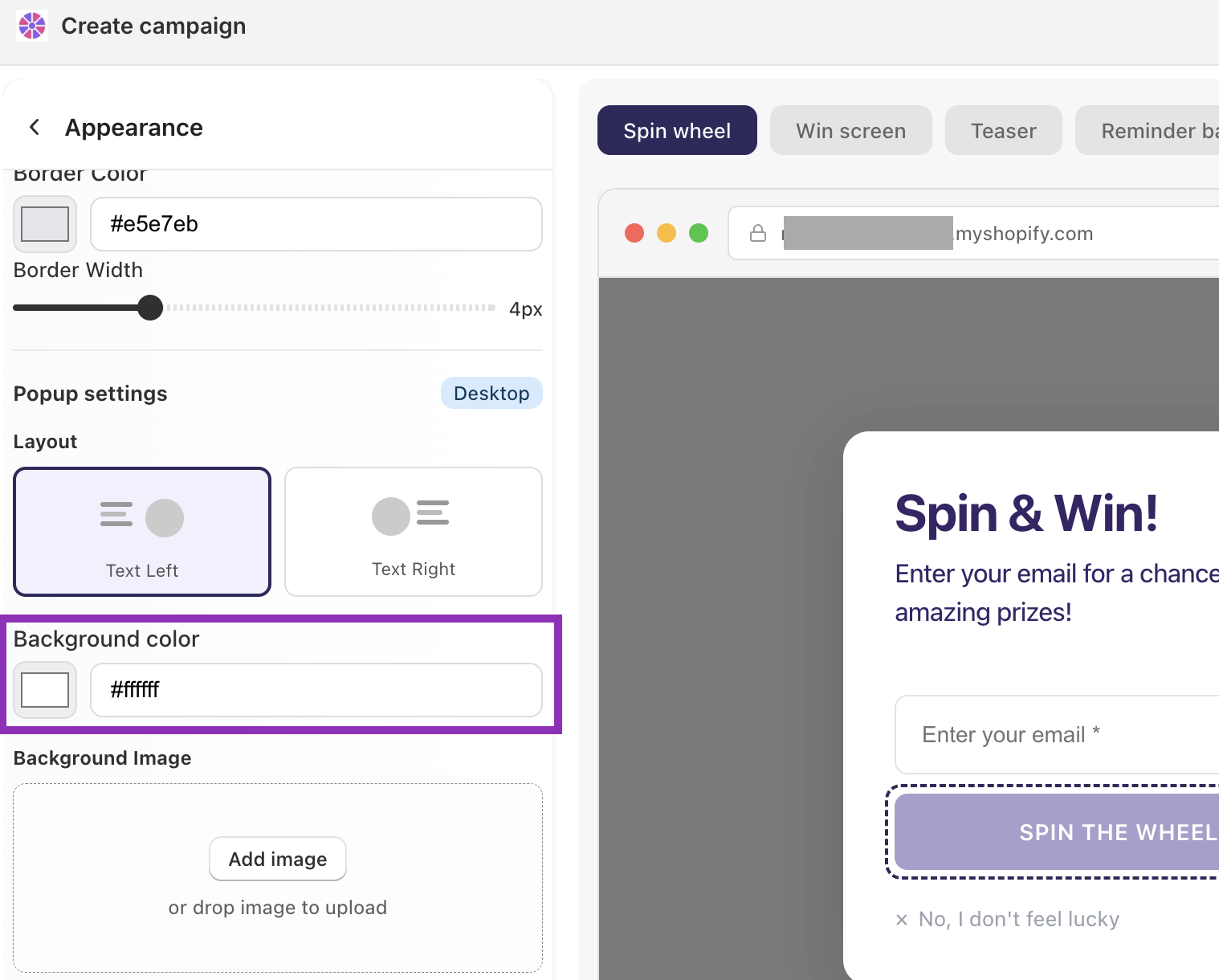
Background color
Go to Appearance → Background color
Set the base color behind the campaign. If you're not using a background image, this is the main visual surface visitors see.
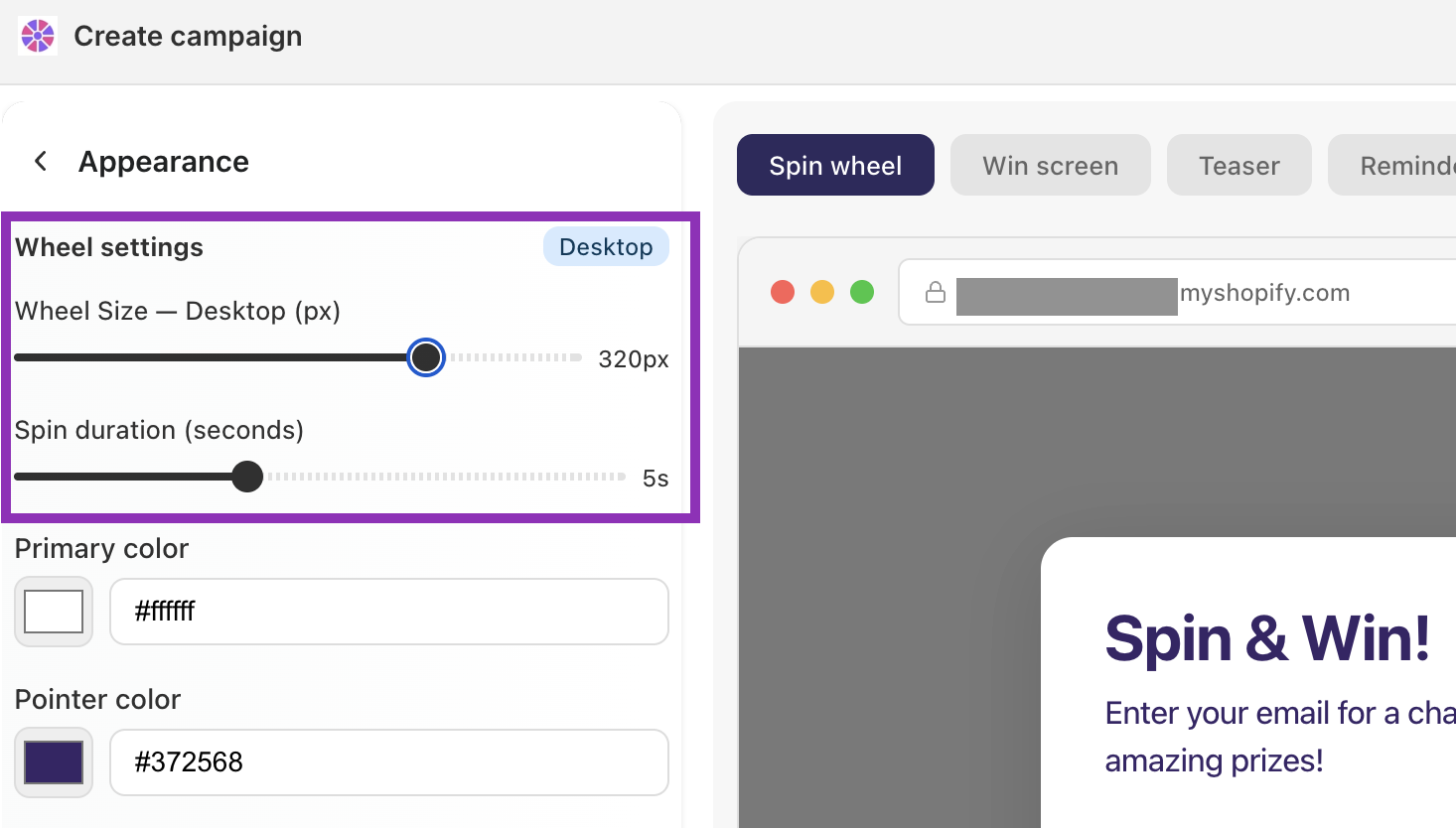
Spinning duration & Wheel Size
Go to Appearance → Wheel settings
Here, you can change the wheel size and decide low long the wheel should spin:
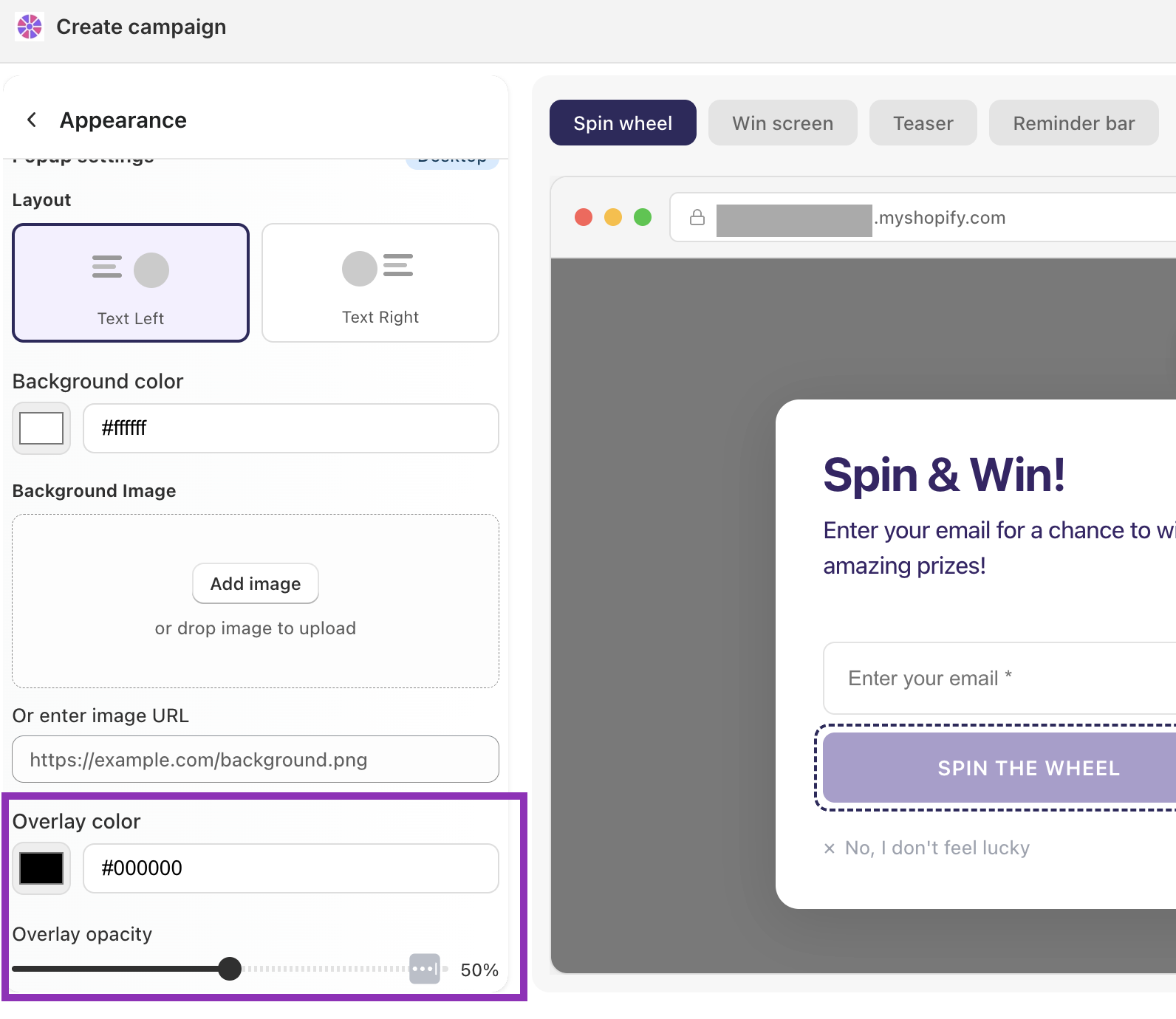
Overlay color and opacity
Go to Appearance → Overlay color
A semi-transparent layer that sits between the background image and the foreground content. Useful for making text more readable without fully hiding your background image — darken it if your image is bright, lighten it if it's dark.
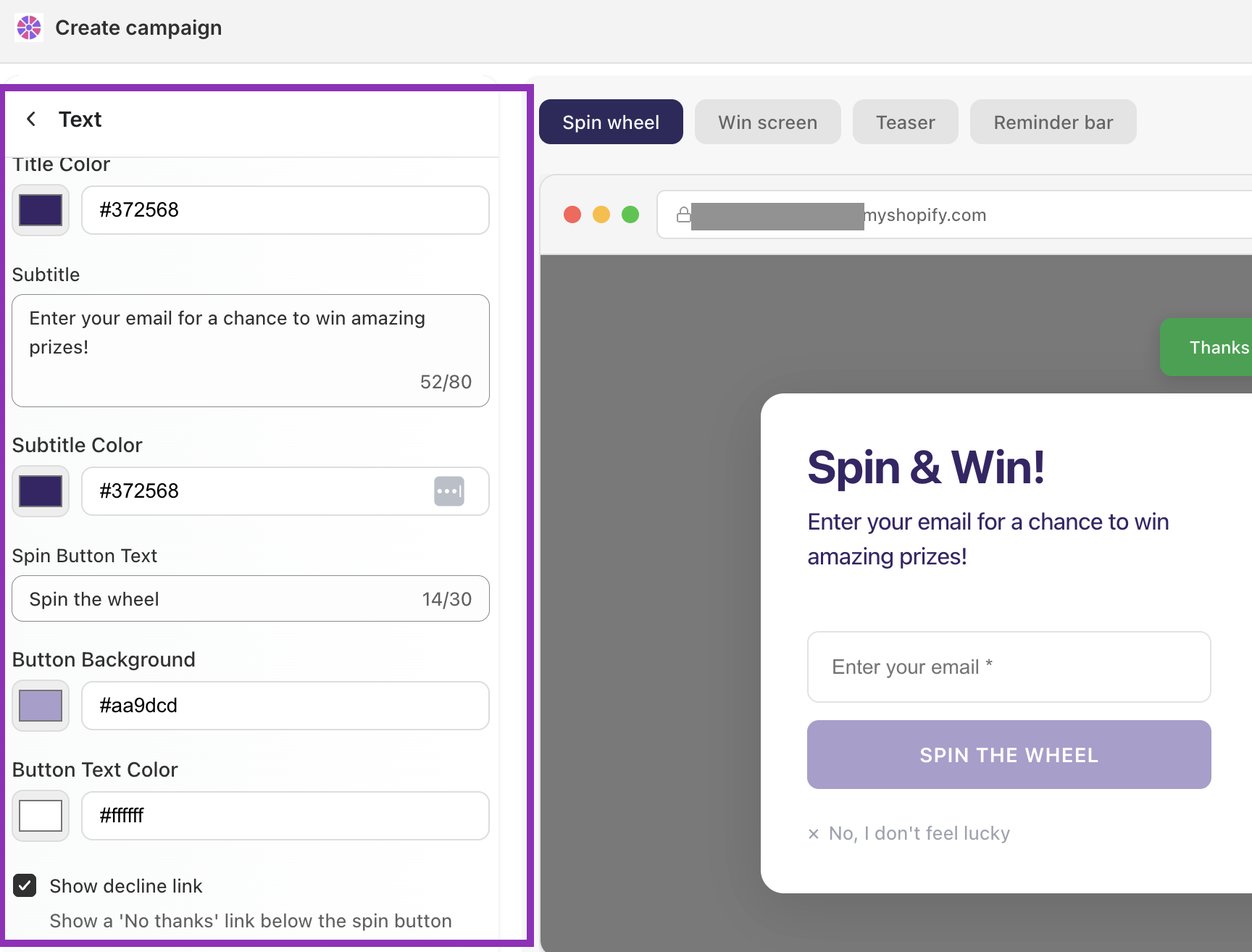
Button color and texts
Go to Text from the left menu or click on the button from the preview window.
Here, you can change the texts, add subtitle, set colors to button and texts.
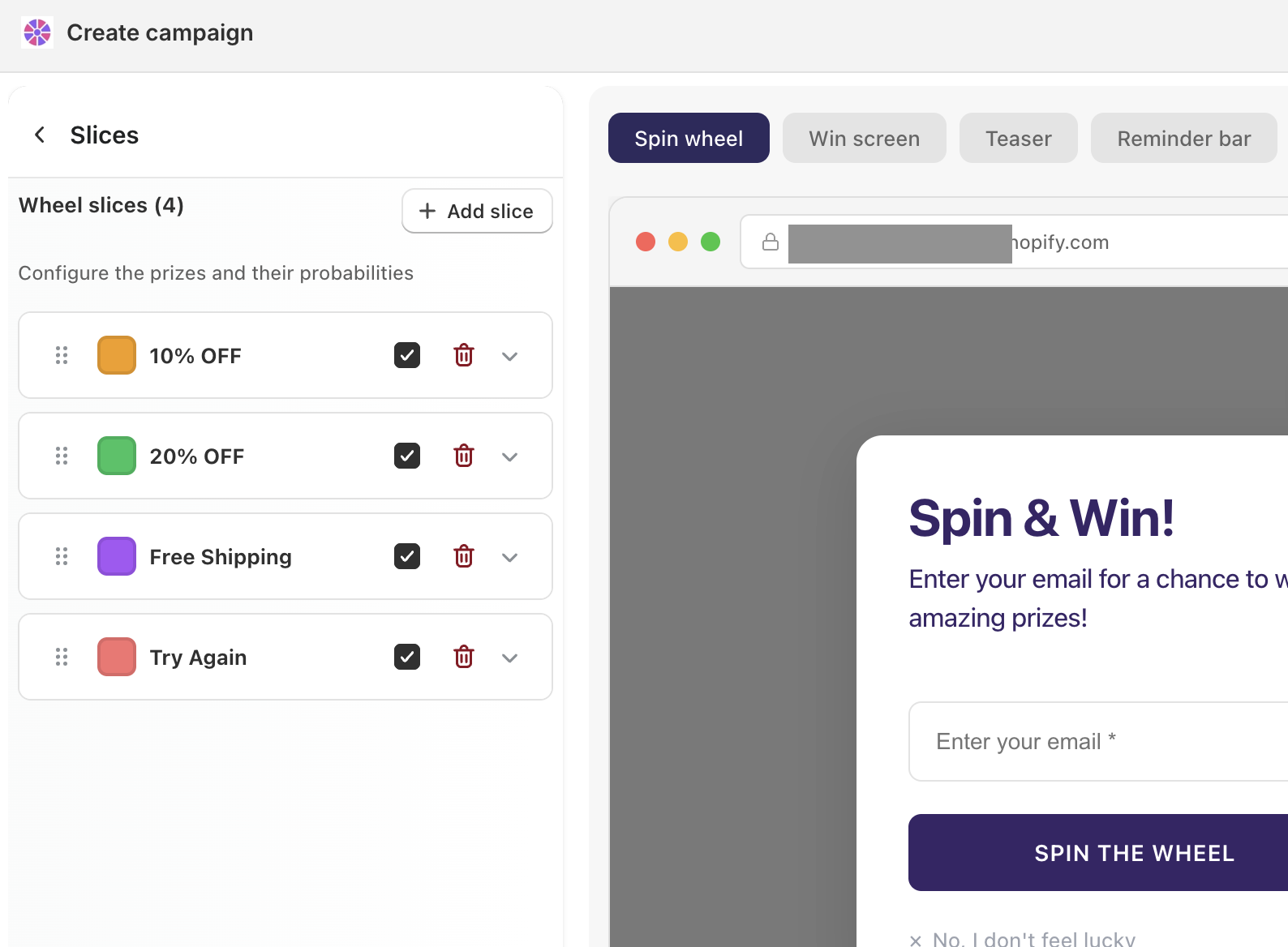
Slice colors
Go to Slices from the left menu.
Each slice can have its own color. Go to Slices, select a slice, and set its color individually. Using alternating brand colors across slices keeps the wheel visually clean while staying on-brand.
Close button
Go to Close button from the left menu.
Control whether the close (X) button is visible, and customize its color. Go to Close button in the left panel, or click the X in the preview.