
Normally, PopupBoost opens your spin wheel automatically based on its display settings (time delay, scroll, exit-intent). With a custom click trigger, you decide exactly where it opens: the spin wheel appears only when a customer clicks a specific button, image, or section on your store.
This guide walks you through the setup in five short steps. It takes about 10 minutes.
What you'll do
Set the spin wheel's trigger to Manual in PopupBoost
Add a Custom ID setting to the section in your theme code
Enter the Custom ID for your section in the theme editor
Add the trigger script to
theme.liquidTest it
Before you start
These steps edit your theme's code. We recommend duplicating your theme first (Online Store → Themes → ⋯ → Duplicate) so you can roll back if anything goes wrong.
The code and screenshots below use Shopify's Horizon theme. Other themes use the same approach (wrap the section's content in a
<div>with the Custom ID), but the section file you edit in Step 2 will look different.The trigger applies to the whole section you choose. Any click inside that section opens the spin wheel.
Step 1 — Set the trigger to Manual in PopupBoost
In PopupBoost, open the spin wheel you want to use (or create a new one).
Go to Display settings.
Under Trigger, select Manual.
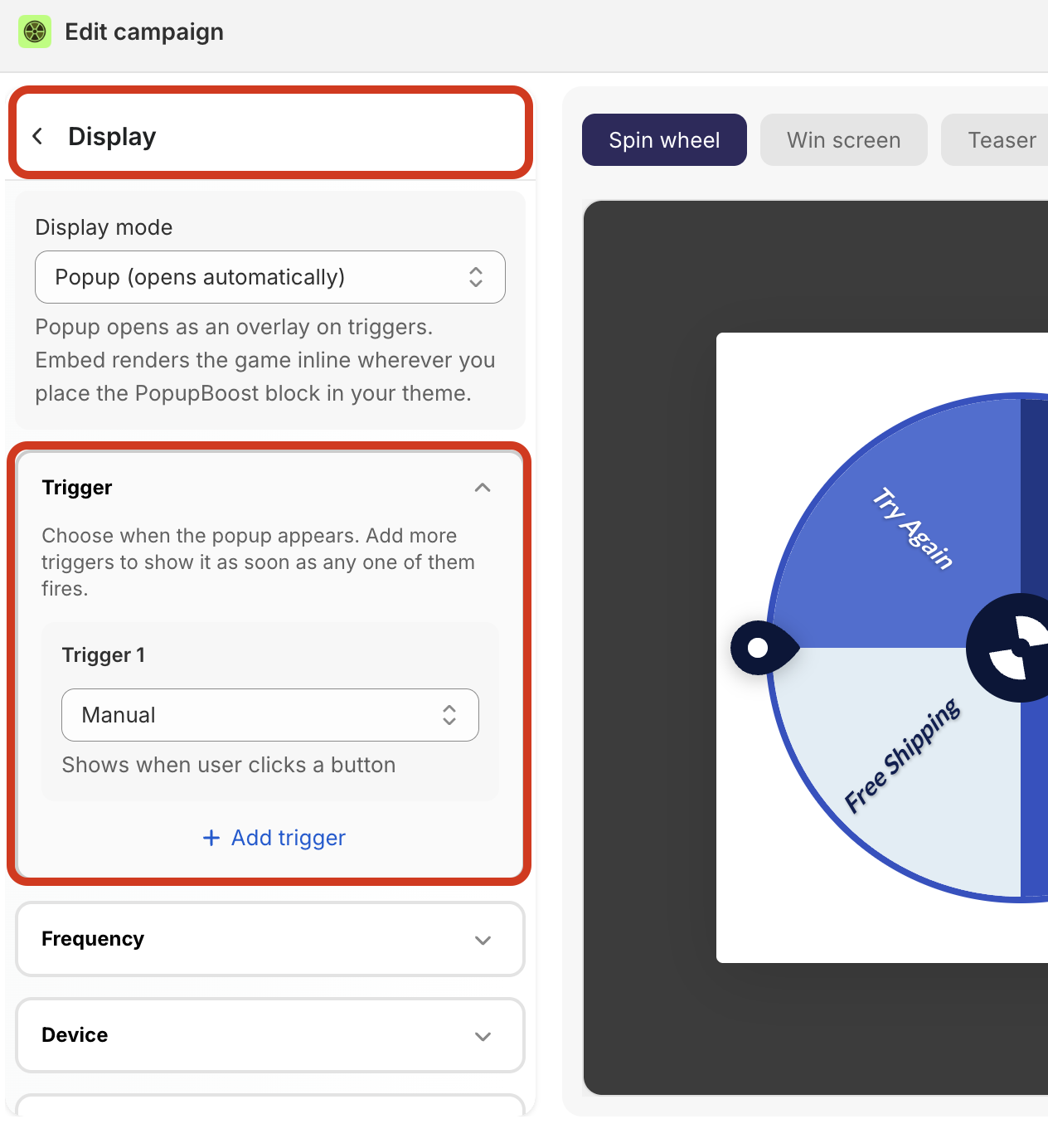
Save the spin wheel.
With the trigger set to Manual, the spin wheel no longer opens on its own. It waits for the click trigger you'll add in Step 4.
Step 2 — Add a Custom ID setting to the section code
In your Shopify admin, go to Online Store → Themes and click Customize on your live theme to open the theme editor.
In the left sidebar, click the section that contains the button or image you want customers to click (for example, Image with text).
Click the ⋯ menu next to the section name and select Edit code. The code editor opens with the section's file (in Horizon, this is
sections/section.liquid).
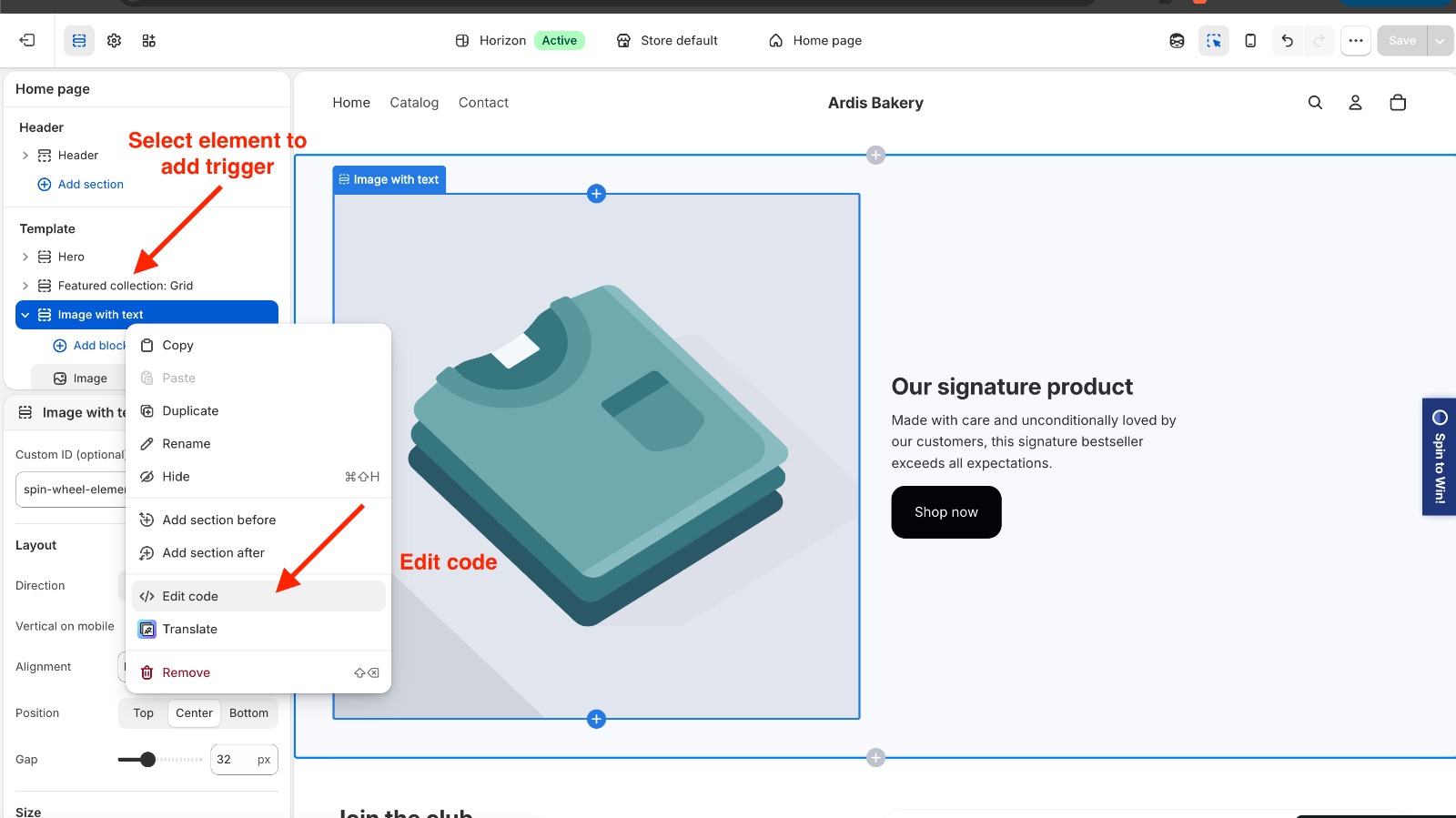
Find this line:
{% render 'section', section: section, children: children %}Replace it with:
{% if section.settings.custom_id != blank %}
<div id="{{ section.settings.custom_id }}">{% render 'section', section: section, children: children %}</div>
{% else %}
{% render 'section', section: section, children: children %}
{% endif %}
Scroll down to the {% schema %} block, find "settings": [, and add this as the first item in the array. Keep the trailing comma, since other settings follow it:
{
"type": "text",
"id": "custom_id",
"label": "Custom ID (optional)"
},
Click Save.
Step 3 — Enter the Custom ID in the theme editor
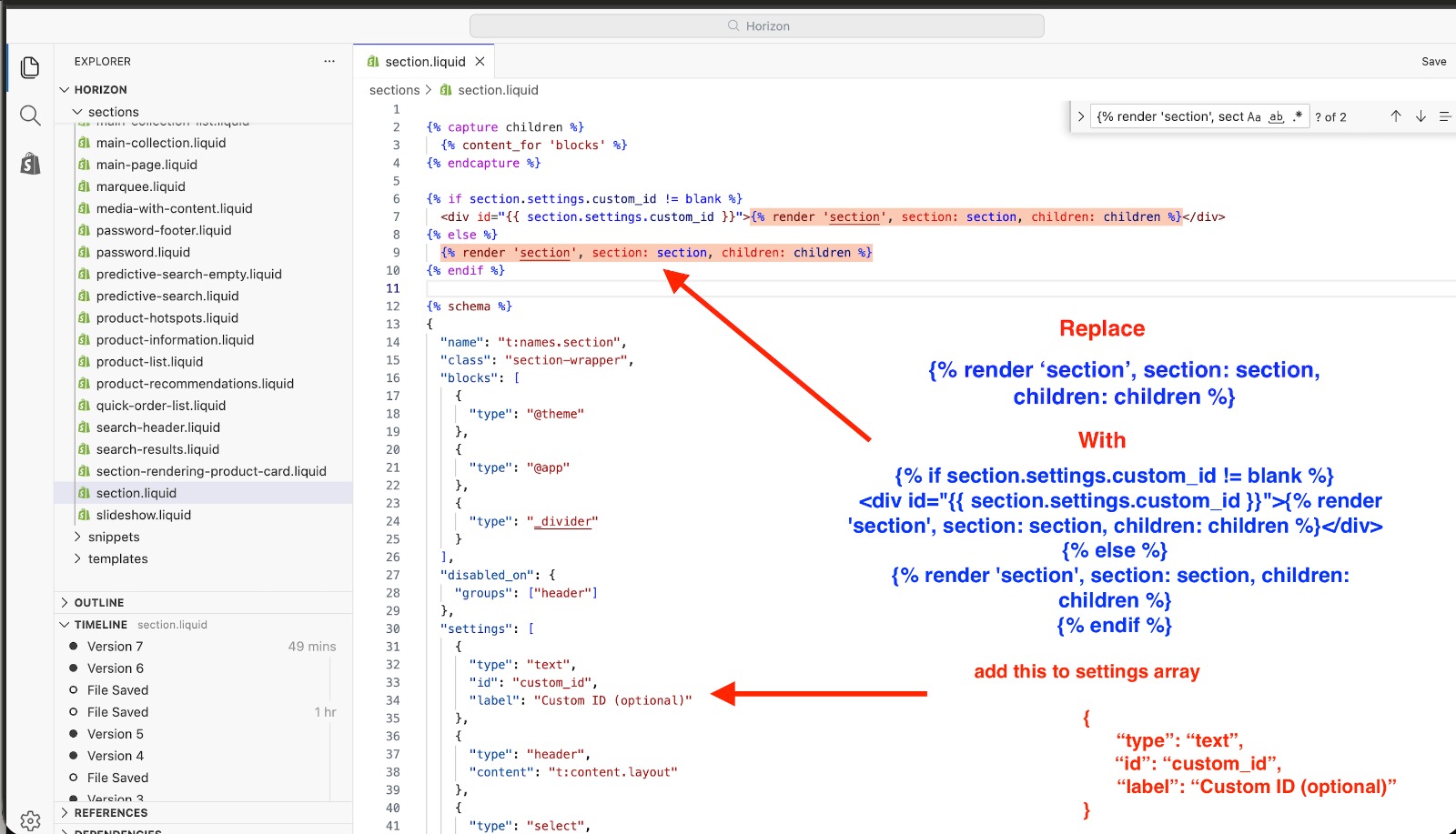
Go back to the theme editor and click the same section again.
A new Custom ID (optional) field now appears at the top of the section settings.
Enter an ID for this section, for example:
spin-wheel-elementUse only letters, numbers, and hyphens. No spaces.
Use each ID on only one section per page.
Click Save.
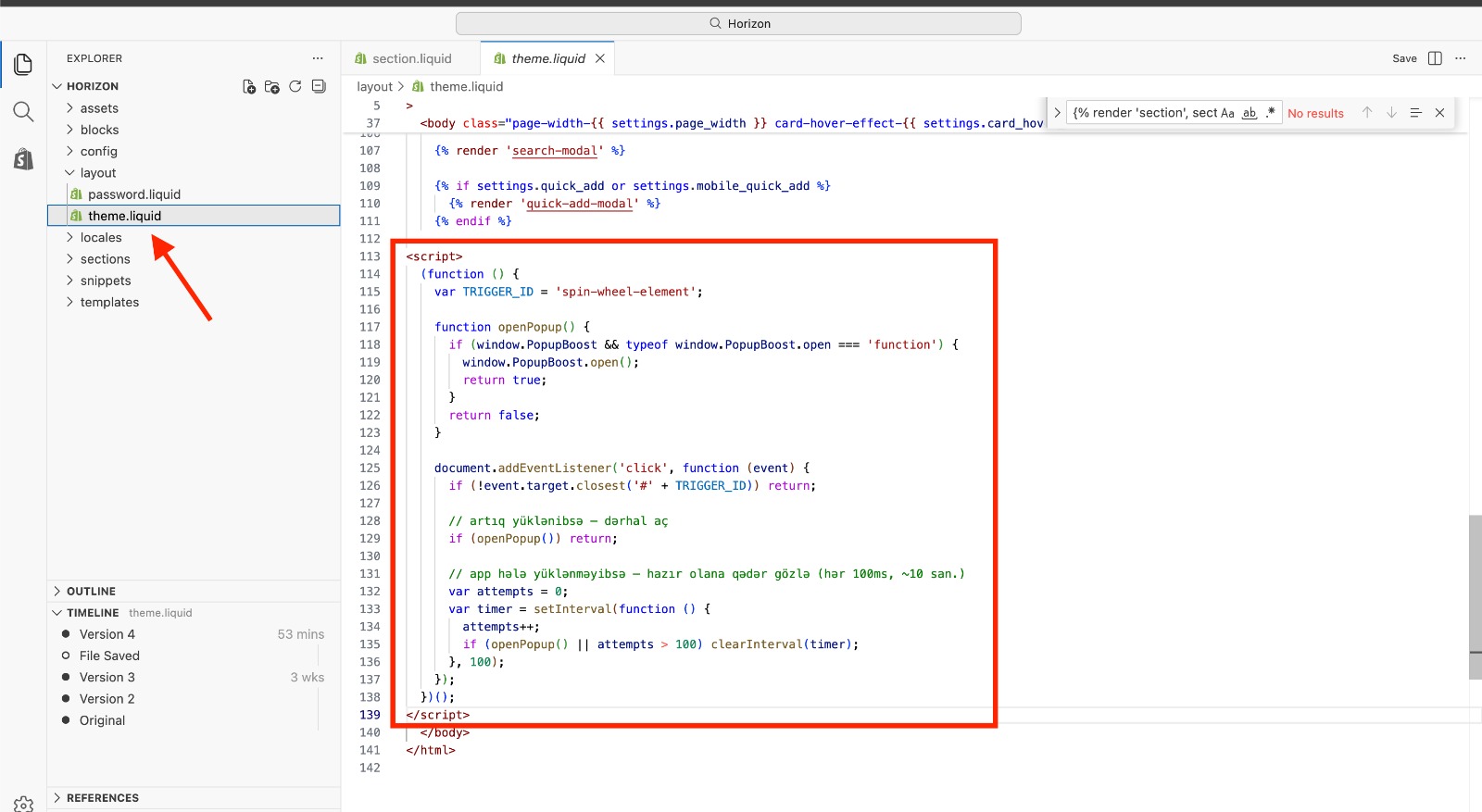
Step 4 — Add the trigger script to theme.liquid
Open the code editor and go to layout → theme.liquid.
Scroll to the bottom and paste the script below just above the closing
</body>tag:
<script>
(function () {
var TRIGGER_ID = 'spin-wheel-element';
function openPopup() {
if (window.PopupBoost && typeof window.PopupBoost.open === 'function') {
window.PopupBoost.open();
return true;
}
return false;
}
document.addEventListener('click', function (event) {
if (!event.target.closest('#' + TRIGGER_ID)) return;
// If PopupBoost is already loaded, open the spin wheel right away
if (openPopup()) return;
// If PopupBoost hasn't loaded yet, keep checking every 100 ms (for up to ~10 seconds)
var attempts = 0;
var timer = setInterval(function () {
attempts++;
if (openPopup() || attempts > 100) clearInterval(timer);
}, 100);
});
})();
</script>
If you entered a different Custom ID in Step 3, update this line so it matches exactly:
var TRIGGER_ID = 'spin-wheel-element';Click Save.
Step 5 — Test it
Open your store in a new browser tab (not the theme editor preview) and click the section you set up. The spin wheel should open right away.
Troubleshooting
The spin wheel doesn't open when I click the section
Make sure the Custom ID (Step 3) and
TRIGGER_IDin the script (Step 4) match exactly. IDs are case-sensitive.Check that the spin wheel's trigger is set to Manual and the spin wheel is turned on.
Confirm you saved both
section.liquidandtheme.liquid.
The Custom ID field doesn't show up in the theme editor
Check that the setting from Step 2 is inside the
"settings": [array and that the file saved without errors, then refresh the theme editor.
The spin wheel also opens on its own
The trigger isn't set to Manual. Go back to Step 1.