
Display settings control when, where, and to whom your popup appears — from the moment it triggers to which devices and visitors can see it.
To access, open your campaign and click Display in the left panel.
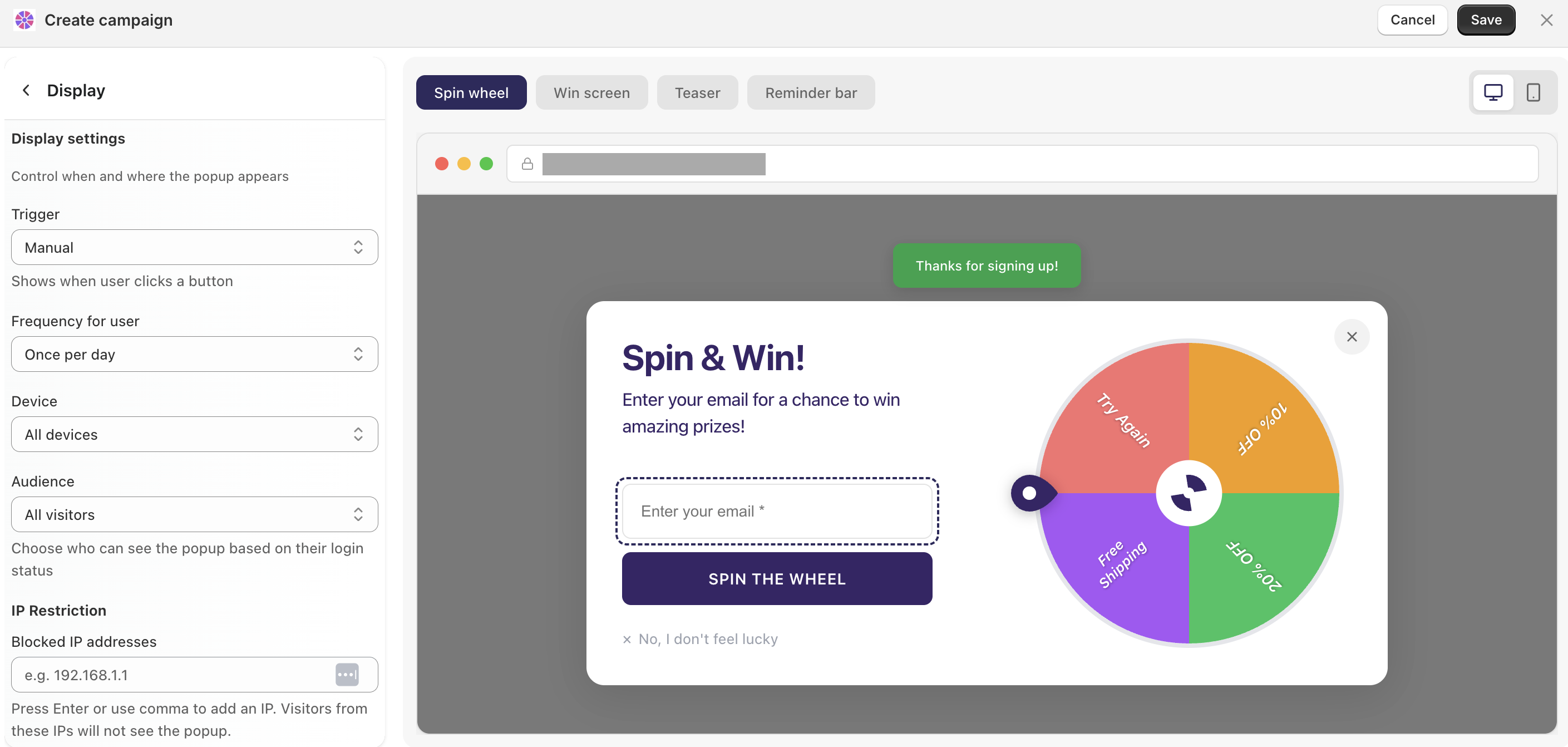
Trigger
Choose what causes the popup to appear:
Exit intent — fires when a visitor moves their cursor toward the browser bar, about to leave the page
Time delay — appears after a set number of seconds. You can configure the exact delay in the field below
Scroll percentage — triggers once the visitor has scrolled a certain depth down the page
Manual — shows only when a visitor clicks a button (e.g. a "Spin to win" teaser button). No automatic triggering
Frequency
Control how often the same visitor sees the popup:
Once — shown once, never again
Once per day — resets every 24 hours
Specific day/hour later — reappears after a custom time interval you define
Device
All devices — shown on both desktop and mobile
Desktop only or Mobile only — useful if you have separate campaigns optimized per device
Audience
All visitors — everyone sees it
Visitors only — only guests who are not logged in. Best for new subscriber or first-purchase offers
Customers only — only logged-in customers. Great for loyalty or returning-customer rewards
IP restriction
Enter any IP addresses that should never see the popup — press Enter or use a comma to add multiple. Commonly used to hide the campaign from your own team while testing.